

Jobs
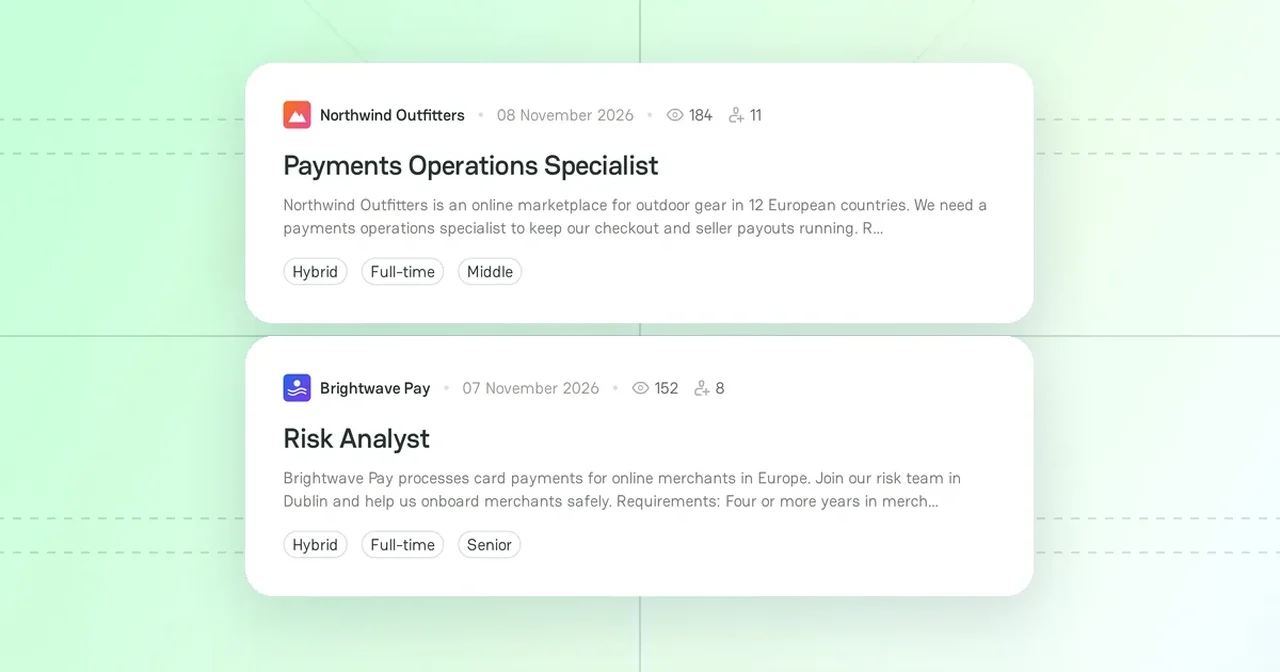
Jobs collects the vacancies of the companies on PayAtlas. Candidates find roles in payments and fintech, and companies reach people who already work in the industry.
Find a job
Open Jobs from the Community menu in the header, or go to /jobs. You do not need an account to search and apply.
- Search by the job title or the company name.
- Filter by Category, Workplace, Employment type, Experience level, Location, Company, and Skills.
- Sort by Popular first or Newest first.
- See the most viewed vacancies in Hot jobs and the companies with the most vacancies in Top employers.
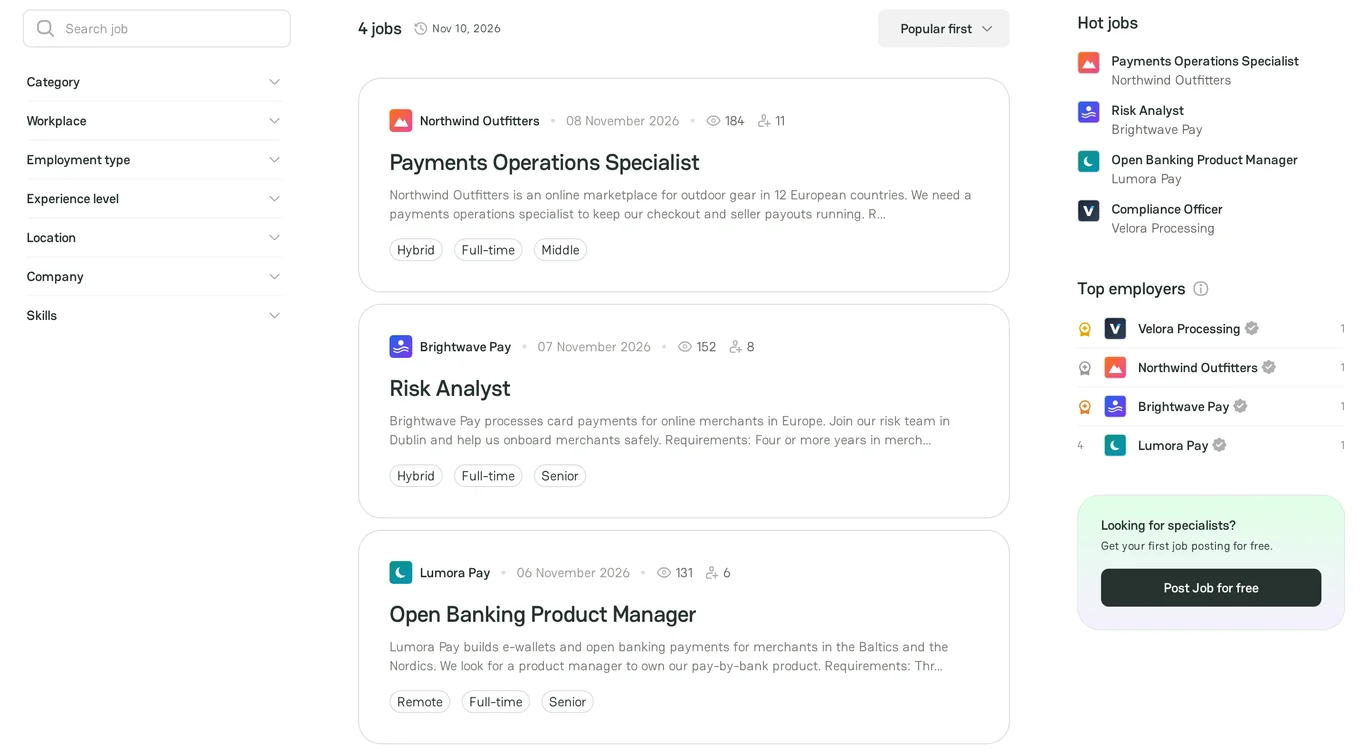
Open a job to see the description, the salary, the requirements, the key skills, and the company. Click Apply to go to the application page of the company.
Post a job
Make sure that you are an active member of a merchant or provider company on PayAtlas. Any member role can post jobs. To add a company, see Add Company.
- On the Jobs page, click Post a Job.
- In Publish to, select the company. If you belong to one company, PayAtlas selects it.
- Fill in the form and click Save and Preview Draft.
| Field | Required | Rule |
|---|---|---|
| Job title | Yes | Up to 100 characters |
| Category | Yes | One category |
| Job description | Yes | Use the requirements, the responsibilities, and the work conditions |
| Employment type | Yes | Full-time, Part-time, or Freelance |
| Workplace | Yes | One or more of Onsite, Hybrid, and Remote |
| Location | No | One country |
| Key skills | No | One or more skills |
| Level of experience | No | Junior, Middle, Senior, or Lead |
| Salary | No | Undisclosed, Range, or Fixed, in US dollars, Annually or Monthly |
| Application link | Yes | The page where candidates apply, up to 250 characters |
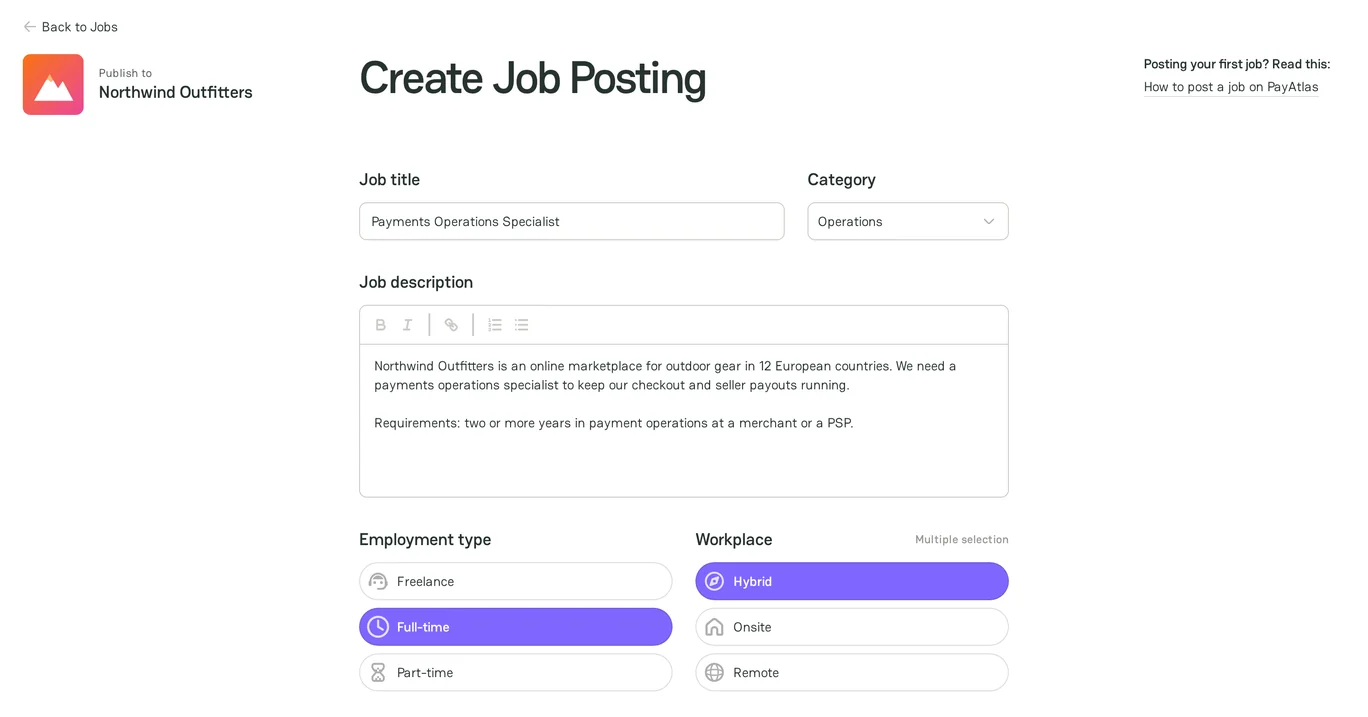
PayAtlas saves the draft and opens its preview. Check the job and click Publish.
Moderation
If your account uses a free email service, such as Gmail, the PayAtlas team checks the job before it goes live. If your account uses a company email, the job goes live at once.
When the team approves or declines your job, you get a notification in the Inbox. A declined job shows the reason in the notification.
Manage jobs
Open My Dashboard and click Jobs. The My Jobs page lists the jobs of all your companies, also the jobs that your teammates posted.
| Status | What it means |
|---|---|
| Draft | The job is not public yet. |
| On moderation | The PayAtlas team checks the job. |
| Declined | The team did not approve the job. The notification gives the reason. |
| Archived | The job is hidden from the Jobs page. |
A live job shows its views and the number of people who clicked Apply. Open the menu of a job to manage it:
- Edit job: change the job. PayAtlas saves your changes as a draft, and the live job stays the same. Click Publish to show the changes. If your account uses a free email service, the job goes through moderation again and is hidden until the team approves it.
- Archive: hide a job that you filled. Jobs do not expire, so archive each job that you no longer need. Turn on Show archived to see your archived jobs.
- Restore to Drafts: return an archived job to the drafts.
- Delete permanently: remove an archived job. You cannot restore it.
Pay attention! If you archive or delete a company, PayAtlas also archives or deletes all its jobs.
Related articles
- To manage the members of your company, see Review Administration settings.



Comments