

Product Feedback
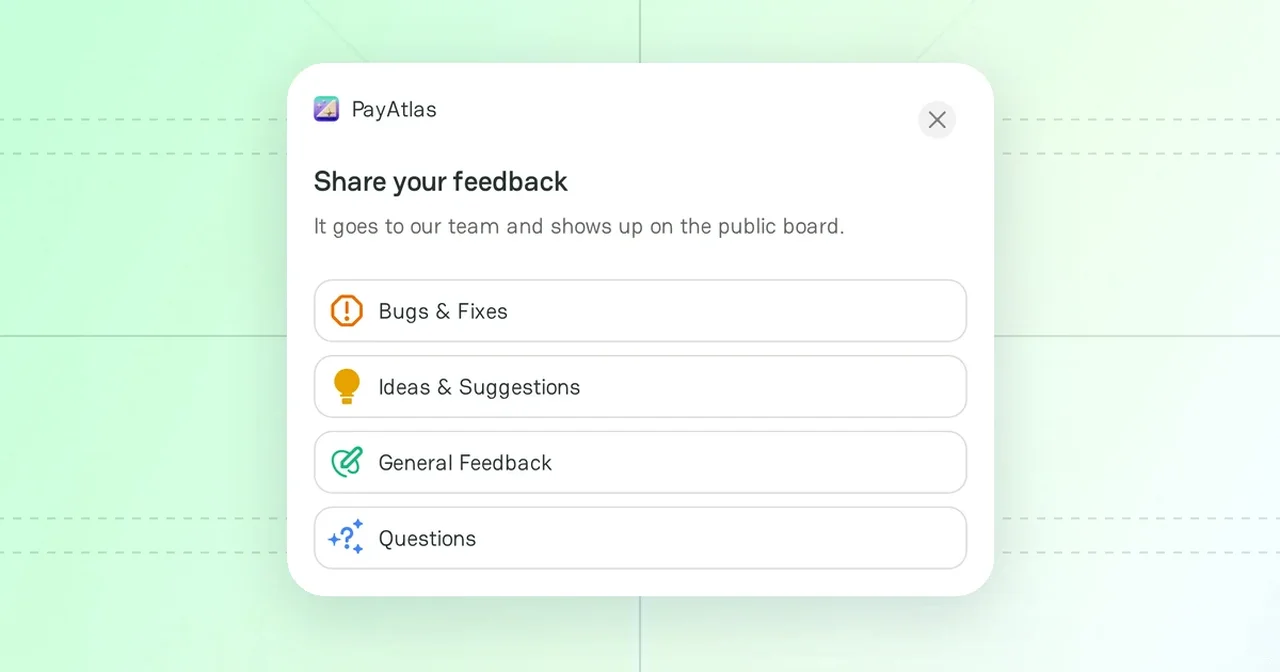
Product Feedback is how you tell the PayAtlas team what to fix, build, or explain. Each post goes to our team and to the public board, where other users can support it.
Leave feedback from any page
-
Click the Leave feedback button in the lower-right corner of any page. You can also click Create a post on the feedback board.
-
Select a category:
Category Use it to Bugs & Fixes Report something that does not work Ideas & Suggestions Suggest a feature or an improvement General Feedback Tell us what you like or what we can do better Questions Ask how something works -
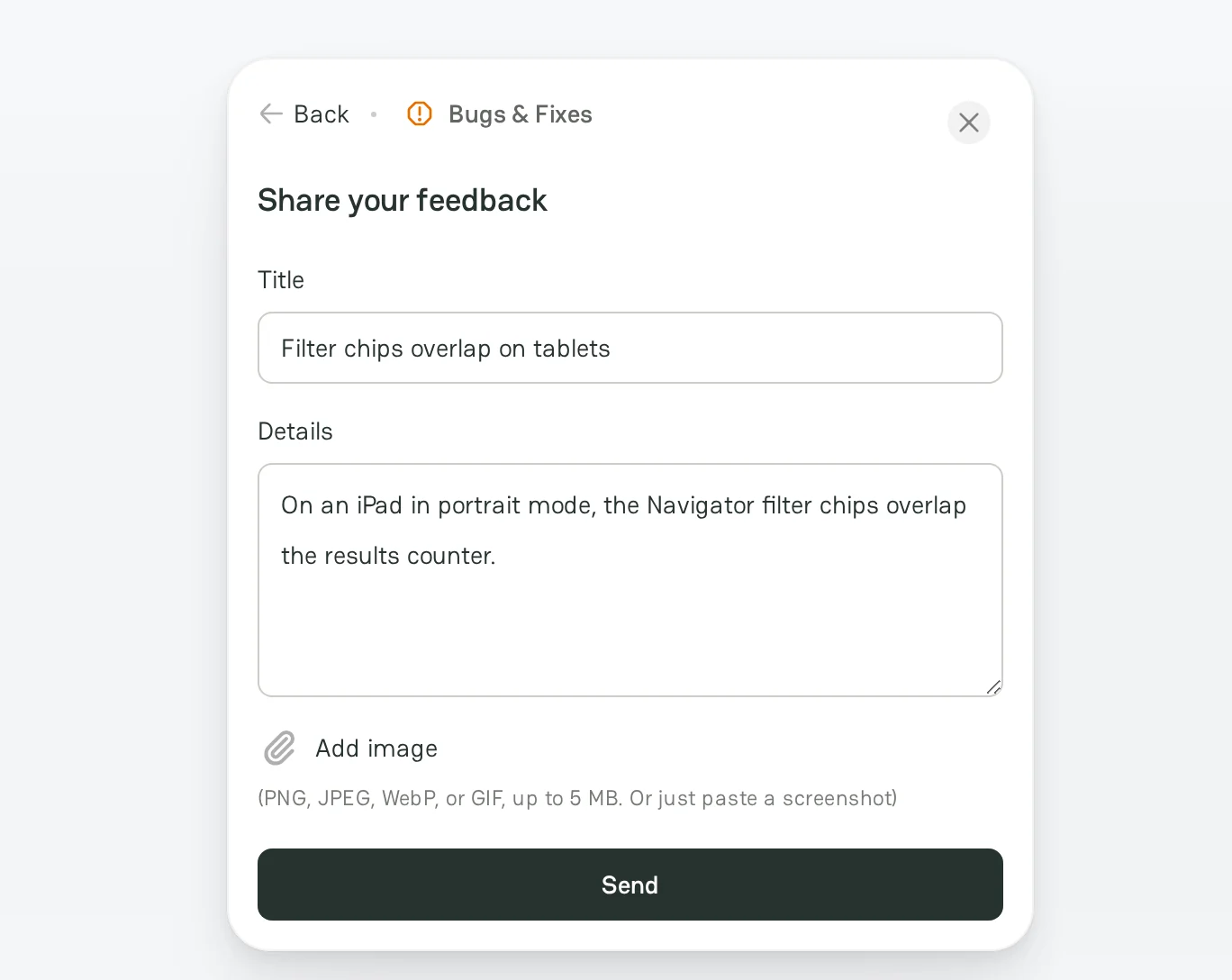
In Title, enter a short summary. The title can have up to 200 characters.
-
In Details, describe the problem or the idea. A link alone is not enough. The details can have up to 10,000 characters.
-
Optional: click Add image or paste a screenshot. Use a PNG, JPEG, WebP, or GIF image up to 5 MB.
-
If you are not signed in, enter Your name and Contact email. We use the email only to follow up.
-
Click Send.
PayAtlas also records the page where you opened the form, so the team sees the context.
Moderation
- If you are not signed in, or your account uses a free email service, such as Gmail, the PayAtlas team checks the post first.
- If your account uses a company email, the post goes live at once.
After you send the post, click View post. If you are signed in, your post opens. You see it on the board also while it waits for moderation, and other users see it after the approval. Without an account, View post opens the board.
Feedback board
Open Product Feedback from the Resources menu in the header, or go to /feedback.
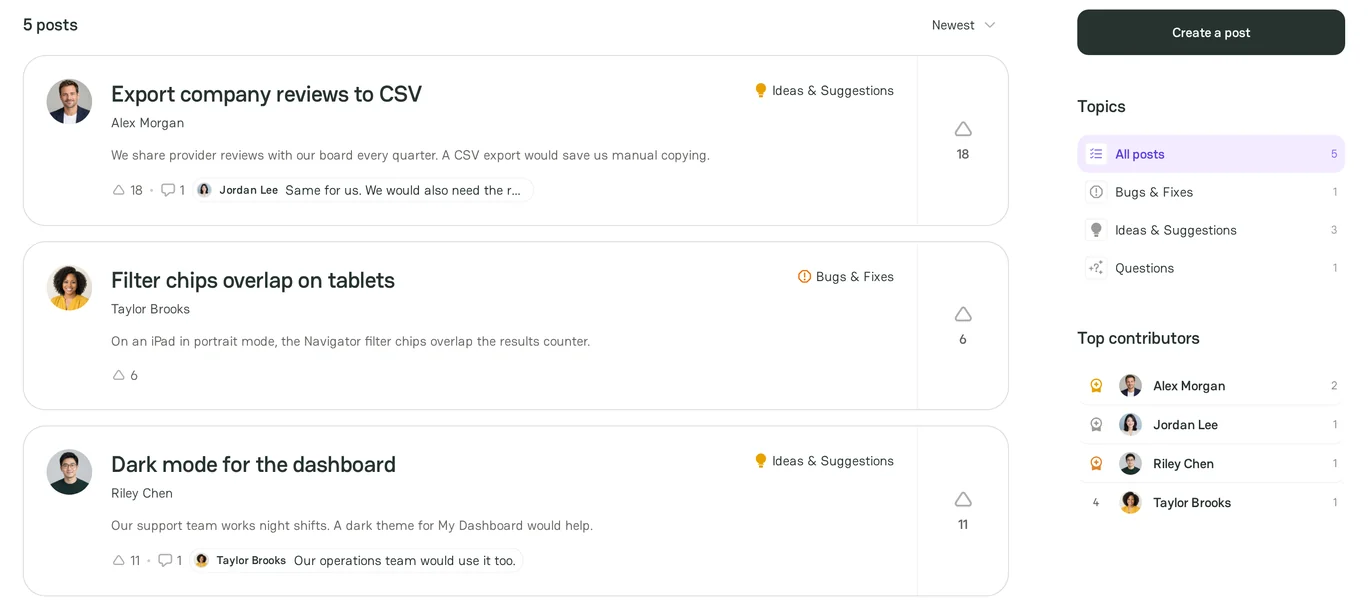
- Filter the posts by Topics.
- Sort the posts by Newest or Popular.
- Click Upvote to support a post, and comment on it to add details.
- See the most active users in Top contributors.
Answers from the team
The PayAtlas team answers in the comments under your post. A PayAtlas team badge marks these comments.
If you were signed in when you sent the post, PayAtlas sends you a notification to the Inbox:
- when someone, also the team, comments on your post;
- when the team approves or declines your post. A declined post shows the reason in the notification.
If you sent the post without an account, follow the post on the board. You cannot edit or delete a post after you send it. To change it, contact the PayAtlas support team.
Related articles
- To see what we plan and release, see Roadmap and Changelog.


Comments