

Manage Events
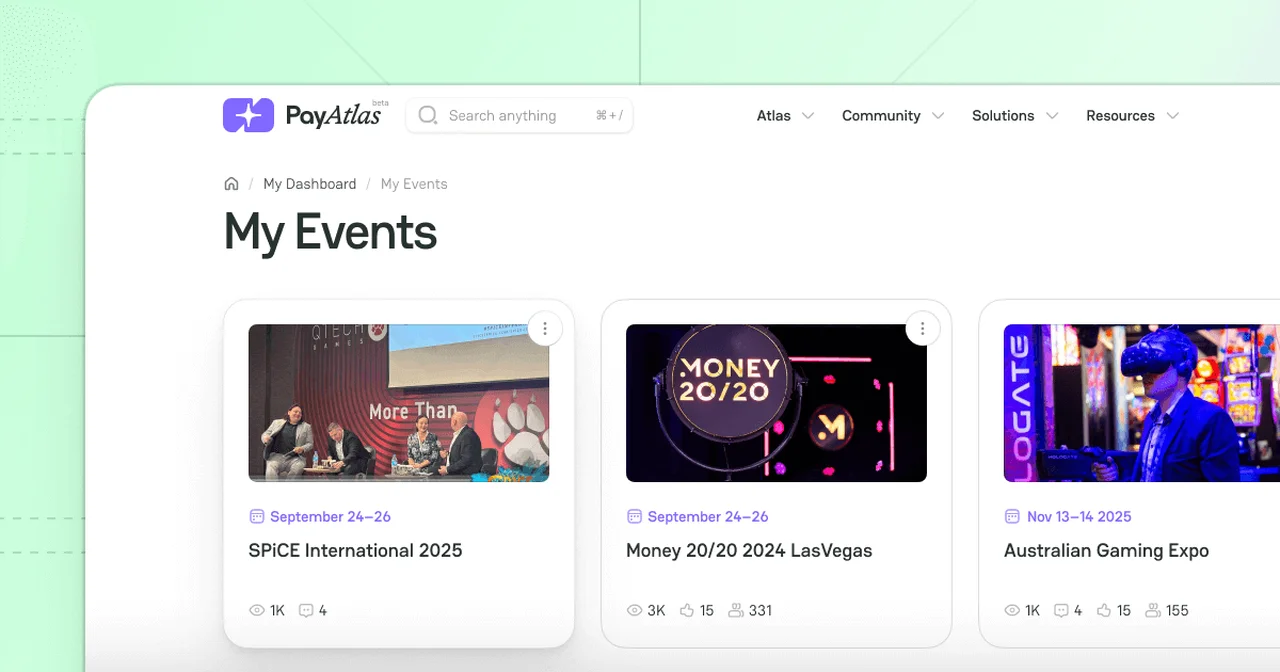
The Events management at PayAtlas gives you full control over the Events you organise or contribute to. This guide will walk you through the process of updating, archiving, or deleting your Events, ensuring they run smoothly and reach the intended audience.
Edit & Archive an Event
-
Place the cursor on the User icon in the top right corner of the main page.
-
Click My Dashboard. The system redirects you to the respective page.
-
Click the Events entity, and the system should redirect you to the My Events page.
-
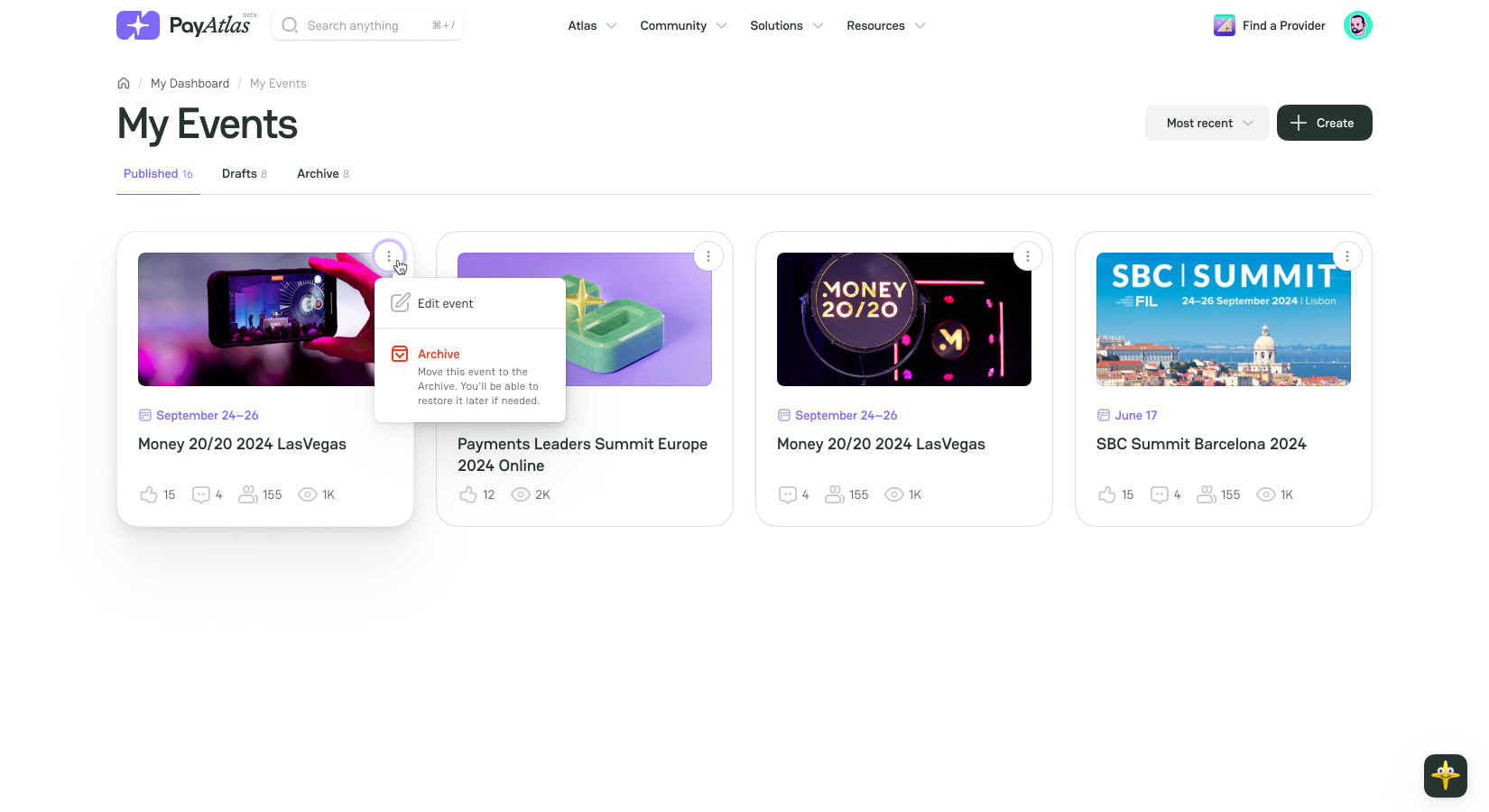
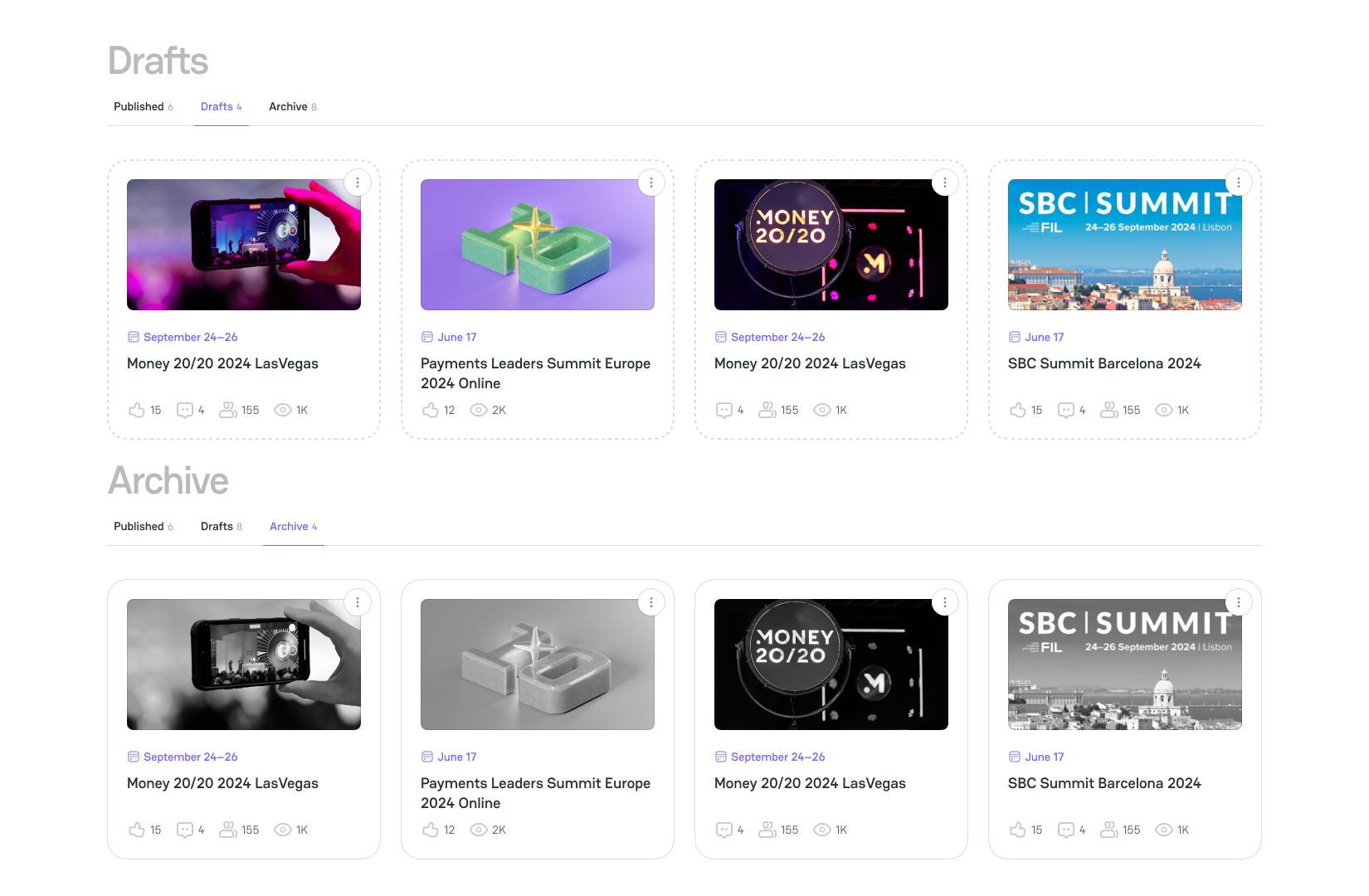
Navigate to the Published or Drafts tabs in the top bar menu based on your needs.
| Scenario | Functionality | Flow |
|---|---|---|
| To edit a specific Event | Select an Event and click More options > Edit event. | 1. After editing the necessary details, click Save and Preview Draft. 2. After saving the revised version of your Event, click Publish. 3. If you do not publish the Event immediately after editing, it is stored in the Drafts tab of My Events. |
| To archive a specific Event | Select an Event and click More options > Archive. | The system moves an Event to the Archived tab. |
Delete & Restore an Event
-
Place the cursor on the User icon in the top right corner of the main page.
-
Click My Dashboard. The system redirects you to the respective page.
-
Click the Events entity, and the system should redirect you to the My Events page.
-
Navigate to the Archived tab in the top bar menu.
| Scenario | Functionality | Flow |
|---|---|---|
| To delete a specific Event | Select an Event and click More options > Delete permanently. | The system deletes an Event without the possibility of returning it to My Events. |
| To restore a specific Event | Select an Event and click More options > Restore to Drafts. | The system restores an Event and returns it to the Drafts tab. |


Comments