
Reviews
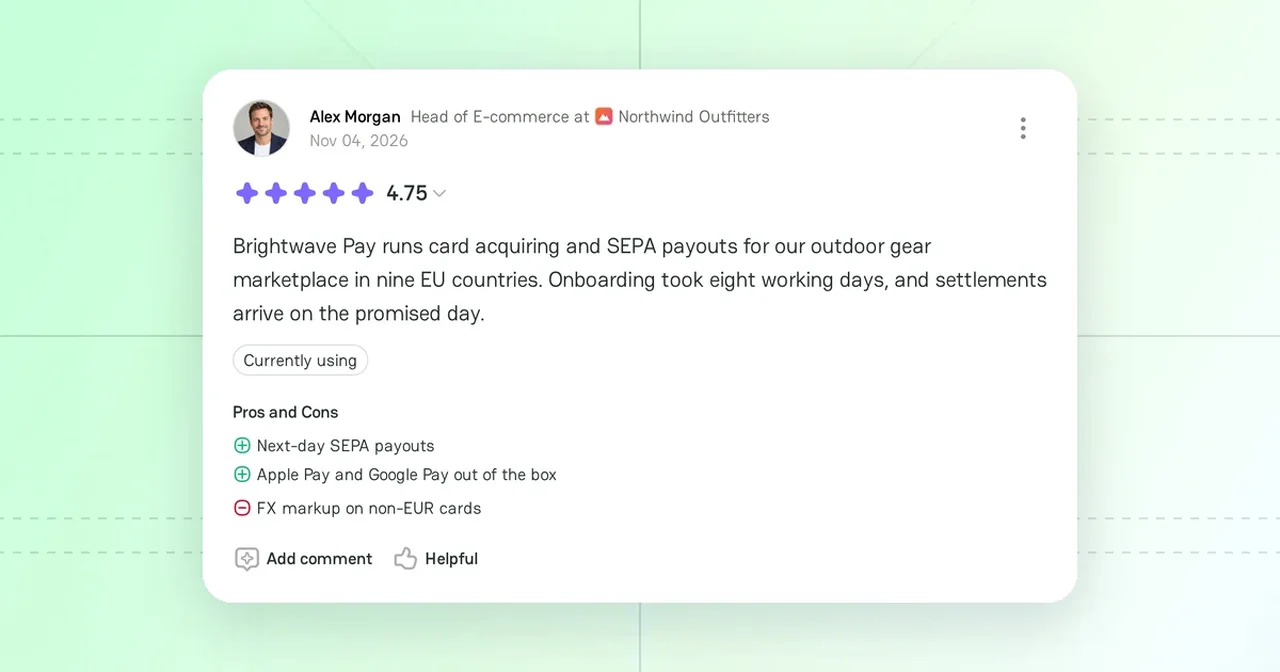
A Review on PayAtlas is your feedback about a payment provider that you worked with. Reviews help other merchants choose a provider, and they help providers see how clients rate their service.
Rules for reviews
- You can review a provider Company. You cannot review a merchant Company.
- You can write one review for each Company. To change your opinion, edit your review.
- You cannot review a Company of which you are a member.
Rating criteria
Each review rates the Company from 1 to 5 stars on four criteria:
| Criterion | What you rate |
|---|---|
| Customer Support | How helpful and fast the support team of the Company is |
| Reliability | How stable the service is, without outages or errors |
| Features | How well the tools and features of the Company meet your needs |
| Pricing | How clear and fair the prices are for the value that you get |
The overall rating of a review is the average of the four criteria.
Reviews on the Company Profile
The Reviews section of the Company Profile shows the average rating, the number of reviews, the Overall rating bars, and the average of each criterion.
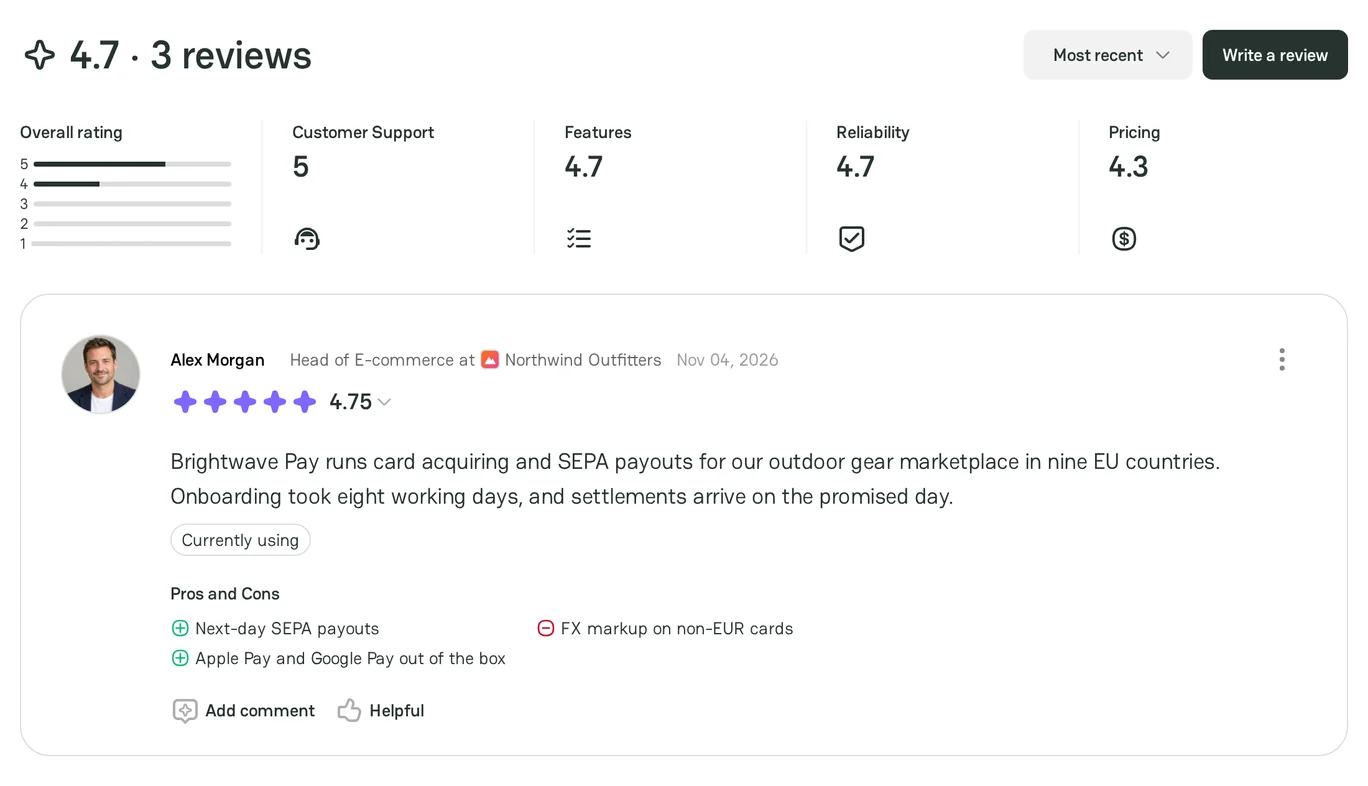
- Use the sort list to show the Most recent, Highest rated, or Lowest rated reviews first.
- Click Helpful under a review that helped you.
- To report a review that breaks the rules, click the three-dot icon of the review and click Report. Your email app opens a message to the PayAtlas support team.
Your own review always shows first, also before a moderator approves it.
Moderation
The type of your email address decides whether a moderator checks your review:
- If you signed up with a personal email address, such as Gmail, a moderator checks each review before it goes live. The same applies when you edit a review.
- If you signed up with a corporate email address, your review goes live at once.
A moderator checks that the review is respectful, has no offensive language, and is not advertising or defamation.
If the moderator declines your review, the review gets the Declined tag in My Reviews and on the Company Profile. Hover over the tag to see the comment of the moderator. Then fix the review and send it again. For the steps, see Create Review.
My Reviews
My Reviews lists all your reviews. To open it, go to My Dashboard and click the Reviews card. A review that a moderator checks shows the On moderation tag. A declined review shows the Declined tag. For each review, you can click View to open it on the Company Profile or click Edit review in its menu.
You cannot delete a review. To remove it, contact the PayAtlas support team.
Features
- Create Review: write a review of a provider and edit it later.


Comments