
Discussions
Discussions are the questions and the conversations of the PayAtlas community. Use them to ask how other teams solve a payment problem, compare experience with providers, or collect opinions with a poll.
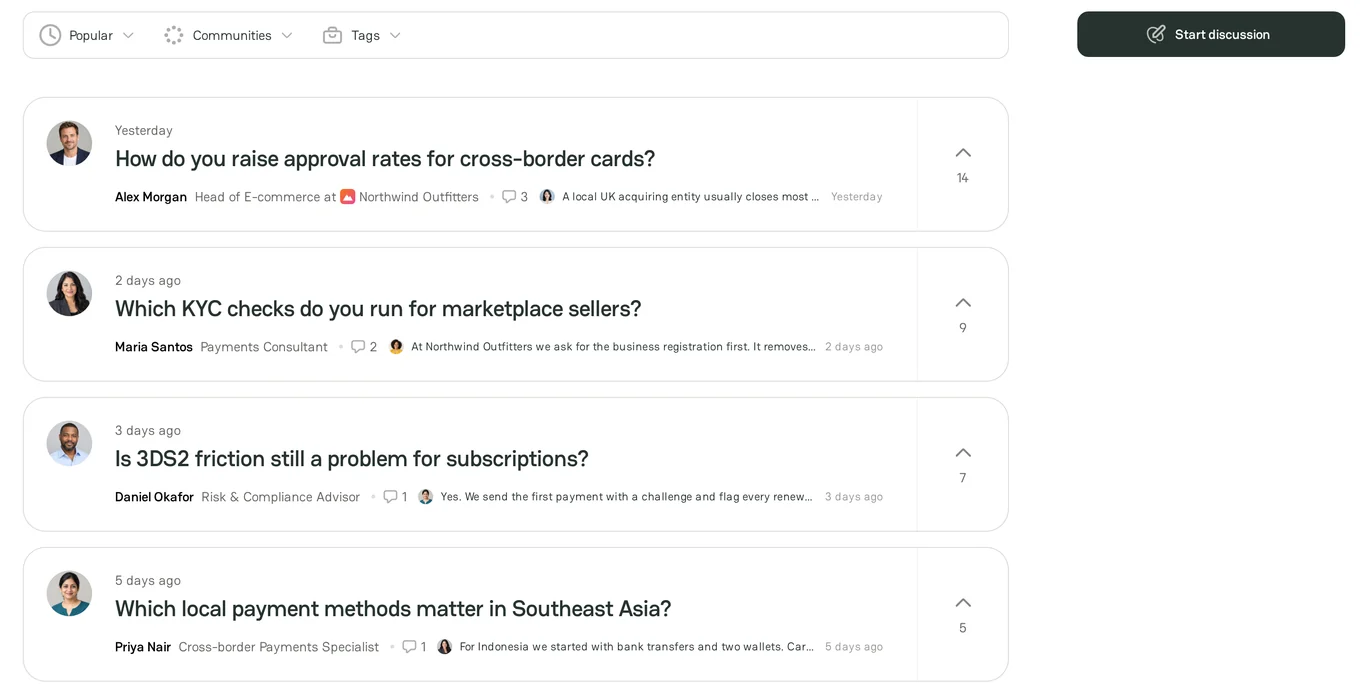
Discussions page
Open Discussions from the Community menu in the header, or go to /discussions.
- Sort the list by Popular or Latest.
- Filter the list by Communities and Tags.
- Each card shows the community, the title, the author, and the number of likes, views, and comments.
Start a discussion
Make sure that you are signed in. You do not need a company to start a discussion.
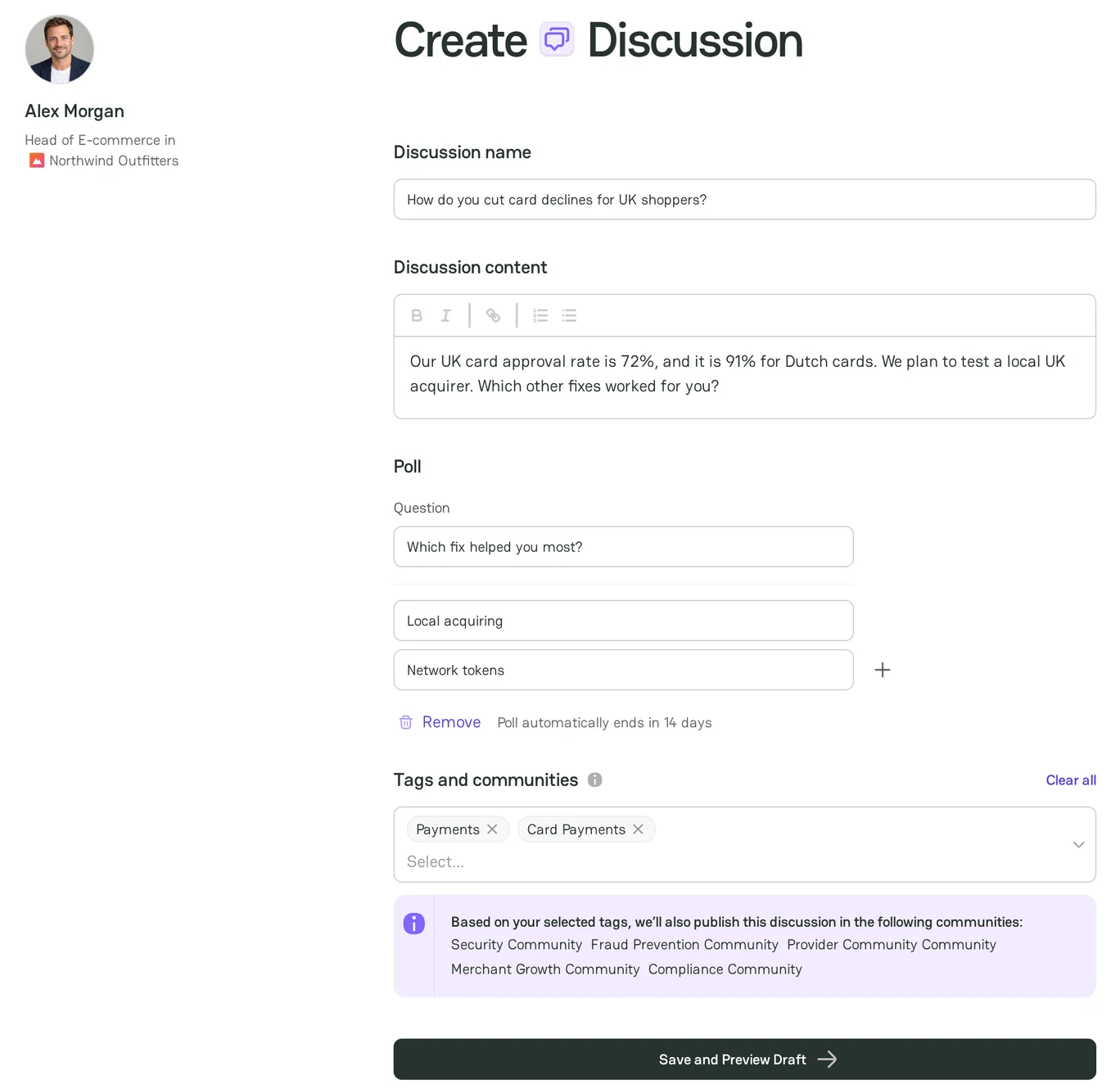
- On the Discussions page, click Start discussion.
- In Discussion name, enter your question. The name can have up to 100 characters. If a discussion with the same name exists, PayAtlas shows a link to it.
- In Discussion content, describe the topic. Enter at least 10 characters.
- Optional: click Add poll. Enter the Question and from two to five choices. The poll ends 14 days after you publish the discussion.
- In Tags and communities, select at least one tag. The banner under the field shows the communities where the discussion also appears.
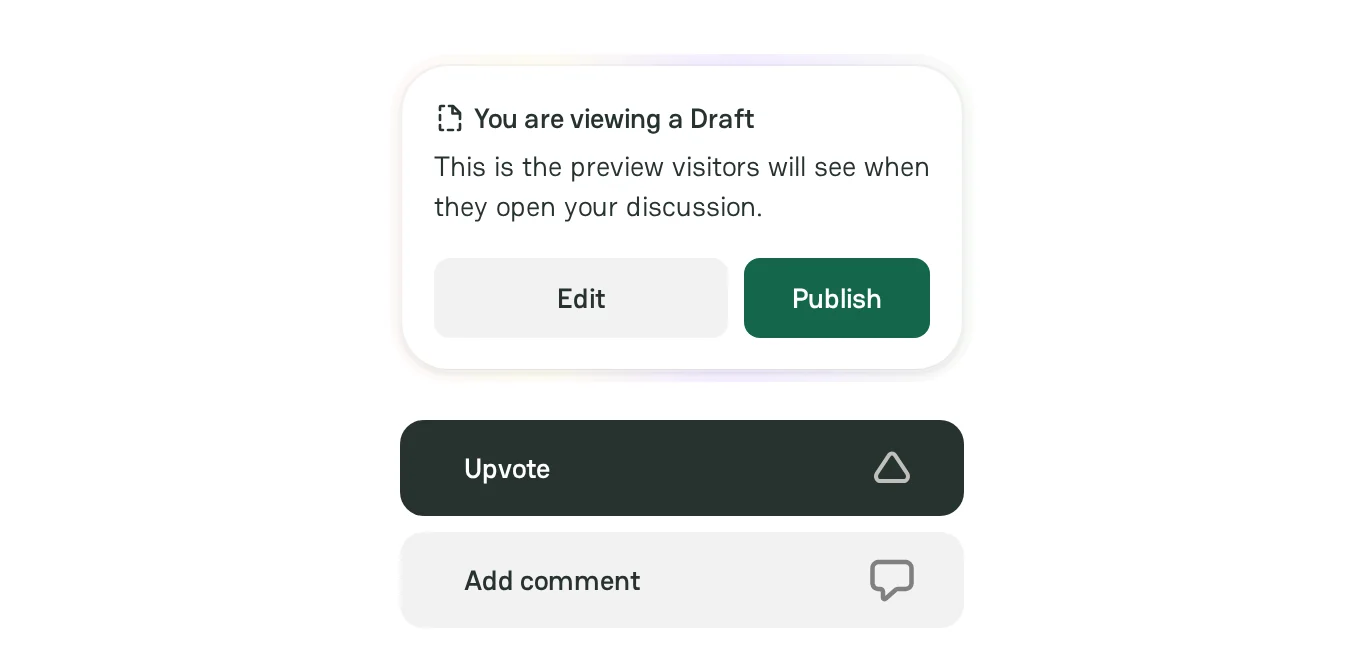
- Click Save and Preview Draft.
PayAtlas saves the draft and opens its preview. Only you can see the draft.
Publish and moderation
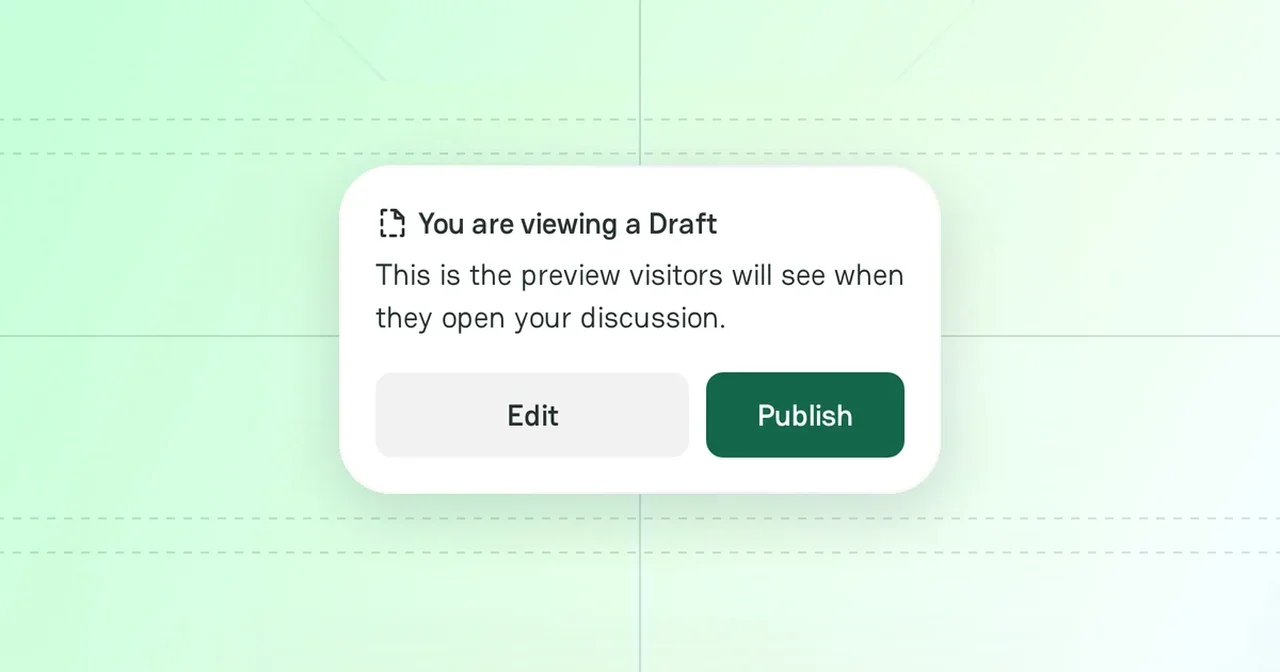
- In the You are viewing a Draft panel, click Publish.
- If your account uses a free email service, such as Gmail, the PayAtlas team checks the discussion first. The panel shows On moderation until the check ends. If your account uses a company email, the discussion goes live at once.
When the team approves or declines your discussion, you get a notification in the Inbox. A declined discussion shows the reason in the notification. Edit the discussion and publish it again.
Comments and votes
Sign in to take part in a discussion:
- Click Upvote to support a discussion.
- Write a comment and click Post. Click Reply to answer a comment, and Like to support it.
- Mention a user with
@and the alias of the user. - To change or remove your comment, open its menu and click Edit or Delete comment.
PayAtlas sends you a notification to the Inbox when someone comments on your discussion, replies to your comment, or mentions you. If your account uses a free email service, your comments also go through moderation. For more information, see Switch on Notifications.
Manage your discussions
Open My Dashboard and click Discussions. The My Discussions page lists all your discussions.
| Status | What it means |
|---|---|
| Draft | Only you can see the discussion. |
| On moderation | The PayAtlas team checks the discussion. |
| Declined | The team did not approve the discussion. The notification gives the reason. |
| Archived | The discussion is hidden from the community. |
A live discussion shows its views, comments, and likes instead of a status. Open the menu of a discussion to manage it:
- Edit discussion: change the name, the content, the poll, or the tags. Click Save to publish the changes. If your account uses a free email service, the changed discussion goes through moderation again.
- Archive: hide the discussion from the community. Turn on Show archived to see your archived discussions.
- Restore to Drafts: return an archived discussion to the drafts. Then publish it again.
- Delete permanently: remove an archived discussion. You cannot restore it.
Related articles
- To publish a longer text, see Create Article.
- To find people who work in payments, see Experts.


Comments