

Manage provider profile
The provider profile is the public page of your provider company in Atlas. Merchants use it to find providers, compare them, and decide whom to contact. You fill in the profile in the Profile sections of Company Dashboard.
Make sure that you have a provider company. To add one, see Add Company.
To open the profile, click your avatar in the header, and then click Company Dashboard. If you have several companies, click Switch and select the provider company first.
Each change saves automatically. Visitors see the changes after you publish them. For more information, see Follow Moderation process.
About
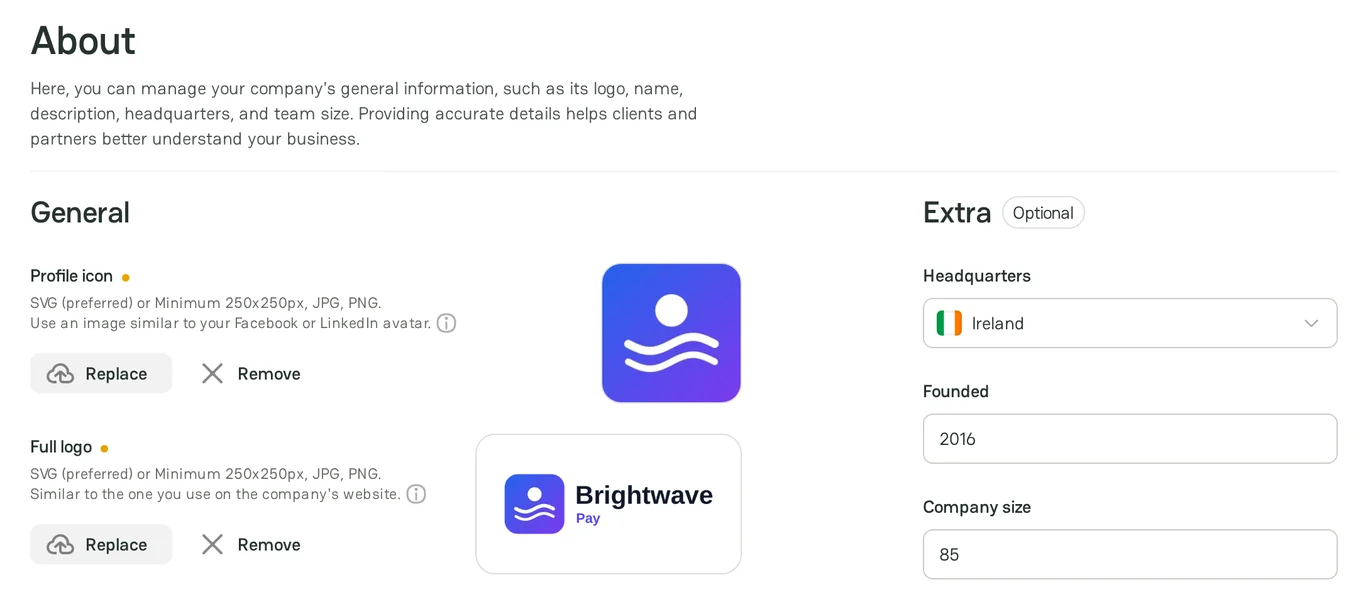
The About section has the General and Extra groups.
General
| Field | Required to publish | What to add |
|---|---|---|
| Profile icon | Yes | A square image, similar to your avatar on LinkedIn |
| Full logo | Yes | The logo that you use on the company website |
| Company name | Yes | The name of the company |
| Tagline | No | A short phrase that becomes the heading of the About section on the public profile. The public profile shows the first 100 characters. You can enter up to 250 characters. |
| Description | Yes | What the company does, up to 350 characters. You can use lists, titles, and emphasis. |
To add an image, click Upload. To change it, click Replace. To delete it, click Remove. Use a JPG, PNG, or SVG file up to 5 MB. An SVG file gives the best result. A JPG or PNG image is at least 250 × 250 px.
Extra
The Extra group is optional:
- Headquarters: the country of the main office.
- Founded: the year when the company started.
- Company size: the number of employees.
Focus areas
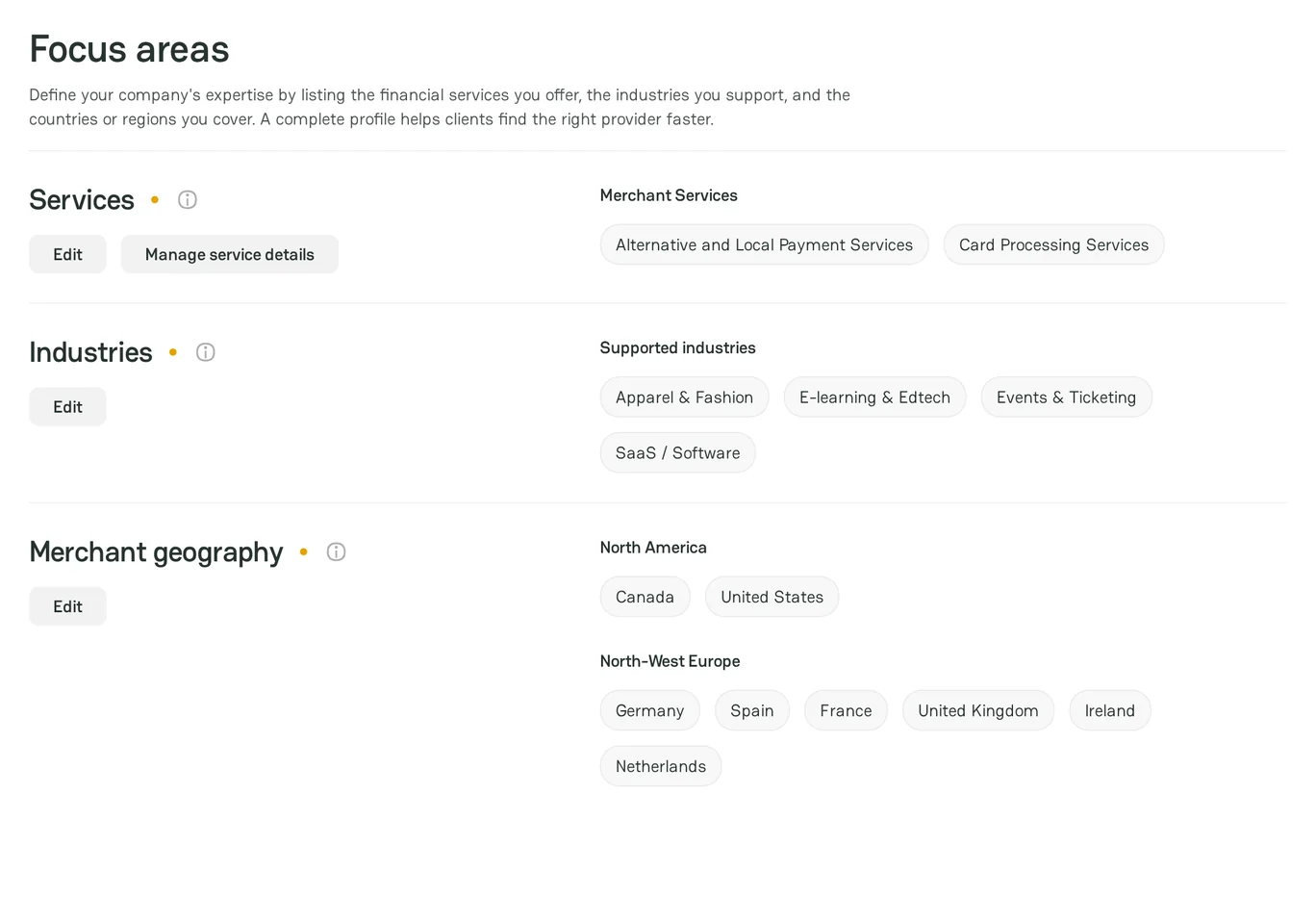
The Focus areas section tells merchants what you offer and whom you serve:
- Services: the payment services of the company.
- Industries: the industries of the merchants that you work with.
- Merchant geography: the countries of the merchants that you accept.
To add values, click Select or Edit next to the group. In the window, select the values, and then click Save and close. To see only your values, click Show selected only.
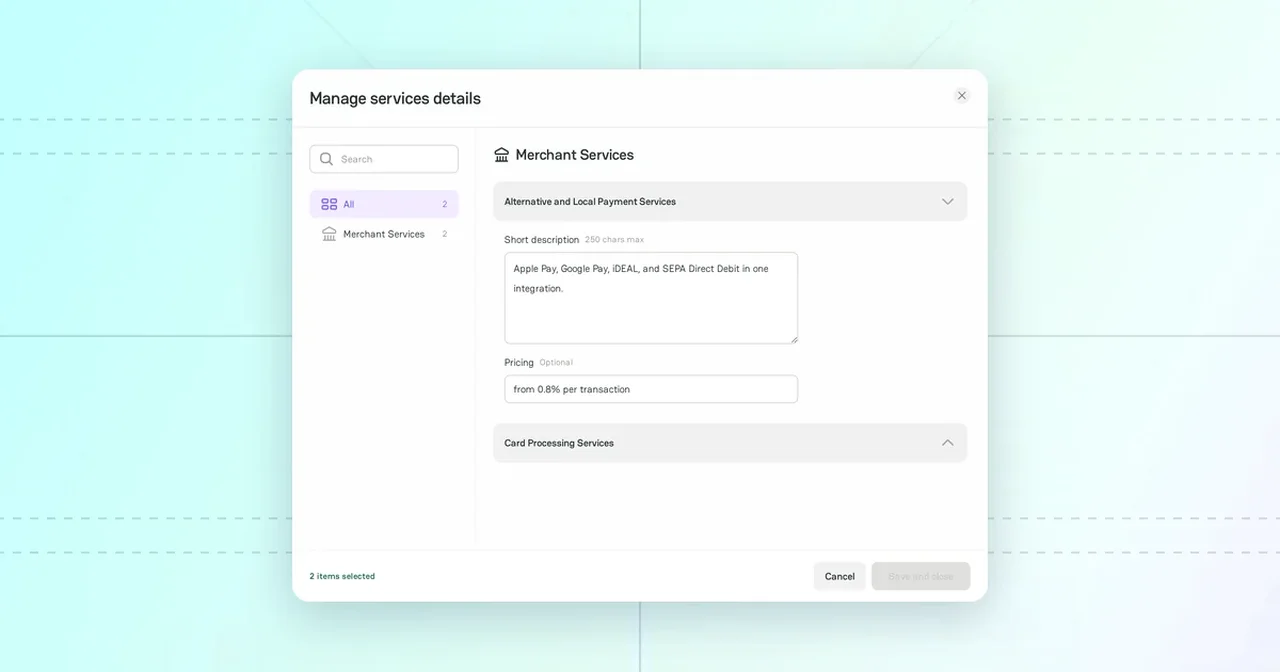
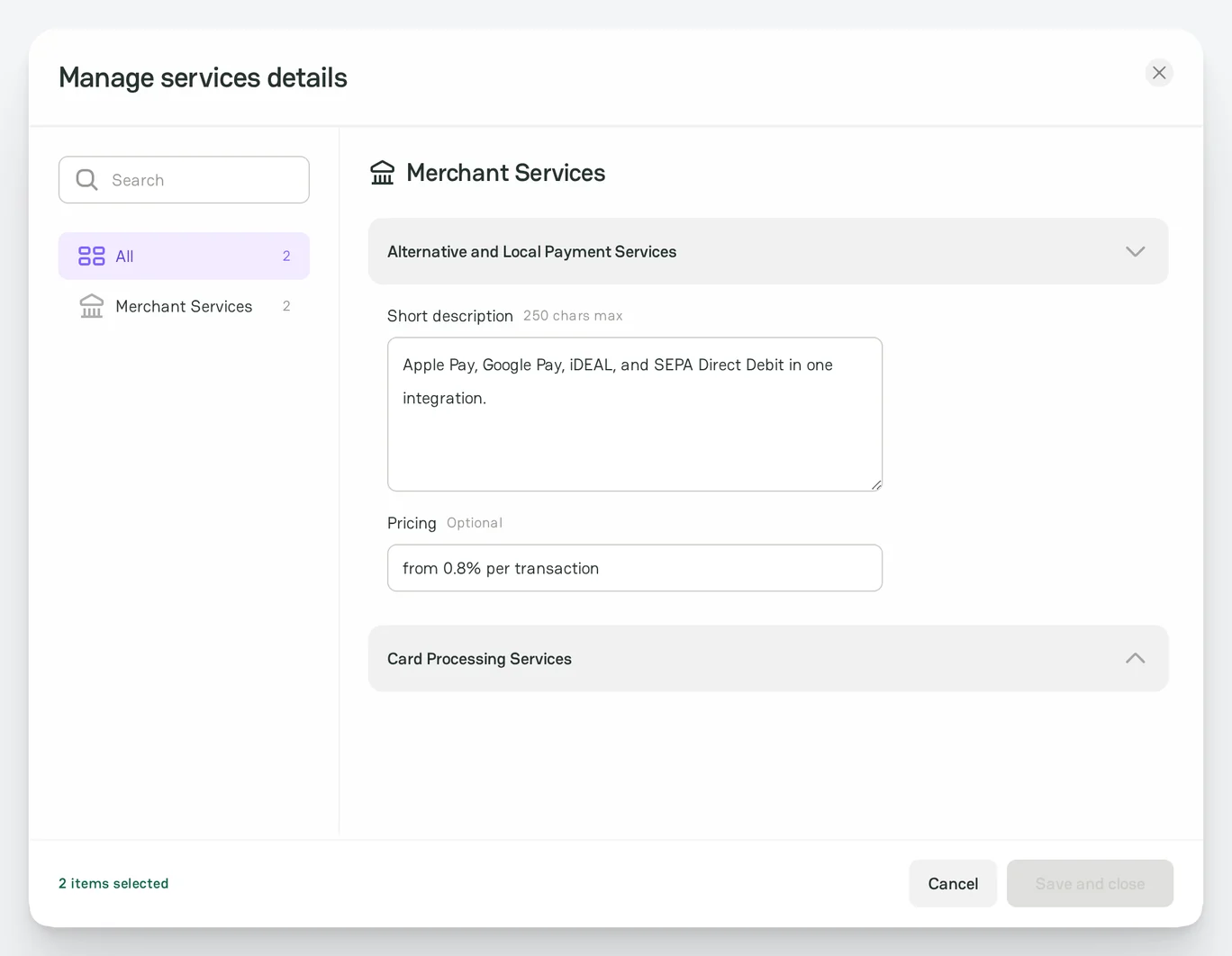
To describe each service, click Manage service details. For each service, add a Short description of up to 250 characters and, optionally, the Pricing, for example "from 1.4% per transaction". Then click Save and close.
To publish the profile, add at least one service, one industry, and one country.
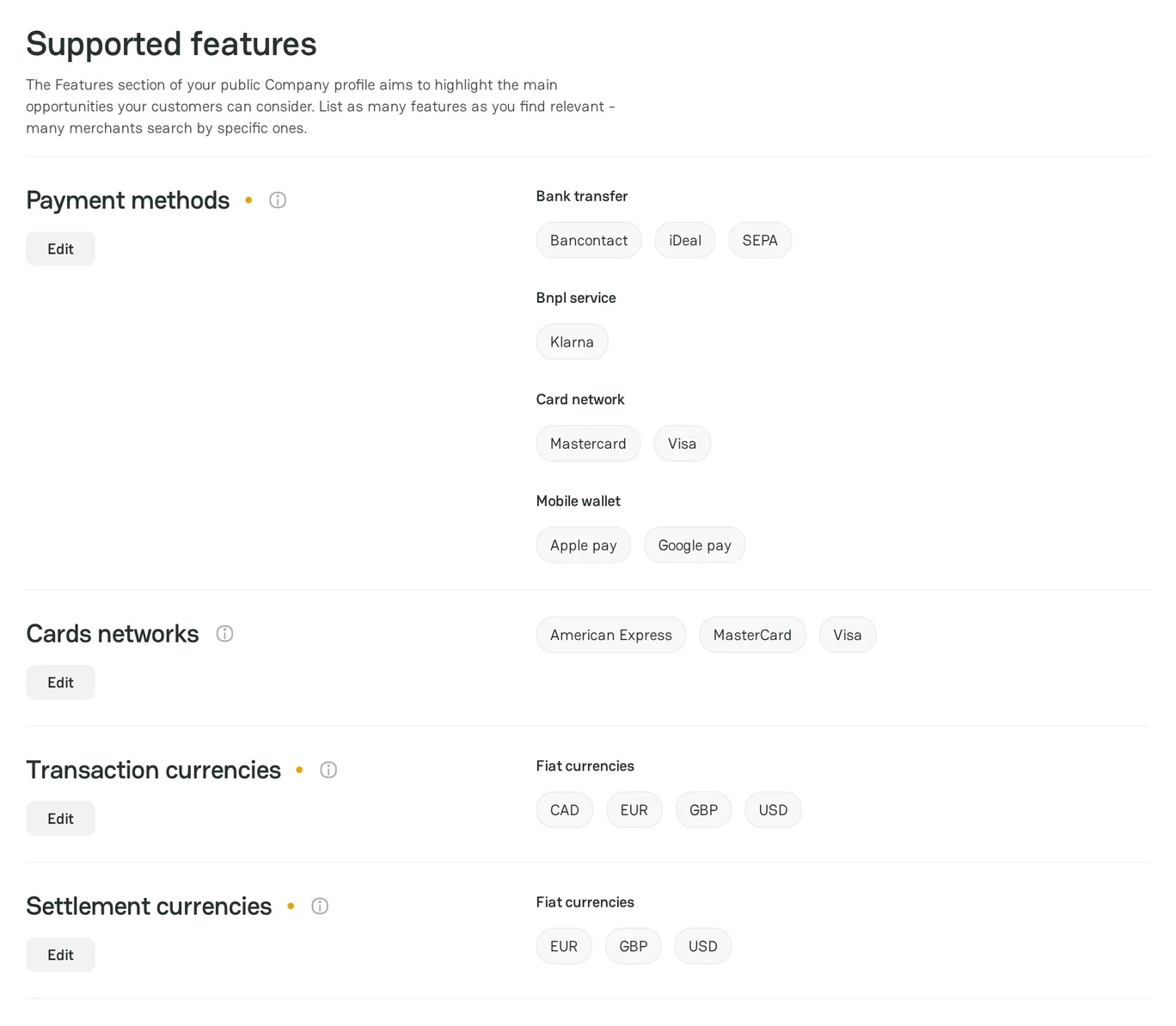
Features
The Features section has these groups:
| Group | What you list | Required to publish |
|---|---|---|
| Payment methods | The payment methods that you accept, for example cards, wallets, and bank transfers | Yes |
| Cards networks | The card networks that you support | No |
| Transaction currencies | The currencies in which customers pay | Yes |
| Settlement currencies | The currencies in which you pay out to merchants | Yes |
| Provider integrations | The providers that you integrate with | No |
| Shopping carts | The e-commerce platforms that you support | No |
| Merchant business licenses | The business licenses of the merchants that you work with | No |
| Additional features | Other features, for example fraud prevention, payouts, and 3-D Secure | No |
To add values to a group, click Select or Edit, select the values, and then click Save and close.
Team
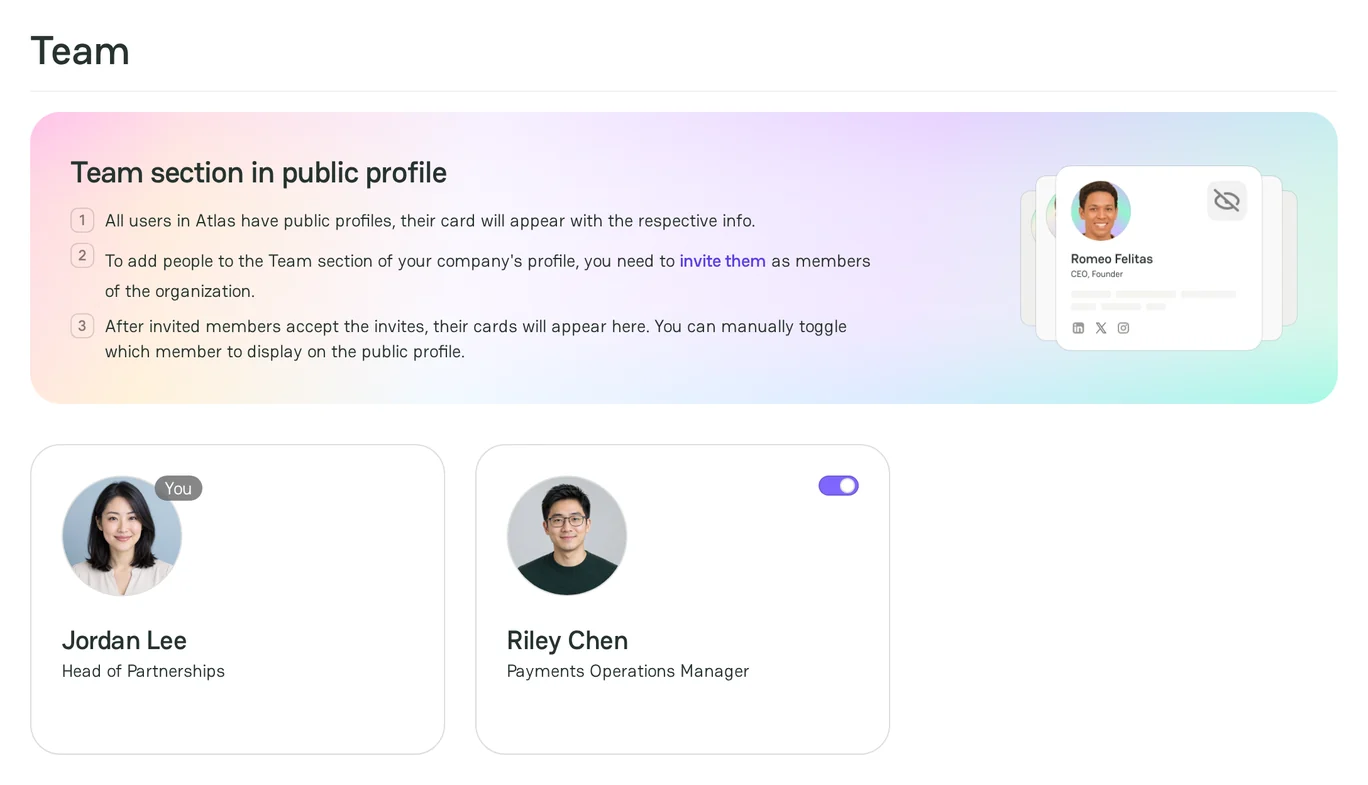
The Team section shows a card for each active member of the company. A member gets a card after the member accepts the invitation. To invite members, see Review Administration settings.
Each card has a toggle that controls whether the member shows on the public profile. The card of the Owner and your own card have no toggle.
For your information, the public profile does not show the team of the company yet. The toggle keeps your choice for the time when it does.
Contacts
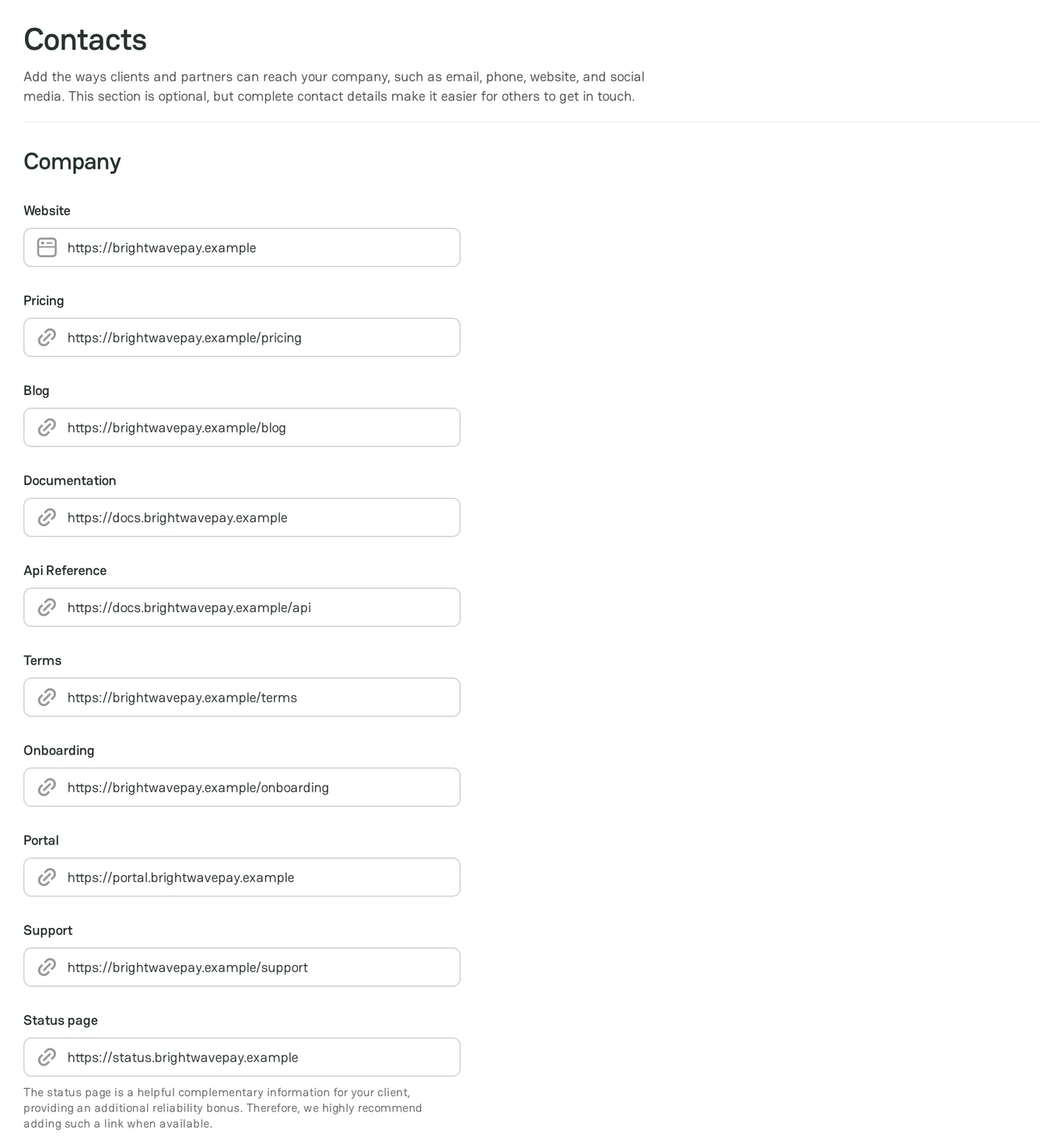
The Contacts section has two groups of links:
- Company: Website, Pricing, Blog, Documentation, Api Reference, Terms, Onboarding, Portal, Support, Status page, and Open vacancies.
- Social: Facebook, Linkedin, Instagram, Youtube, X (Twitter), Github, and Medium.
Each link starts with https:// or http://. The Website of the company is unique: you cannot use the website of another company.
Next steps
- To check the profile before you publish it, see Launch checklist.
- To make the profile easy to find, see Optimize provider profile.
- To see how merchants see your profile in Atlas, see Provider profile.



Comments