

Follow Moderation process
Moderation is the check of a Company Profile by the PayAtlas team before the changes go live. It keeps the data in Atlas accurate and protects merchants and providers from misleading claims. Moderation works the same way for merchant and provider companies.
When moderation applies
Moderation depends on the email address of the person who publishes the changes:
| Email address of your account | What happens after you publish |
|---|---|
| On a free email service, such as Gmail or Outlook | The changes go to moderation each time that you publish them. |
| On a company domain | The changes go live at once. |
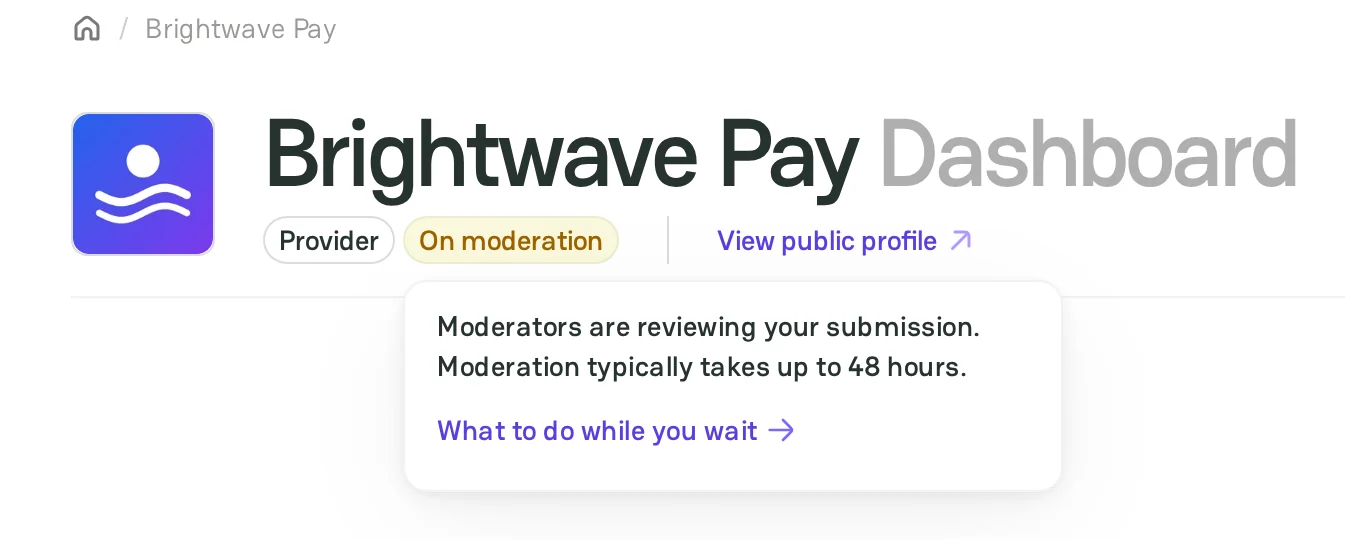
While the changes are on moderation, the profile has the On moderation status, and visitors do not see it. Moderation usually takes up to 48 hours.
Publish the profile
- Fill in the required items. For a provider company, see Launch checklist. For a merchant company, see Manage merchant profile.
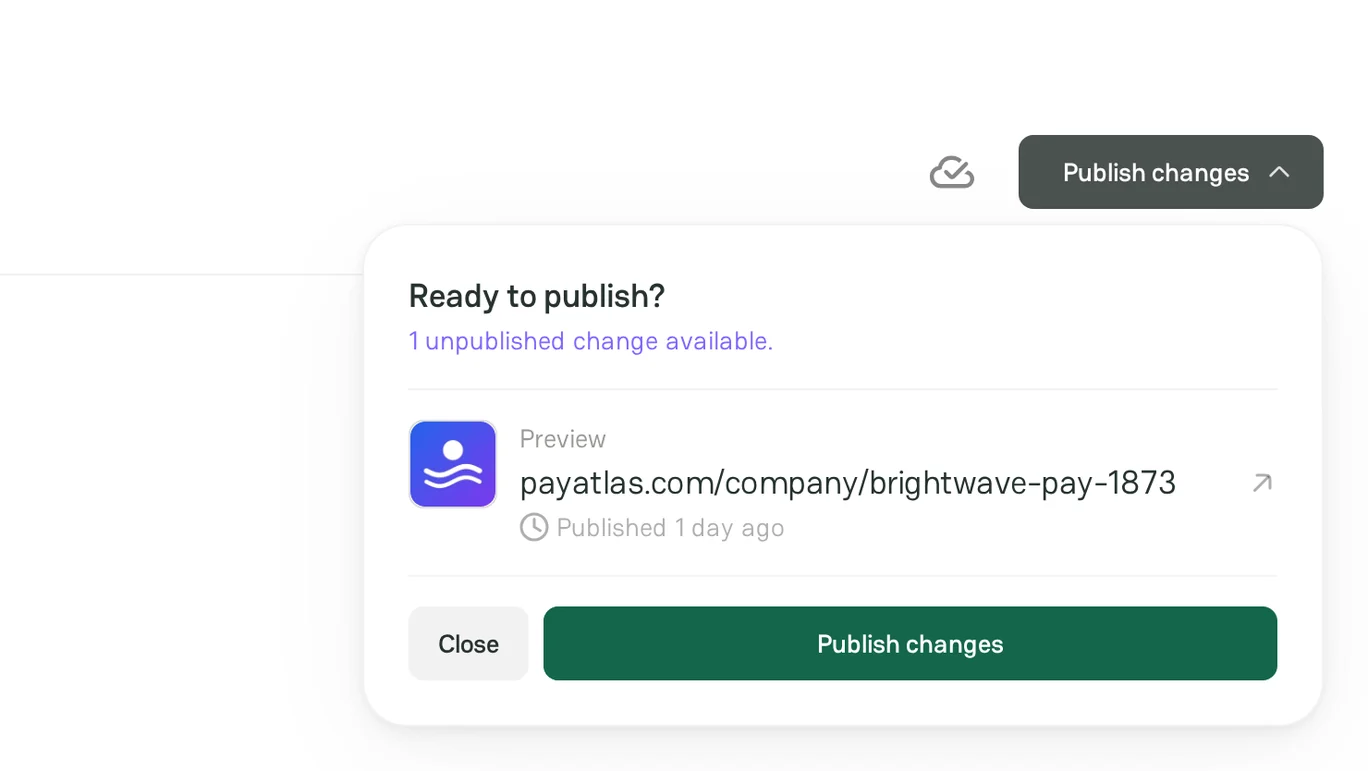
- In the header of Company Dashboard, click Publish changes.
- In the Ready to publish? menu, check the changes. To see the profile before you publish it, click the preview link.
- Click Publish changes.
Only an Owner or an Admin of the company can publish the changes.
If the changes go to moderation, the Company Publishing on Moderation window opens. To see the window again, point to the On moderation status, and then click What to do while you wait.
Moderation result
PayAtlas sends the result by email to the Owner and to each Admin of the company:
| Result | Email subject | Status of the profile | Button in the email |
|---|---|---|---|
| Approved | Your company profile is approved | Live | Open your company |
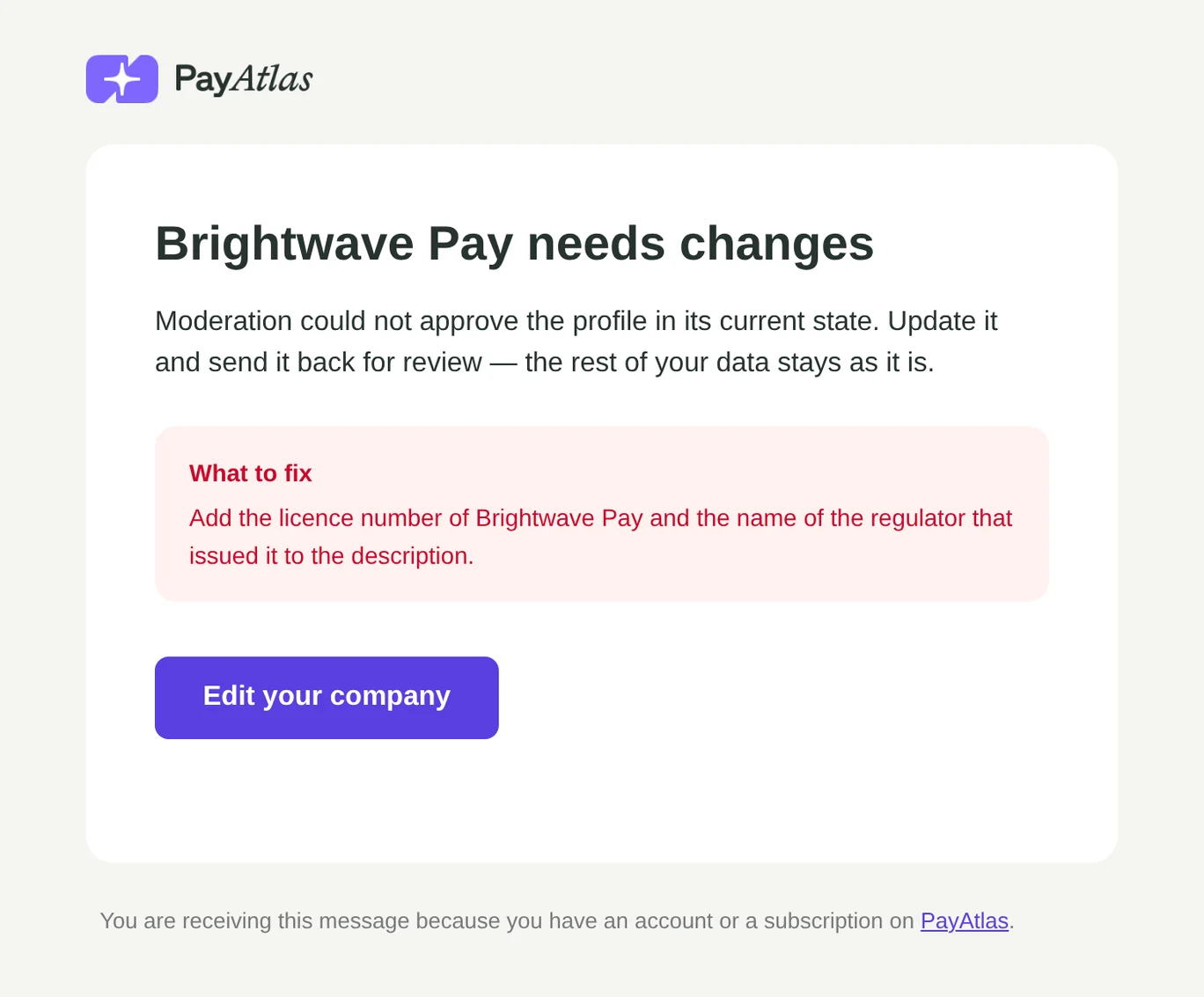
| Declined | Your company profile needs changes | Changes Required | Edit your company |
The button opens Company Dashboard of the company. The email about a declined profile has the What to fix block with the comment of the moderator.
Fix a declined profile
A declined profile stays hidden from visitors until the PayAtlas team approves it.
- In the email, click Edit your company. You can also open Company Dashboard from the user menu.
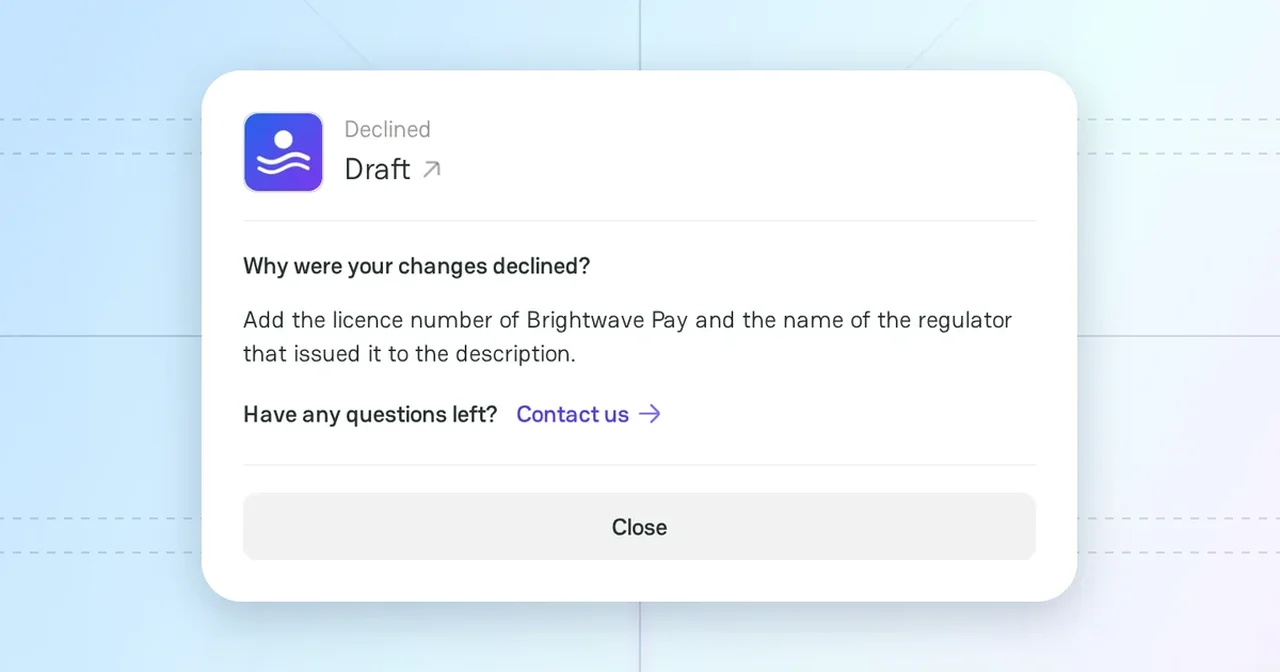
- Click Publish changes. The menu shows Why were your changes declined? and the comment of the moderator.
- Change the profile as the comment says.
- Click Publish changes again. The changes go to moderation again.
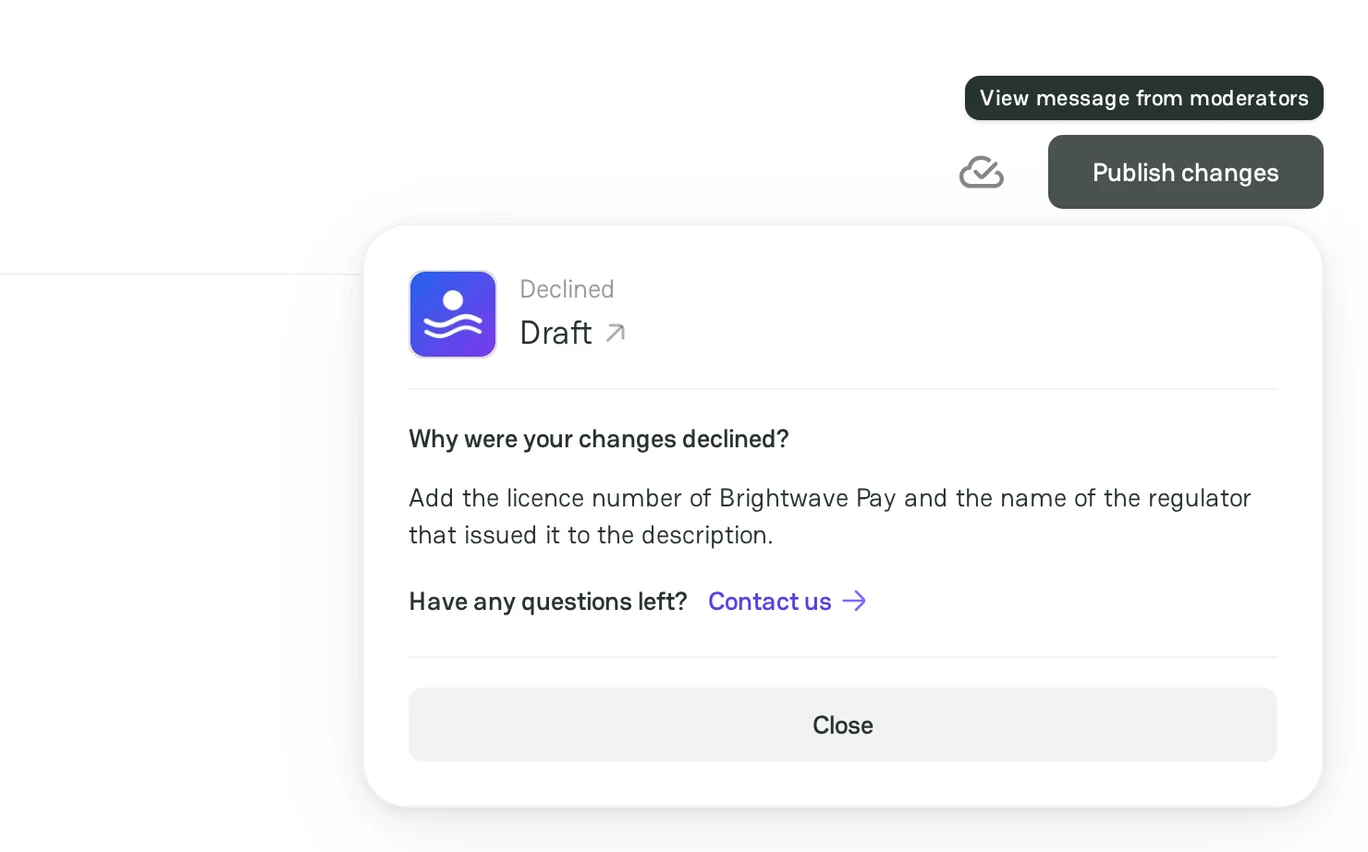
If you have questions about the decision, click Contact us in the menu. It opens an email to the PayAtlas support team.
Related articles
- To see the statuses of a profile, see Company Dashboard.
- To get the verified badge, see Review Administration settings.


Comments