

Answer Merchant Requests
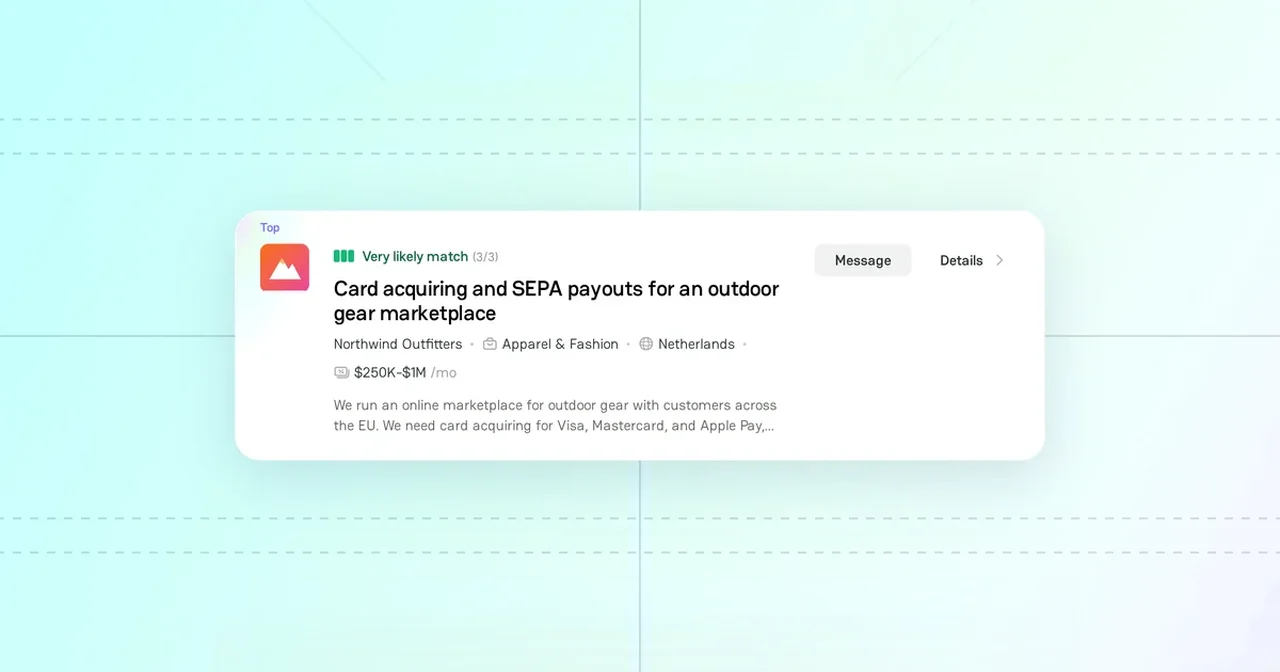
Merchants publish requests when they look for a payment provider. A request describes the business of the merchant and its payment needs: target markets, payment methods, and currencies. Merchant Requests shows these requests and how well each request matches your provider Company.
Make sure that your provider Company is published. For a Company that is not published, the cards are locked: the merchant name and the full description are hidden, and you cannot message the merchant.
Merchant Requests page
- Click your avatar in the top-right corner of the page.
- Make sure that the menu shows your provider Company. To select another Company, click Switch.
- Click Merchant Requests.
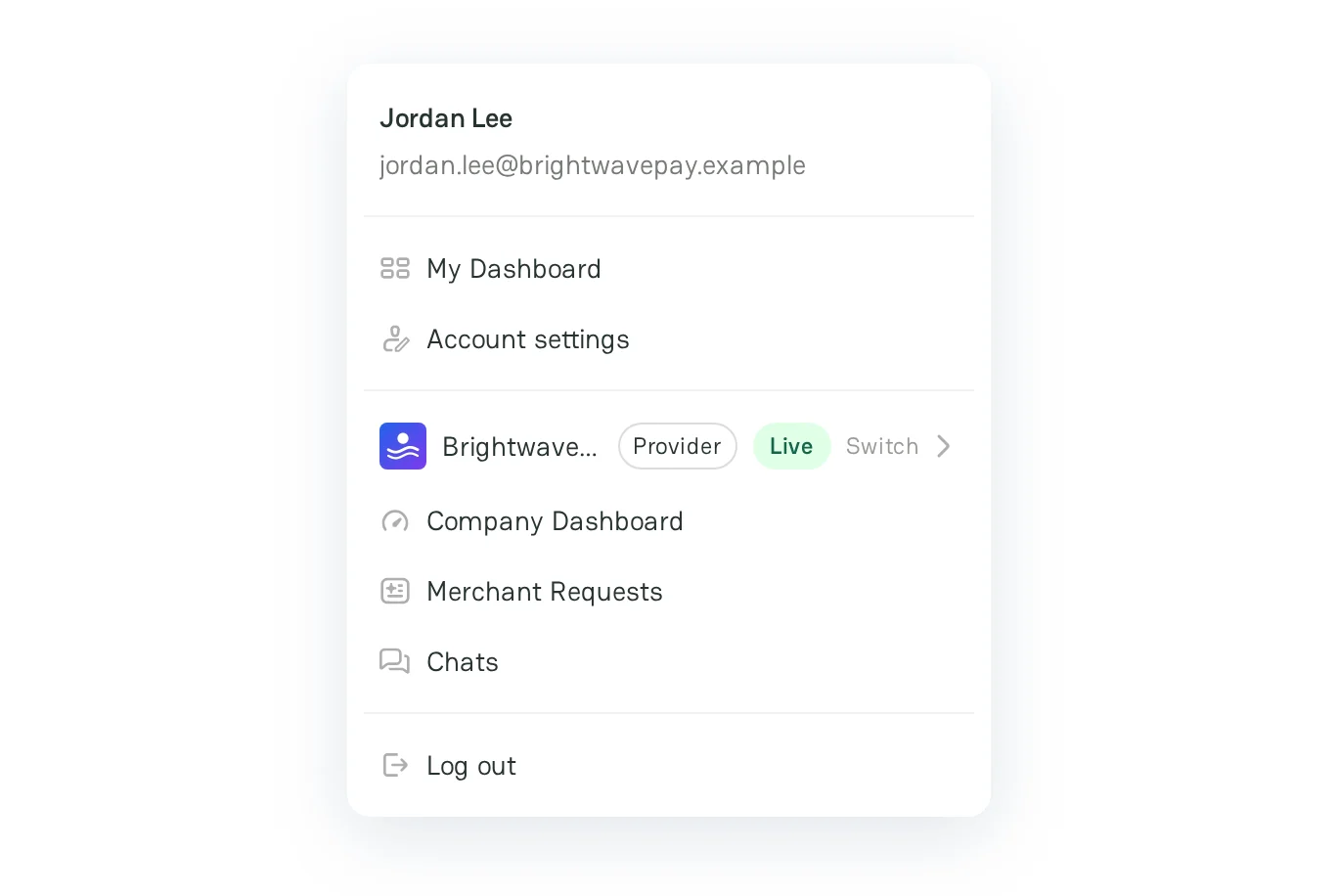
The page opens on the For you tab. The name of your Company shows next to the tabs. If you are a member of two or more provider Companies, select the Company there.
For your information, if the active Company is a merchant, Merchant Requests opens the requests of that merchant Company. Switch to your provider Company first.
For you tab
For you shows the open requests that match your Company Profile, the best matches first. PayAtlas compares five criteria of each request with the profile: target markets, payment methods, transaction currencies, settlement currencies, and industry.
The panel on the left shows the industries, the regions, and the payment methods of your profile. To get better matches, click Manage profile and update the profile.
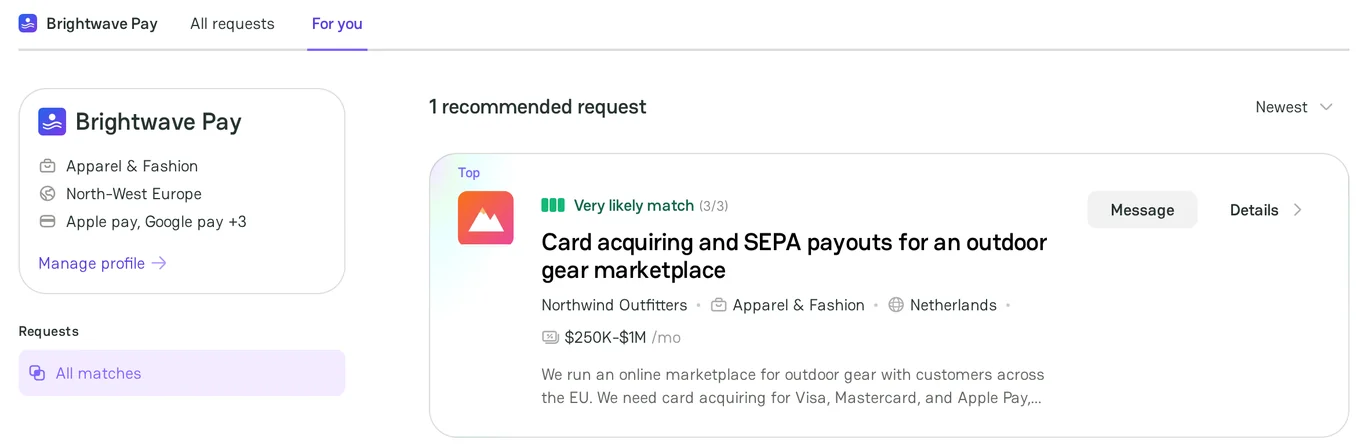
The match score is the average coverage of the criteria of the request. For each criterion, PayAtlas counts the values of the request that your profile covers, up to three values. PayAtlas skips the criteria that the request leaves empty.
Each card shows the match level:
| Match level | Match score | Where it shows |
|---|---|---|
| Very likely match (3/3) | 75% or more | For you, with the Top label, and the request page |
| Possible match (2/3) | 40–74% | For you and the request page |
| Risky match (1/3) | Less than 40% | The request page. For you does not show it. |
All requests tab
All requests shows every open request. To narrow the list, use the filters on the left:
- Business vertical: the industry of the merchant.
- Target markets, Payment methods, Transaction currencies, Settlement currencies, Settlement speed, and Additional features: the needs from the request.
With filters selected, each card shows the match level against the selected filters, not against your Company Profile.
To change the order, select Popular, Alphabetical, or Newest in the sort menu. With filters selected, Popular puts the requests that match the most filters first.
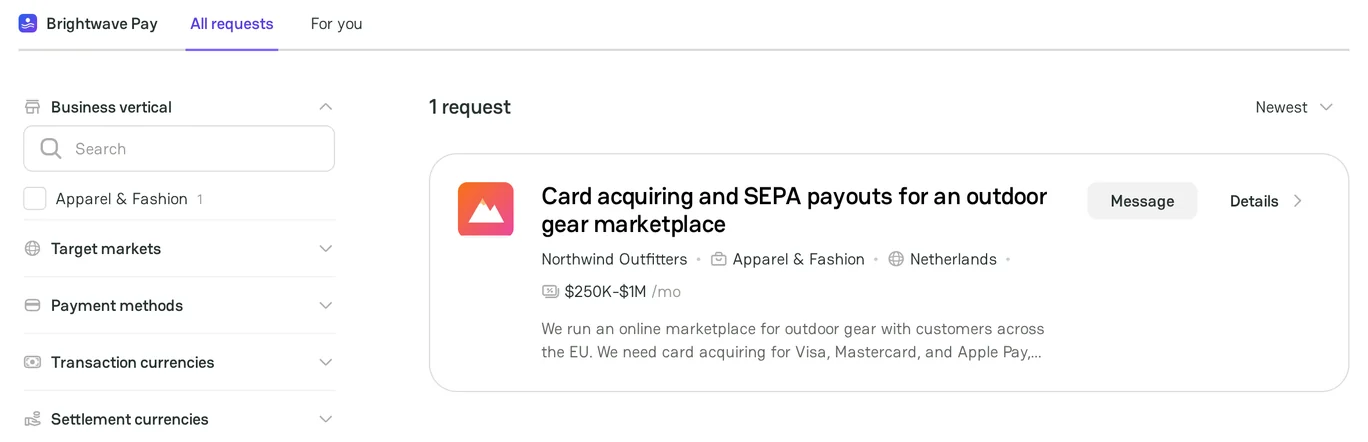
Each card shows the name of the merchant, its industry, its country, its monthly volume, and the start of the request description. The industry, the country, and the volume come from the Company Profile of the merchant.
New requests
- For you adds new requests as merchants publish them.
- When a merchant sends a request to the matching providers, you get a notification that starts with New merchant request. Click the bell icon to open Inbox, and find the notification on the Connections tab. Click View request to open the request.
- The request that a merchant sends also shows in Chats, in a conversation with your Company.
To choose how PayAtlas notifies you, see Switch on notifications.
Request details
Click Details on a card to open the request page. The page has these sections:
- About request: the description from the merchant.
- Looking for: the target markets, the payment methods, the currencies, the settlement speed, and the additional features.
- Merchant profile: the industry, the country, the monthly volume, and the website of the merchant.
- Similar requests: other open requests with similar needs.
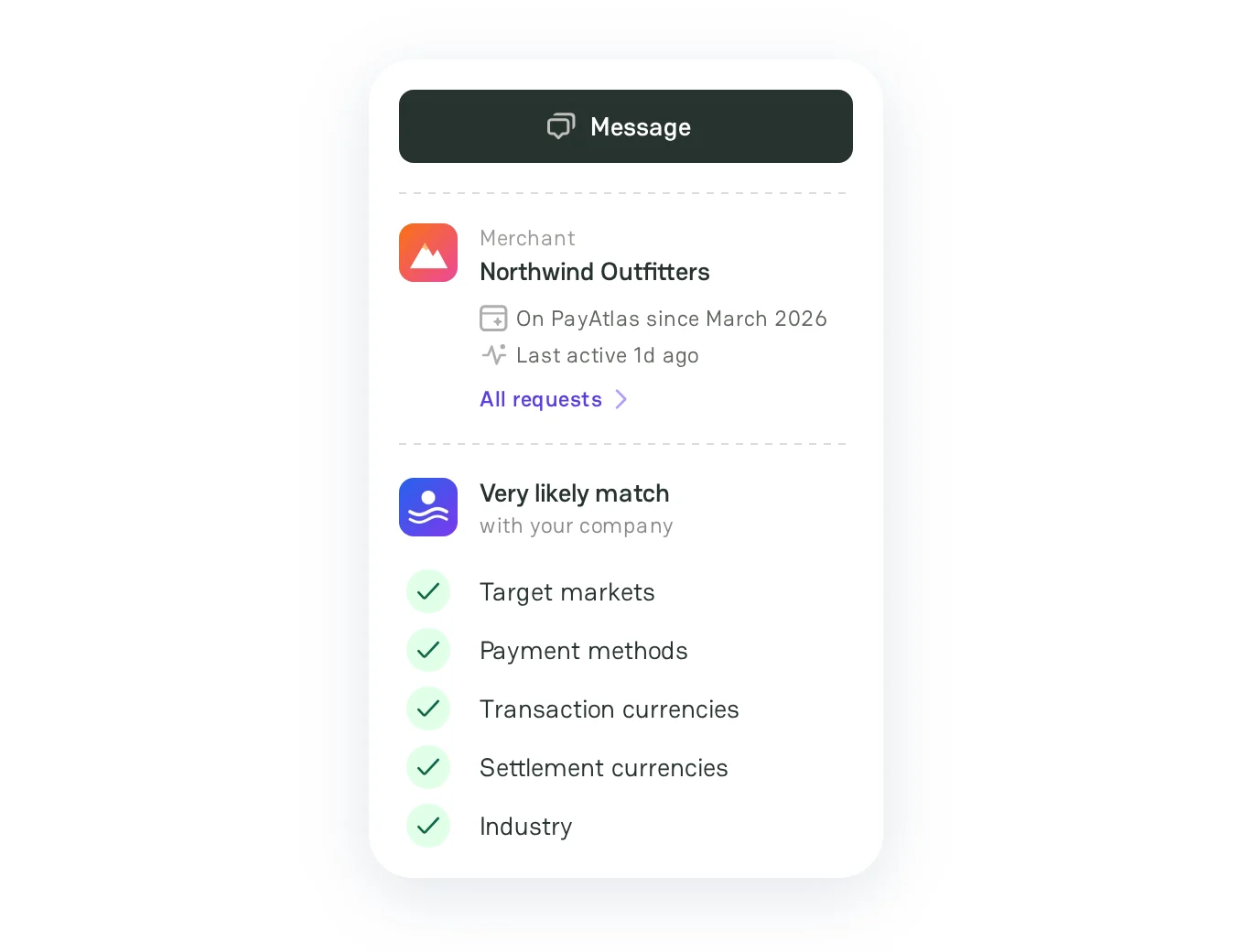
The panel on the left shows the merchant and the match level with your Company. A check mark shows each criterion where your profile covers at least one value of the request.
Message to a merchant
- Click Message on the card or on the request page. If you already have a conversation with this merchant, the button on the card is Open dialog.
- Chats opens a conversation between your Company and the merchant Company. The request is attached to the conversation.
- Write the first message. Introduce your Company and explain how it can help this merchant.
- Click Send.
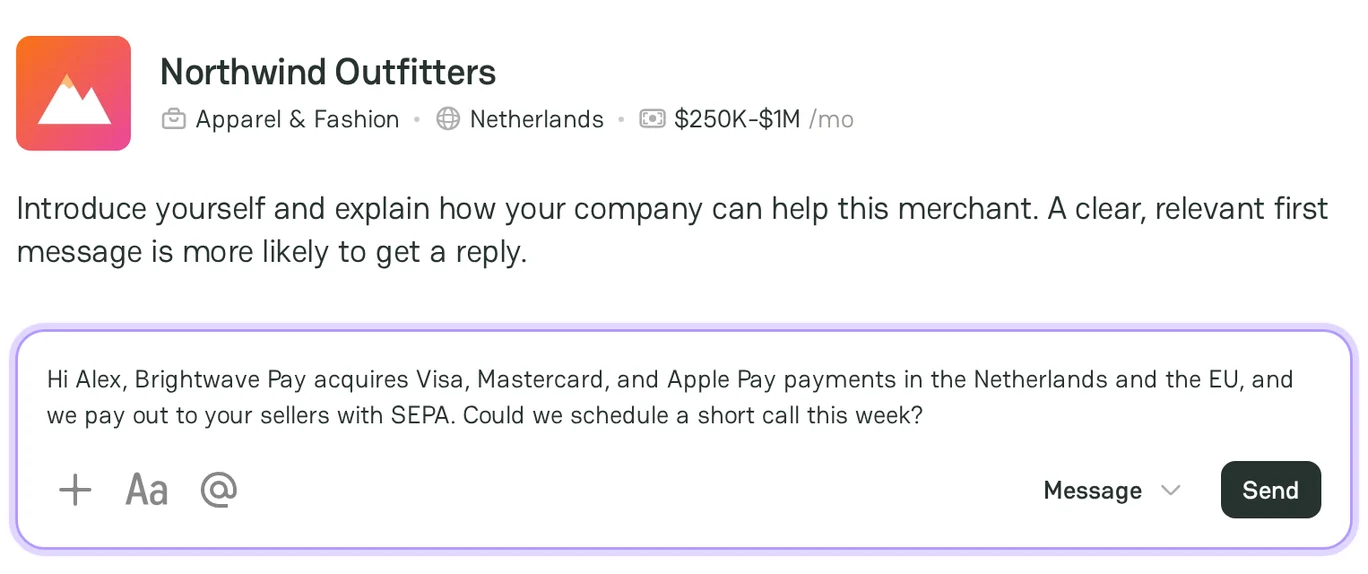
Pay attention! A message can have up to 4,000 characters.
Next steps
- To continue the conversation, click your avatar and then click Chats.
- To get better matches, see Optimise Company Profile.



Comments