

FAQ
This page answers the questions that users ask the PayAtlas Support team most often. Each answer is short and links to the article with the full steps. To ask a question that this page does not answer, see Support.
Operational questions
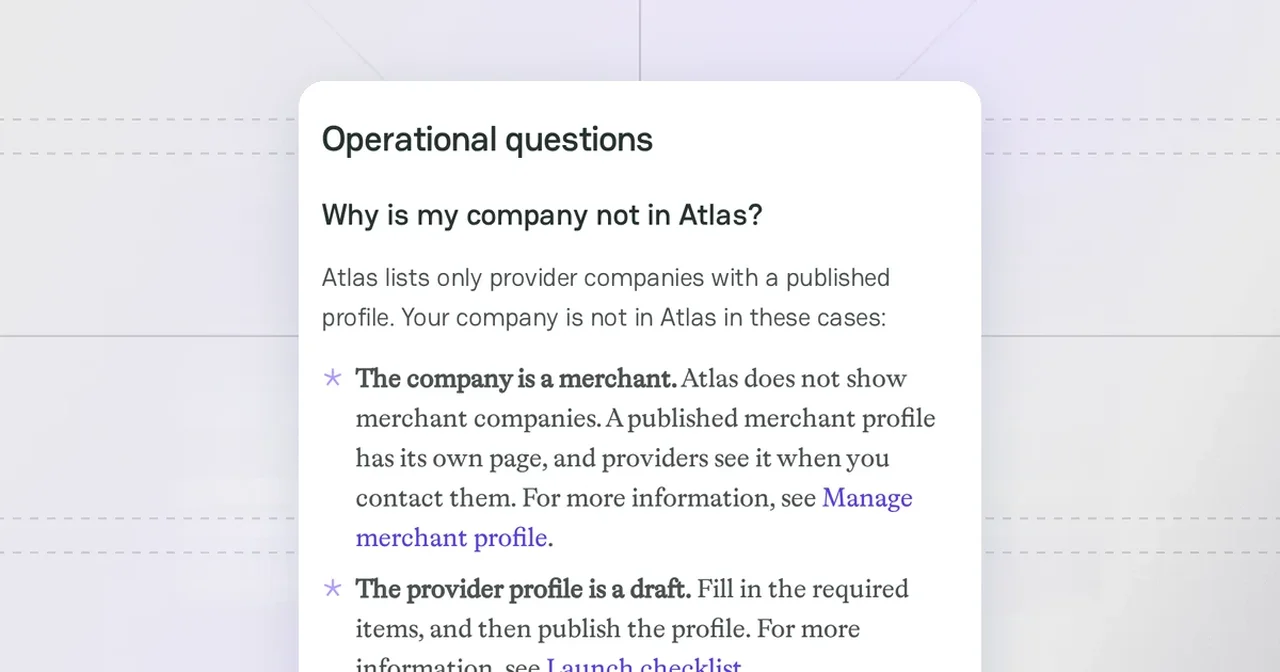
Why is my company not in Atlas?
Atlas lists only provider companies with a published profile. Your company is not in Atlas in these cases:
- The company is a merchant. Atlas does not show merchant companies. A published merchant profile has its own page, and providers see it when you contact them. For more information, see Manage merchant profile.
- The provider profile is a draft. Fill in the required items, and then publish the profile. For more information, see Launch checklist.
- The profile is on moderation, or the PayAtlas team declined it. Visitors do not see the profile until the PayAtlas team approves it. For more information, see Follow Moderation process.
- The company is in the archive. Visitors do not see an archived company. For more information, see Company Dashboard.
The PayAtlas team checks a profile only when the person who publishes it uses an email address on a free email service, such as Gmail. If you publish from an email address on the domain of your company, the profile goes live at once.
To learn how visitors find providers, see Atlas.
How do I verify my company?
A verified company has a badge next to its name on the Company Profile. Only an Owner or an Admin of the company can open the Verification section.
- Open Company Dashboard, and then click Verification in the Administration group of the sidebar.
- From an email address on the domain of your company, send an email to
provider@payatlas.com. - In the email, attach a proof that the company owns the domain of its website.
The PayAtlas team checks the proof and changes the status to Verified. For more information, see Review Administration settings.
Where do I see why moderation declined my profile?
When the PayAtlas team declines the changes, the profile gets the Changes Required status. You can see the comment of the moderator in two places:
- In the email Your company profile needs changes, in the What to fix block. PayAtlas sends this email to the Owner and to each Admin of the company.
- In Company Dashboard. Click Publish changes in the header. The menu shows Why were your changes declined? and the comment.
Change the profile as the comment says, and then publish it again. If you have questions about the decision, click Contact us in the same menu. For more information, see Follow Moderation process.
What can each team role do?
Each member of a company has one role:
| Role | What the member can do |
|---|---|
| Owner | Everything that an Admin can do. Transfer the ownership to another member. A company has one Owner. |
| Admin | Edit the profile and publish the changes. Invite, enable, disable, and delete members, and change their roles. Change the company slug and delete the company. |
| Editor | Edit the profile. An Editor cannot publish the changes or open the Administration sections. |
To add a teammate, open Company Dashboard, click Members, and then click Invite member. The Invite users and Edit user role windows call the Admin role Administrator. For more information, see Review Administration settings.
Technical questions
How do I change the company type from Merchant to Provider?
You cannot change the type of an existing company. Contact the PayAtlas support team before you delete anything: the deletion removes the profile, the content, and the reviews of the company. If the team cannot change the type, delete the merchant company, and then add a provider company with the same website. One website can belong to only one company, so delete the merchant company first. An archived company still keeps its website.
Pay attention! You cannot undo the deletion. The company loses its profile, its content, and its reviews. Invite your teammates again to the new company.
- Make sure that you are the Owner or an Admin of the merchant company.
- Open Company Dashboard, click Account in the Administration group, and then click Delete this company. For more information, see Review Administration settings.
- Open the company setup window, select I'm a provider, and enter the same website. For more information, see Add Company.
How do I delete a company or my account?
Company. Only the Owner or an Admin can delete a company:
- Open Company Dashboard, and then click Account in the Administration group of the sidebar.
- Click Delete this company.
- Type the slug and the ID of the company that the window shows, and then click Delete this company.
You cannot undo the deletion. To hide a company and keep its data, move it to the archive instead. For more information, see Review Administration settings.
Account. The PayAtlas Support team deletes accounts:
- On the Account tab of Account settings, find Danger zone.
- Click Delete my account. Your email app opens a letter to the PayAtlas Support team.
- Send the letter from the email address of your PayAtlas account.
You cannot restore a deleted account. For more information, see Edit account settings.



Comments