
Company Dashboard
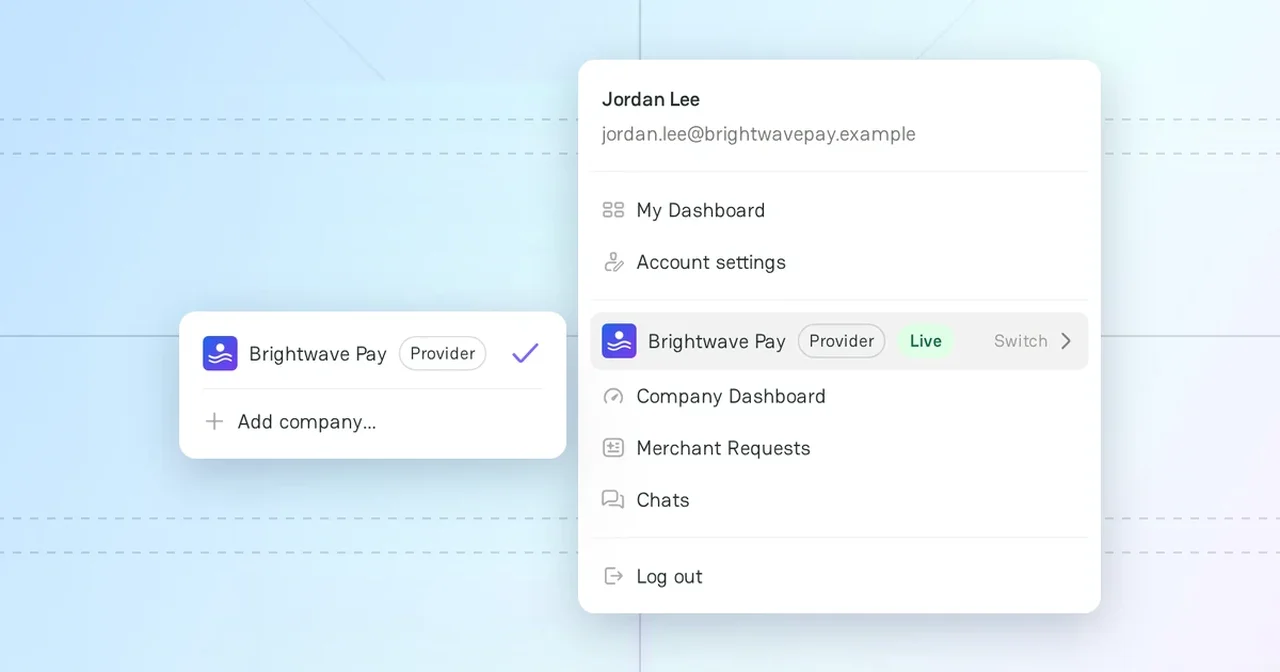
Company Dashboard is the workspace of a company on PayAtlas. In it, you edit the Company Profile, publish the changes, and manage the team and the settings of the company. Each company has its own dashboard.
Company Dashboard access
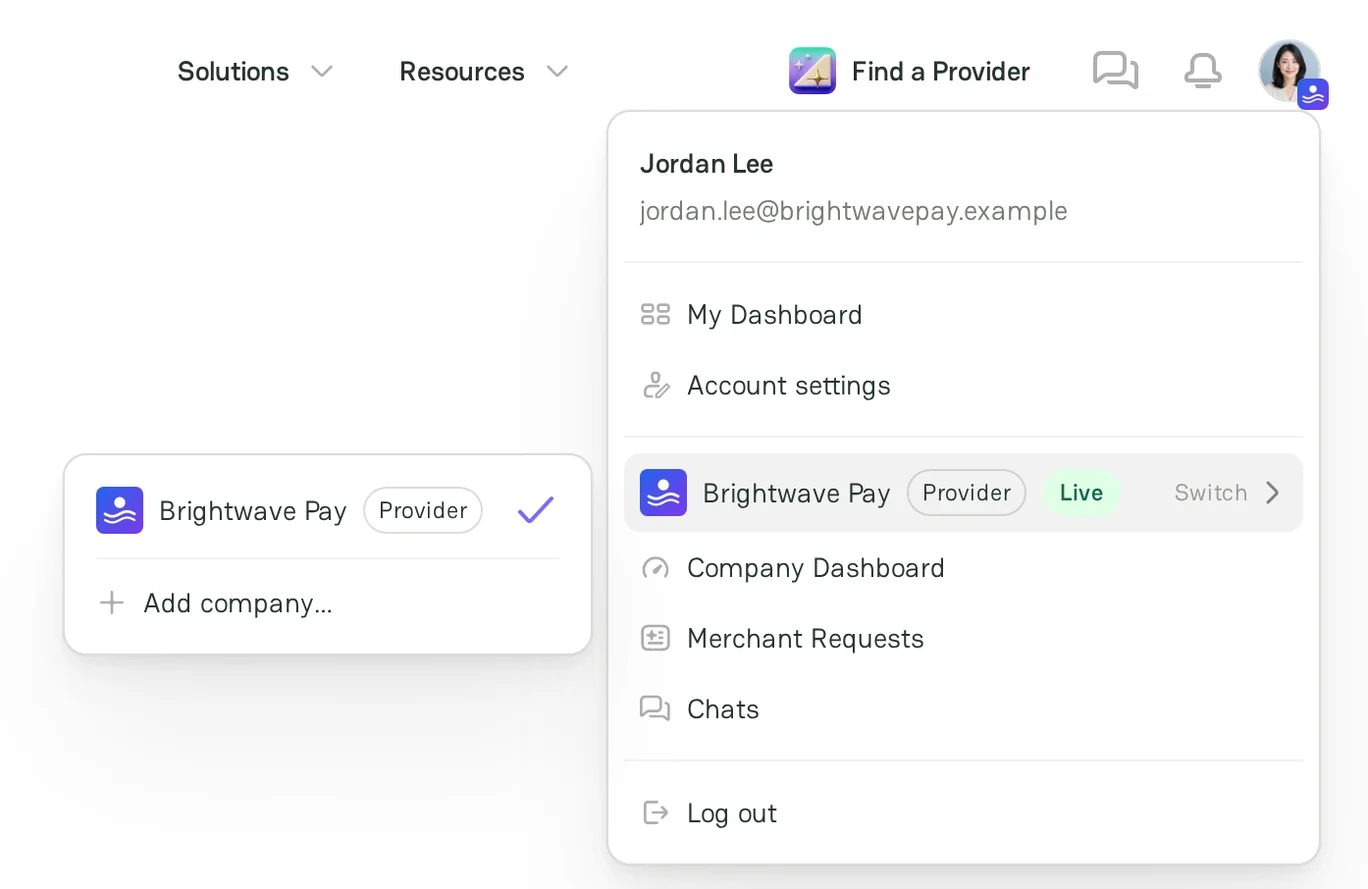
The user menu shows your active company with its type, Provider or Merchant, and the status of its profile. To open the dashboard of the active company:
- In the header, click your avatar.
- Click Company Dashboard.
To work with another company, click Switch in the user menu, and then select the company. A check mark shows the active company. When you open the dashboard of a company, that company becomes the active company.
You can also open a dashboard from the My Companies page. For more information, see the My Companies section below.
Dashboard sections
The header of the dashboard shows the name of the company, its type, the status of the profile, and the View public profile link. The sidebar has the Profile and Administration groups. The set of sections depends on the type of the company:
| Section | Provider company | Merchant company | What you do there |
|---|---|---|---|
| About | Yes | Yes | Add the logo, the name, the description, and the company details |
| Focus areas | Yes | No | Select the services, the industries, and the merchant geography |
| Features | Yes | No | Select the payment methods, the currencies, and the other supported features |
| Team | Yes | No | See the members of the company |
| Contacts | Yes | Yes | Add the links to the website and the social profiles |
| My Requests | No | Yes | Manage the requests that the company sends to providers |
| Members | Yes | Yes | Invite members and manage their roles |
| Verification | Yes | Yes | Get the verified badge for the company |
| Account | Yes | Yes | Change the company slug or delete the company |
Above the sections, Chats opens the conversations of the company. For more information, see Chats. Under the sections, What's next suggests the next steps, for example a Trust Badge for your website or the verification.
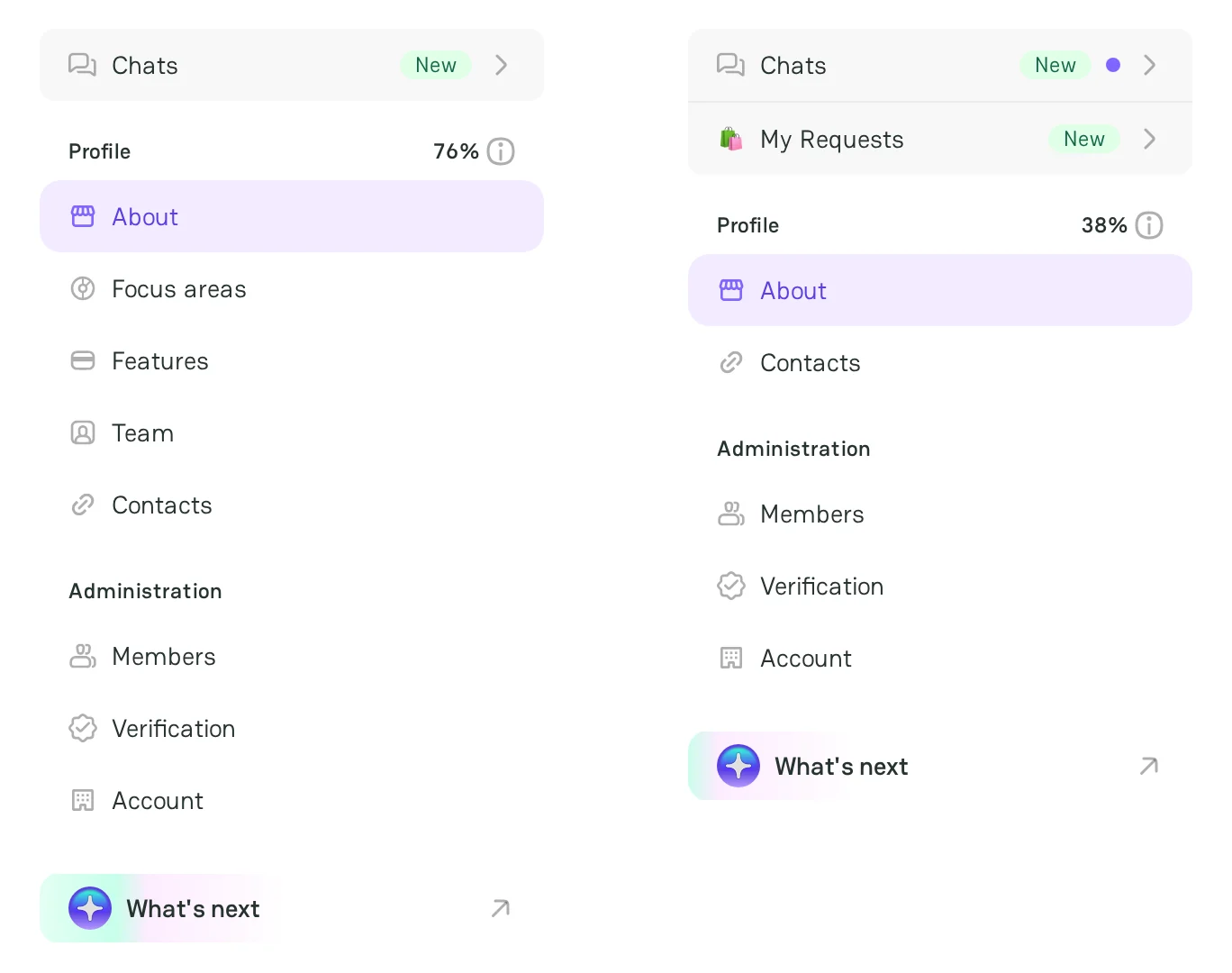
Only an Owner or an Admin of the company can open the Administration sections. For more information about the roles, see Review Administration settings.
Profile status and publishing
Each change in a Profile section saves automatically. The header shows Saving and then All changes saved. A saved change is a draft: other users see it only after you publish it.
The badge next to the type of the company shows the status of the profile:
| Status | What it means |
|---|---|
| Draft | The profile is not published. Visitors do not see it. |
| On moderation | The PayAtlas team checks the published changes. Visitors do not see the profile until the team approves it. |
| Live | The profile is published and visible to all users. |
| Changes Required | The PayAtlas team declined the changes. The publish menu shows the reason. |
| Archived | The company is in the archive. |
To publish the changes:
- In the header, click Publish changes.
- In the Ready to publish? menu, check the number of unpublished changes. To see the profile before you publish it, click the preview link.
- Click Publish changes.
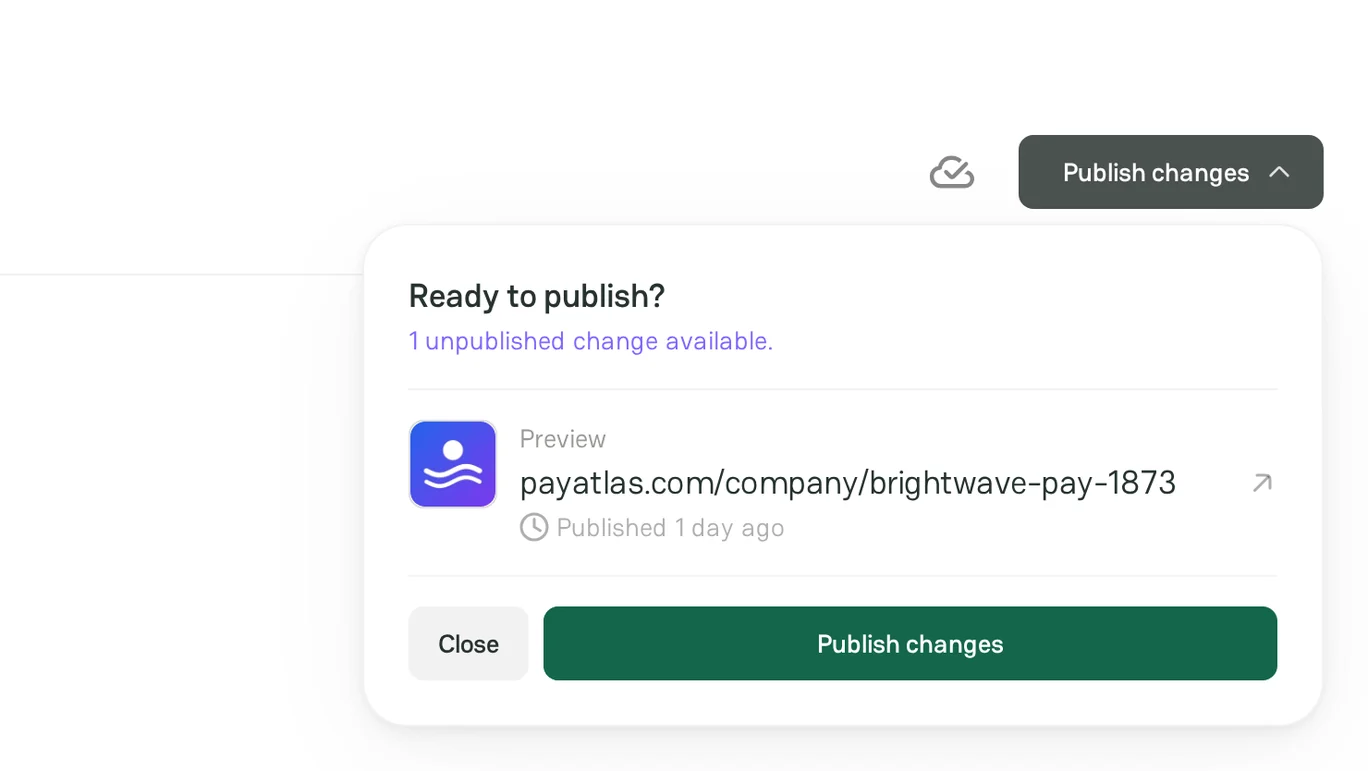
If a required item is missing, the menu shows Fill required fields to publish your company. and a link to the section that needs it. Only an Owner or an Admin can publish the changes. An Editor does not see the Publish changes button. For more information about the check of the PayAtlas team, see Follow Moderation process.
My Companies
The My Companies page shows all your companies. To open it, go to My Dashboard and click Companies.
- To open the dashboard of a company, click its card.
- To add a company, click Add. For more information, see Add Company.
- To open the Account section of a company, click the three-dot menu on its card, and then click Administration.
- To move a company to the archive, click the three-dot menu on its card, and then click Archive.
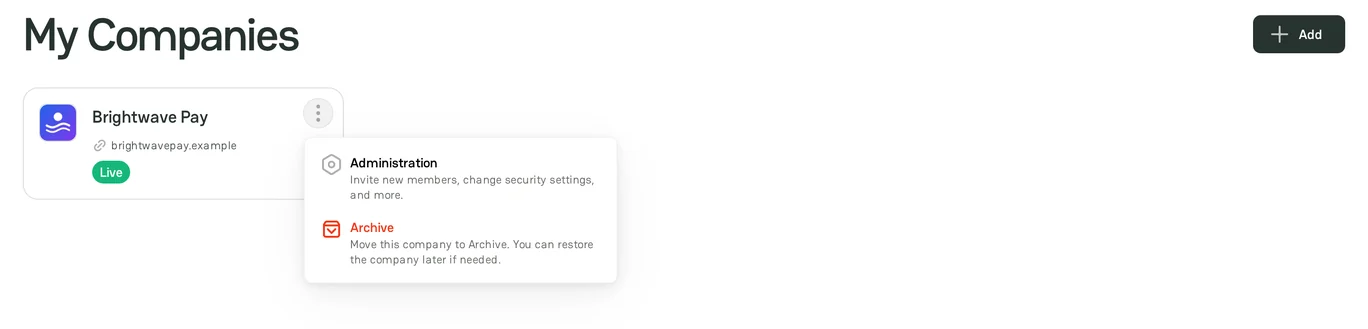
An archived company is not in the user menu, and its dashboard does not open. To see your archived companies, turn on Show archived. To restore a company, click the three-dot menu on its card, and then click Restore to Drafts.
Only an Owner or an Admin sees the three-dot menu of a company card.
Be aware that the archive keeps the company and its data. To remove a company permanently, delete it in the Account section. For more information, see Review Administration settings.
Related articles
- To add a company, see Add Company.
- To invite your team, see Review Administration settings.
- To publish your profile, see Follow Moderation process.


Comments