

Post a Merchant Request
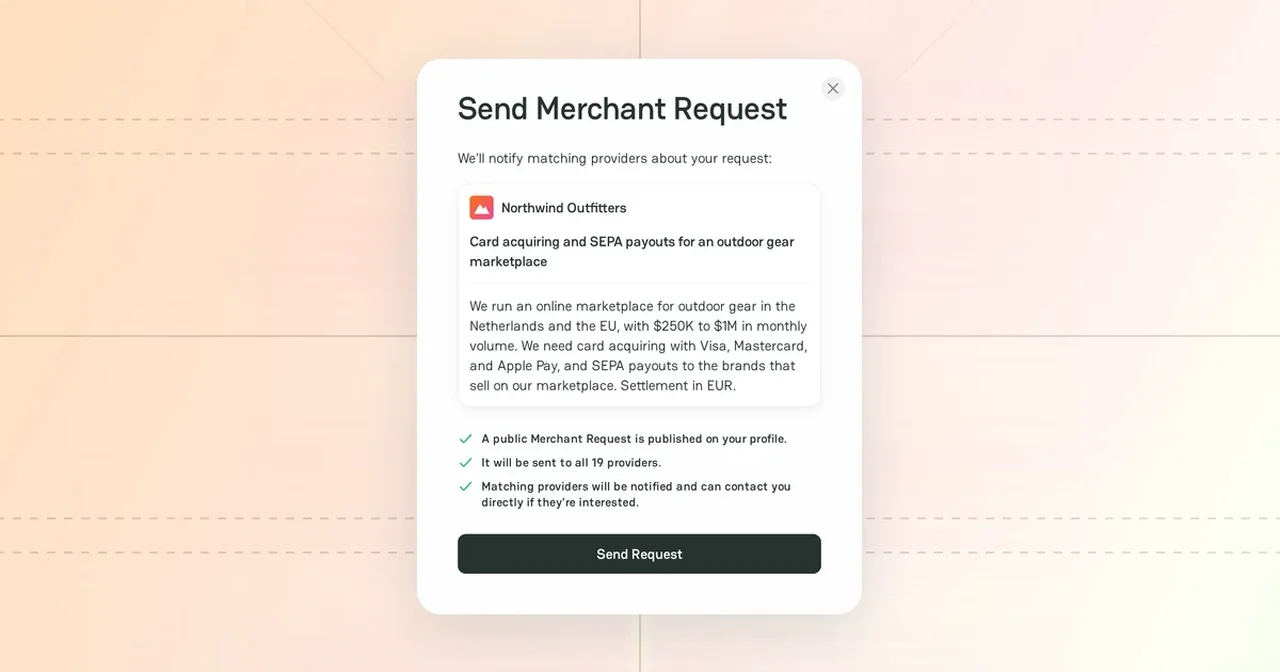
With PayAtlas Connect, providers come to you. You describe what your business needs in a Merchant Request, and PayAtlas sends the request to the providers that match it. The providers reply in Chats, so you do not need to contact each provider yourself.
Make sure that you are signed in and that you have a company with the Merchant role. To add one, see Add Company.
Request creation
- In the header, open Solutions and click Connect.
- Click Create Request. If you do not have a merchant company yet, PayAtlas asks you to add one first.
- If you have several merchant companies, select the company in Publish to. The request belongs to this company.
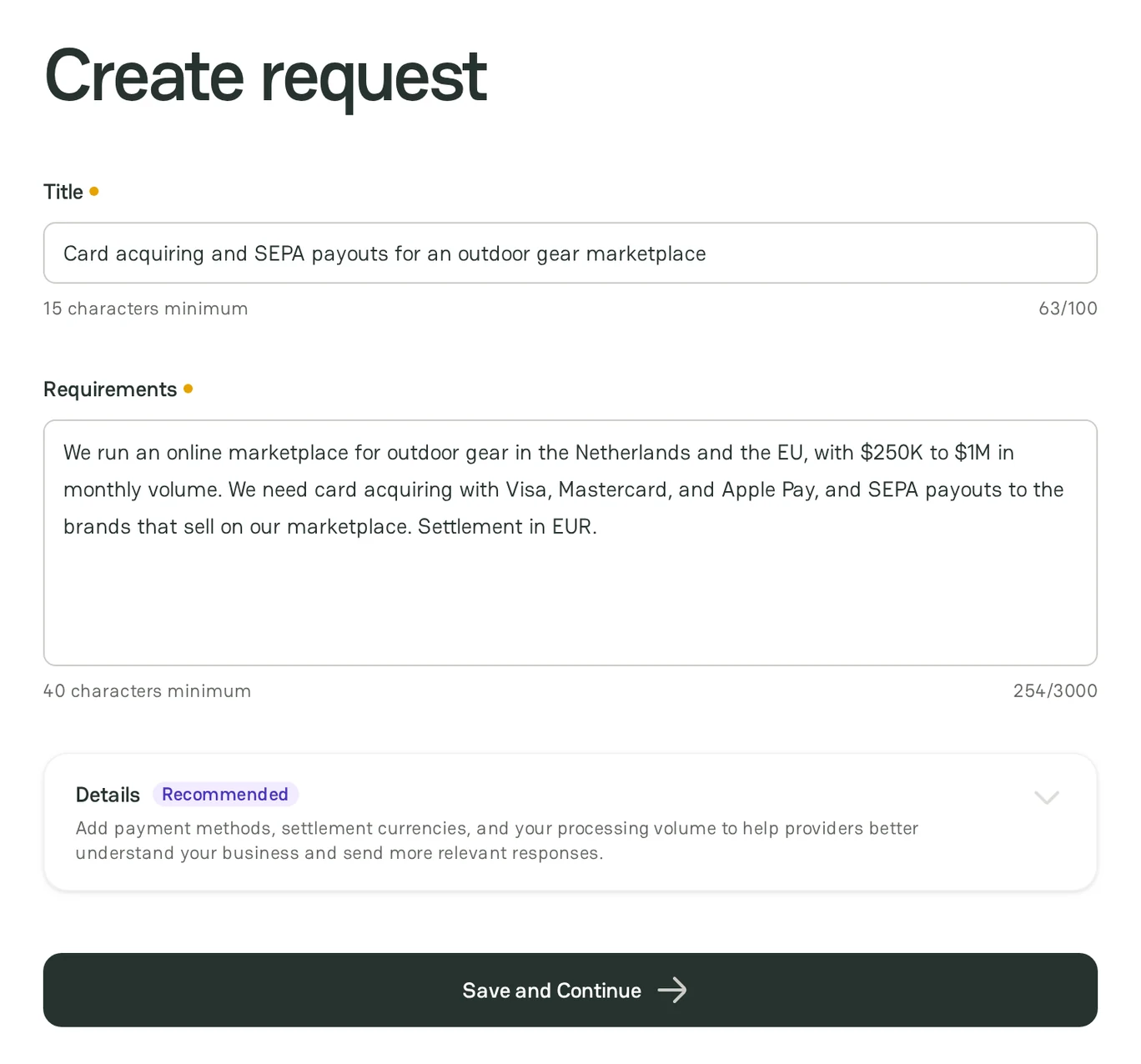
- Fill in the fields. The table below gives the rules.
- Click Save and Continue.
| Field | Required | Rule |
|---|---|---|
| Title | Yes | 15–100 characters. A short summary of your need, for example "Startup is looking to accept Crypto in MENA". |
| Requirements | Yes | 40–3000 characters. What you need and the facts about your business that matter for the provider. |
| Payment methods, Settlement currencies, Transaction currencies, Target markets, Settlement speed, Additional features | No | The Details section. The details help providers understand your business and send more relevant replies. |
PayAtlas publishes the request at once and shows Your request is live. One company cannot have two open requests with the same title.
Create a request from Navigator
You can also turn a Navigator search into a request. On the results page, click Send Merchant Request, and then click Create & Send Request. PayAtlas writes the title and the text of the request from your search and sends the request to the matching providers. For more information, see Find providers with Navigator.
Request visibility
| Who | What they see |
|---|---|
| Everyone, in the public list of requests on Connect | The title and the main details of the request. The name of your company is hidden. |
| Signed-in members of a published provider company | The full request and the merchant profile of your company. |
Provider notification
After you publish the request, PayAtlas finds the providers that match it, up to 24 providers.
This number can differ from the number in the Navigator banner. The banner counts the providers with a Very likely match or a Possible match for your search, and the request goes to the providers that match the request.
- On the Your request is live page, under Don't wait for providers to find you, click Send your request.
- In Send Merchant Request, check the request, and then click Send Request.
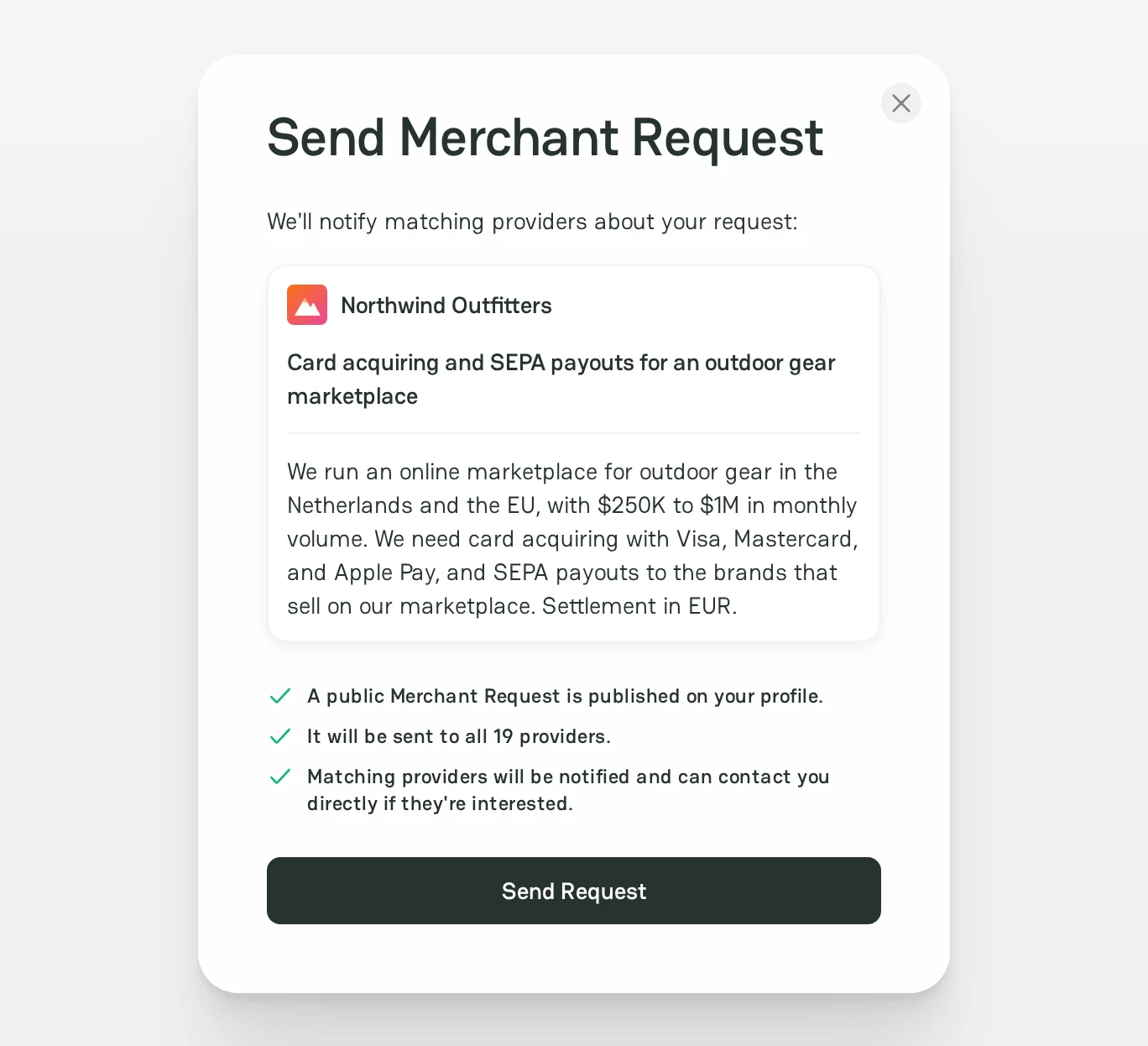
Each provider gets a chat message from your company with a link to the request. You can send the request later from the request page: under Recommended Providers, click Send request or Send request to all providers.
If no provider matches the request yet, the page shows No matching providers yet. Providers can still find the request in the public list of requests on Connect.
Provider replies
Providers reply to you in Chats. When a provider replies, PayAtlas notifies you in the notification inbox and by email.
- To open your chats, click your avatar in the header, and then click Chats.
- To write to one provider yourself, open the profile of the provider and click Message.
For more information, see Chats and Notification Inbox.
Request states
| State | What it means | What providers see |
|---|---|---|
| Open | The request is active. | The request is in the public list, and providers can open it. |
| In progress | The request is open and has one or more Connects. Only the list of your requests shows this state. | The same as for Open. |
| Complete | You found a solution and closed the request. | The request is not in the public list. A provider with a link can still open it. |
| Archived | You hid the request. | Providers cannot open the request. |
The status filter of the list and the request page show the Complete state as Completed.
Request management
To manage your requests, make your merchant company active in the header menu, and then click Merchant Requests. To change the active company, click your avatar in the header, click Switch, and select the company. You can also open My Requests in Company Dashboard. The list shows each request with its status, and you can filter and sort the list.
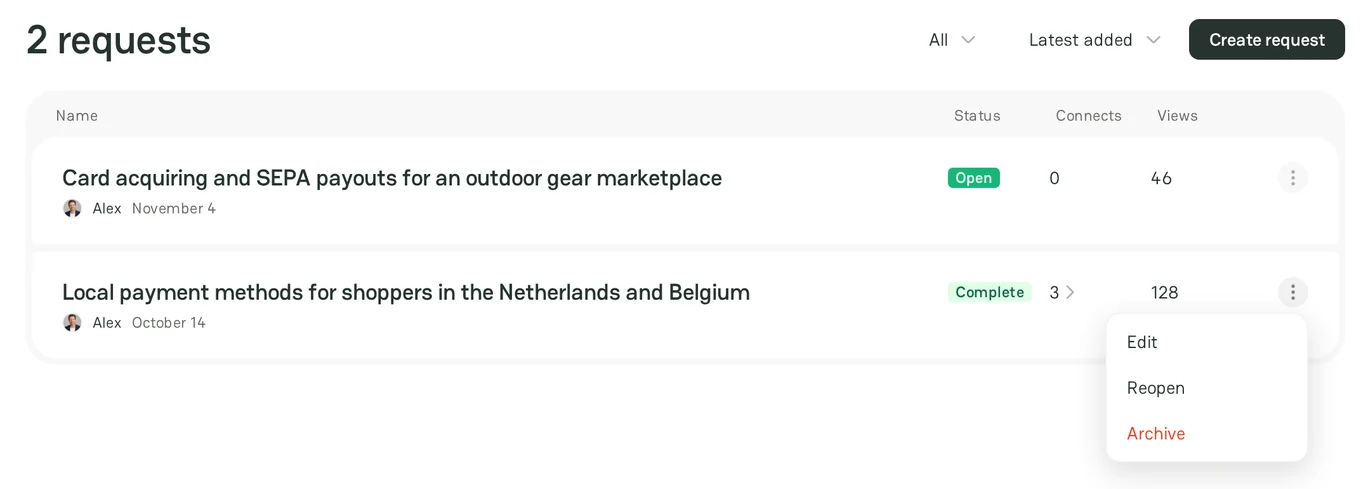
Open the menu of a request in the list, or open the request page, and use one of these actions:
- Edit, or Edit request on the request page: change the fields, and then click Save changes. The state of the request and your chats stay the same.
- Mark solved, or Close request on the request page: the request becomes Complete.
- Reopen, or Reopen request on the request page: the request becomes Open again.
- Archive: providers can no longer open the request.
- Restore, in the list only: the archived request comes back.
Pay attention! You cannot delete a request. To hide a request from providers, archive it.
Next steps
- To find providers before you post a request, see Find providers with Navigator.
- To compare two providers that replied, see Compare providers.


Comments