

Chats
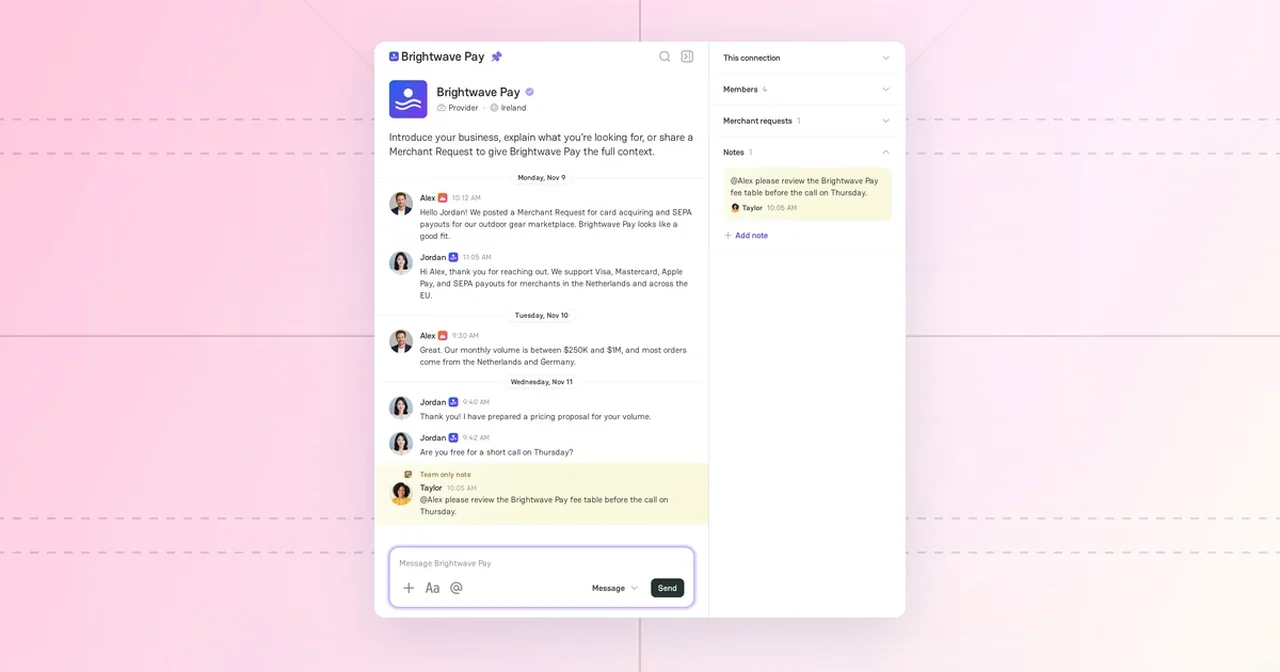
Chats are the place where your Company talks with merchants and providers on PayAtlas. Each chat connects two Companies, so your teammates can follow the conversation and reply for the Company.
Make sure that you have a Company of the correct type. A merchant Company writes to providers, and a provider Company writes to merchants. To create a Company, see Add a Company.
Chats and Companies
A chat connects your Company with another Company, not two people.
- Each active member of your Company sees the chat and can reply in it.
- Each message shows the name of the sender and the Company of the sender.
- The other Company sees the name of your Company and your name.
- A provider Company can chat after PayAtlas publishes its Company Profile.
Start a chat
You start a chat from a Company Profile, a provider card, or a Merchant Request. If your Company already has a chat with that Company, each button opens that chat. On a provider card, a Company Profile, and a card in Merchant Requests, the button then shows Open dialog.
| You are | Where | Button |
|---|---|---|
| Merchant | A provider card in Atlas | Connect |
| Merchant | The Company Profile of a provider | Message |
| Merchant | The results of Navigator | Select providers, click Message, enter the text, and then click Send |
| Provider | A card in Merchant Requests | Message |
| Provider | The page of a Merchant Request | Message |
| Provider | The Company Profile of a merchant | Message, if the merchant has an open Merchant Request |
- If you are not signed in, PayAtlas asks you to sign in first.
- If you do not have a Company of the correct type, PayAtlas asks you to create one first.
In Navigator, Send Merchant Request and Send request send a Merchant Request and do not open a chat. Message sends your text to each selected provider, and the page of the results stays open. For more information, see Find providers with Navigator.
From a Company Profile, a card, or a request page, a new chat opens with a short prompt. A merchant can introduce the business or share a Merchant Request, so that the provider sees the needs at once.
Chat list
To open your chats, click the Chats icon in the header. You can also open the user menu and click Chats.
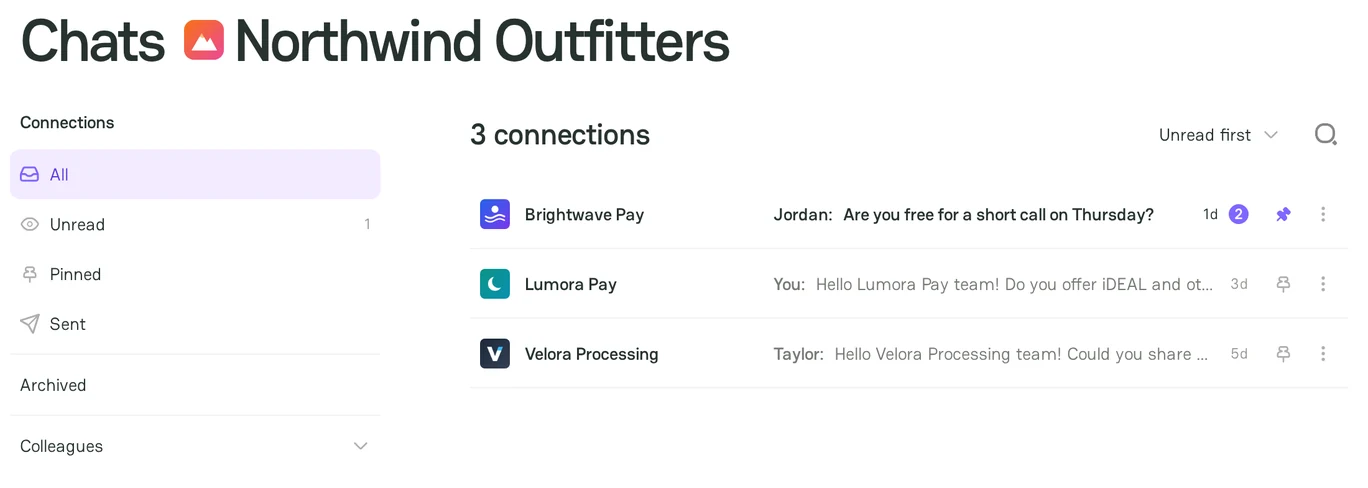
The Chats page shows the chats of one Company. The name of the Company is next to the page title. Each row shows:
- The other Company.
- The last message and the first name of its sender.
- The time of the last message.
- The number of unread messages.
Filter the chats
Use the Connections menu on the left to filter the list.
| Filter | Shows |
|---|---|
| All | Each chat that is not archived. |
| Unread | The chats with unread messages. The number shows how many chats have unread messages. |
| Pinned | The chats that you pinned. |
| Sent | The chats in which you sent a message. |
| Archived | The chats that you archived. |
| Colleagues | The chats that a teammate started. Select the teammate in the list. |
Sort and search the chats
- To change the order, select Latest activity, Oldest activity, or Unread first in the sort menu. Pinned chats stay at the top.
- To find a chat, click the search icon and enter a Company name or a word from a message.
Pin or archive a chat
- To keep a chat at the top of the list, click the pin icon of the chat.
- To remove a chat from the list, click the three-dot menu of the chat and select Archive. The chat moves to Archived.
- To return an archived chat to the list, open it and click Unarchive.
Pins and archived chats change only your own list. Your teammates keep their own list.
Unread messages
PayAtlas tells you about a new message in these places:
- A number next to the chat in the chat list.
- A counter next to the Unread filter.
- A dot next to Chats and next to the Company in the user menu.
- A notification in the Inbox. For more information, see Notification Inbox.
- An email, if you do not read the message on PayAtlas. When several messages arrive in a short time, you get one email for them.
When you open a chat, PayAtlas marks its messages as read.
Write on behalf of a Company
If you are a member of more than one Company, select the Company before you write:
- Open the Chats page.
- Click the name of the Company next to the page title.
- Select the Company. The page shows the chats of that Company.
In a chat, each message that you send shows the logo of the selected Company. When you start a new chat from a Company Profile, a card, or a request, PayAtlas writes as the Company that is active in the user menu.
Chat window
Click a chat to open it. The chats of your Company are on the left, the messages are in the center, and the connection details are on the right.
To send a message:
- Enter the text in the message field.
- Optional: to format the text, click Formatting (Aa) and select Bold, Italic, Link, Numbered list, or Bullet list.
- Click Send.
To attach a file:
- Click Attach file (+).
- Select the file. PayAtlas sends the file at once as a separate message.
You can attach a PDF, PNG, JPG, WEBP, GIF, DOC, DOCX, XLS, XLSX, CSV, or TXT file up to 10 MB.
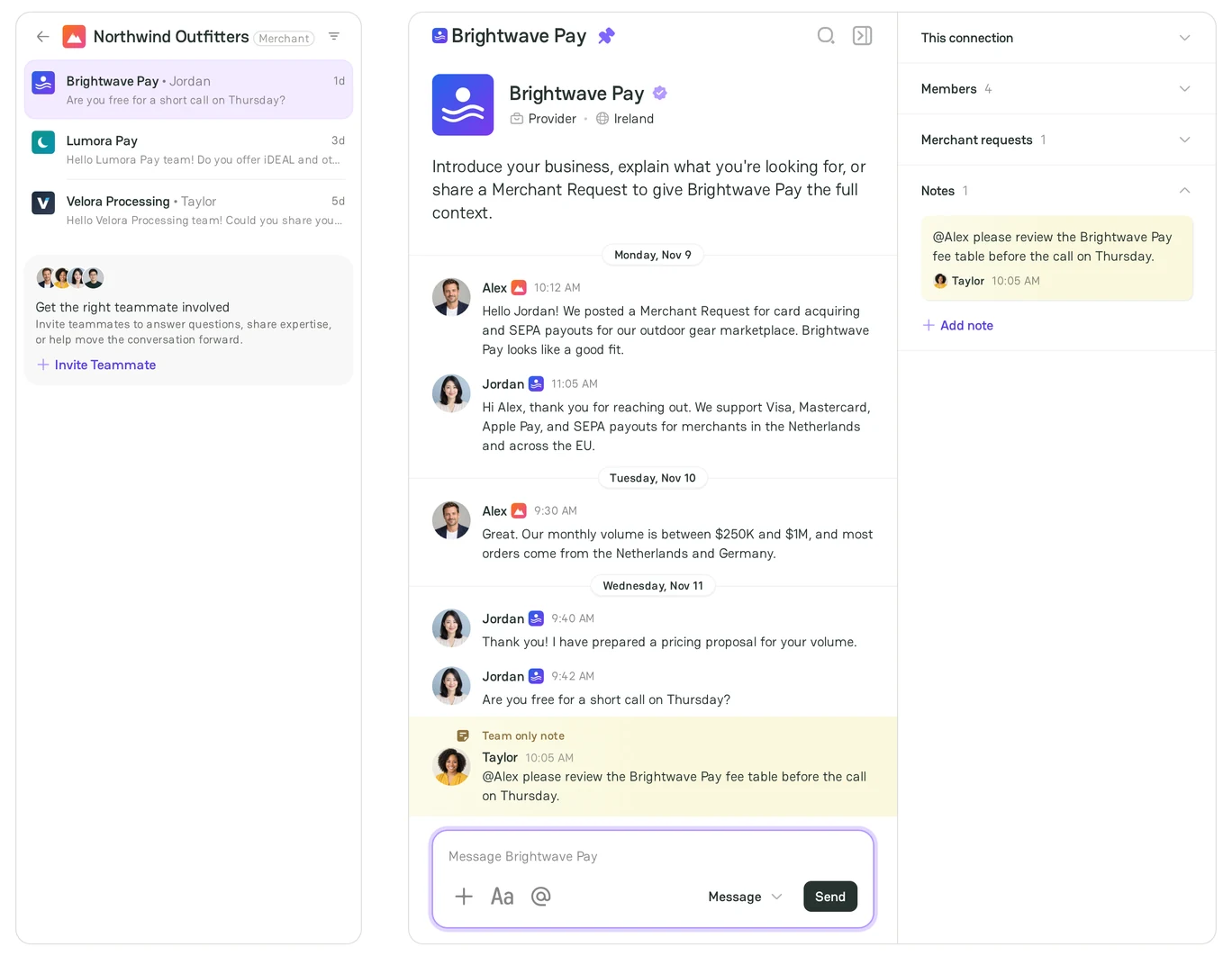
- To find a message in the chat, click the search icon in the chat header and enter a word.
- To pin the chat, click the pin icon next to the Company name in the chat header.
Team notes
A note is a message for your teammates only. The other Company does not see it.
- In the message field, change Message to Note.
- Enter the note. To mention a teammate, enter
@and select the name. - Click Add note.
The note shows in the chat with the Team only note label and in the Notes section of the connection details. Each teammate that you mention gets a notification in the Inbox.
Connection details
The panel on the right shows the details of the chat.
| Section | Content |
|---|---|
| This connection | The other Company, the date when the chat started, the person who sent the first message, and the Archive button. |
| Members | The members of both Companies. Click Invite Teammate to add a member to your Company. |
| Merchant requests | The open Merchant Requests of the merchant Company. A merchant can send a request to the chat or create a request. |
| Notes | The team notes of the chat and the Add note button. |
To hide the panel, click Collapse sidebar in the chat header.
Related articles
- To read and manage your notifications, see Notification Inbox.
- To choose the email topics that you get, see Choose your email notifications.
- To create a merchant or a provider Company, see Add a Company.



Comments