
Notification Inbox
Read the PayAtlas notifications about your chats, requests, comments, and team in one place. Mark them as read, archive them, and filter the list.
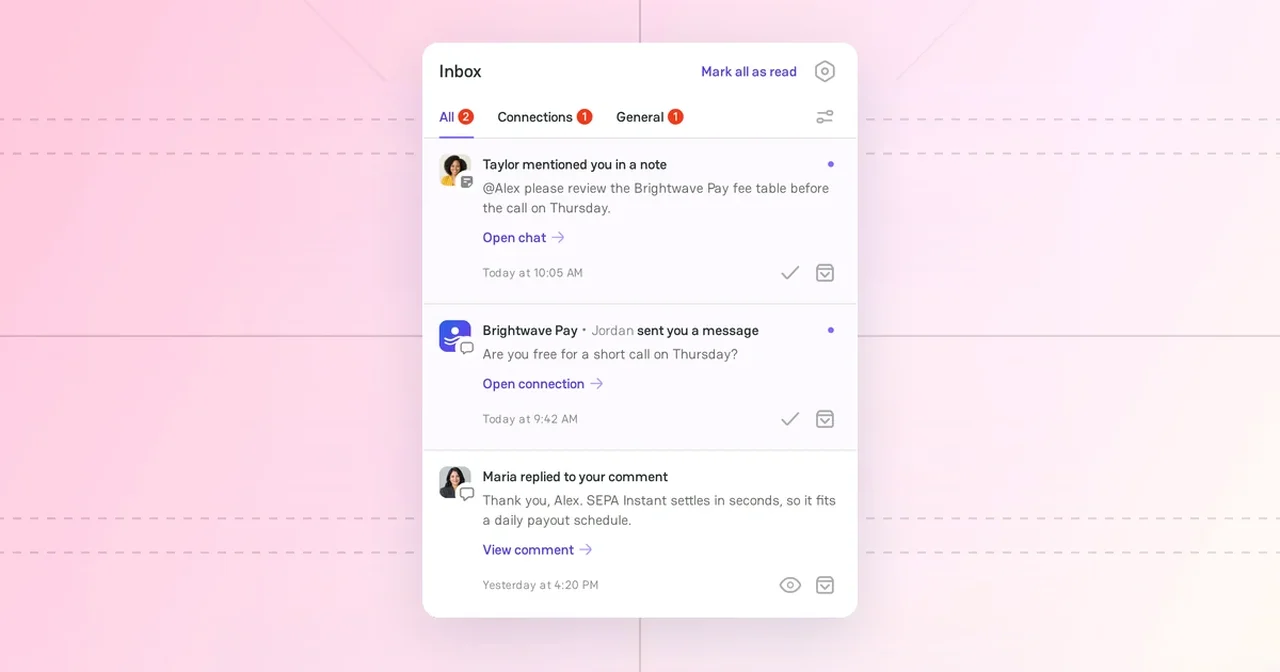
The Inbox collects the PayAtlas notifications about your chats, Merchant Requests, comments, reviews, and team. Use it to see what changed since your last visit and to go to the related page in one click.
Open the Inbox
Click the bell icon in the header. A dot on the bell shows that you have unread notifications.
The Inbox has three tabs:
- All shows each notification.
- Connections shows the notifications about chats and Merchant Requests.
- General shows the notifications about comments, reviews, team notes, and your team.
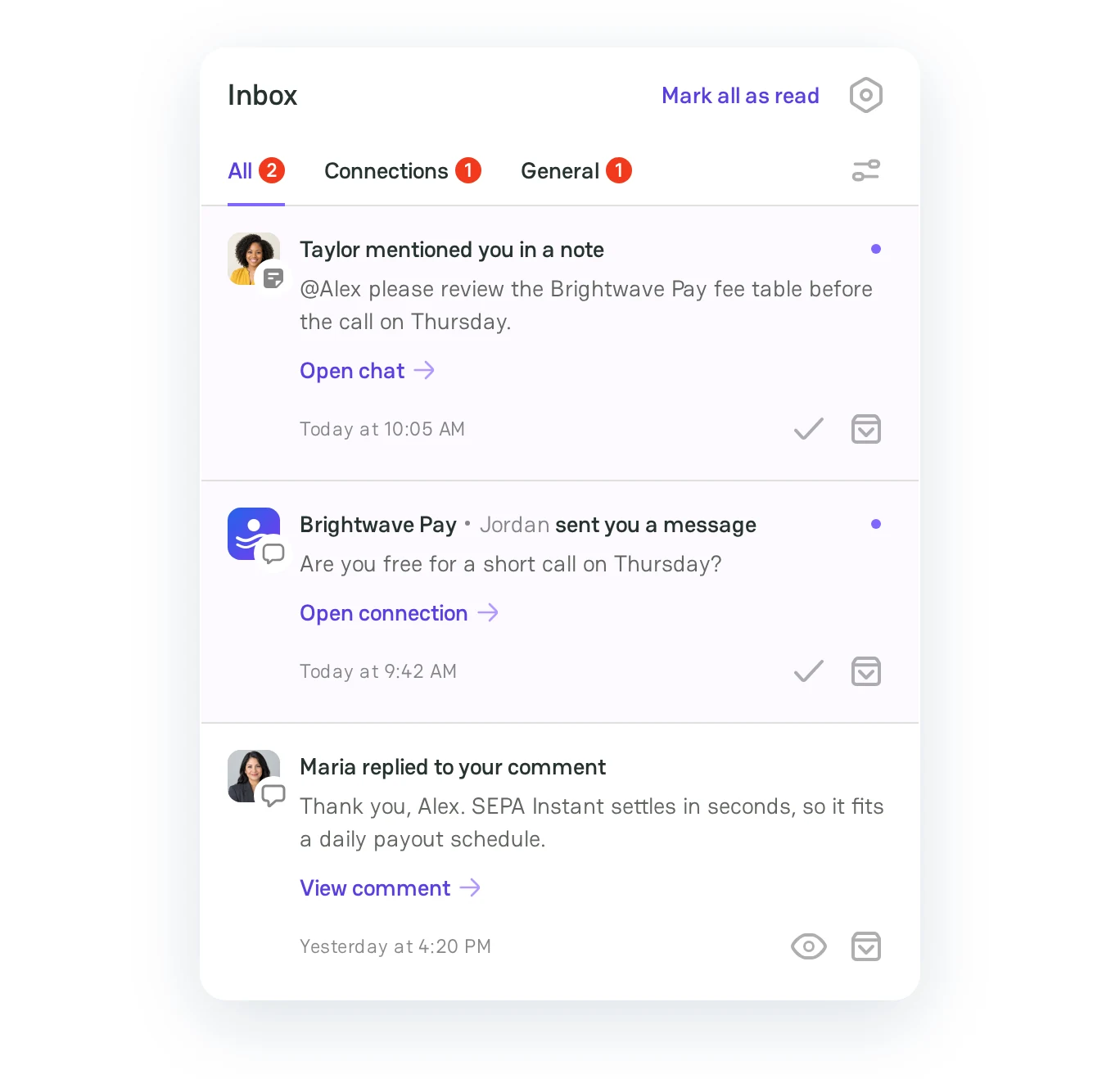
The number on a tab shows the unread notifications in it. Each notification shows a title, a short preview, a button to the related page, and the time.
Notification types
| Notification | Tab | When you get it | Button |
|---|---|---|---|
| [Company] • [Name] sent you a message | Connections | Another person writes in a chat of your Company: a member of the other Company or a teammate. You do not get it while the chat is open. | Open connection |
| New merchant request available or New merchant request from [industry] company available | Connections | A merchant sends a Merchant Request to your provider Company. | View request |
| [Name] mentioned you in a note | General | A teammate mentions you in a team note of a chat. | Open chat |
| [Name] replied to your comment | General | A user replies to your comment. | View comment |
| [Name] commented on [title] | General | A user comments on content that you published, such as an article or a discussion. | View comment |
| [Name] mentioned you in [title] | General | A user mentions you in a comment with @ and your username, for example @alex-morgan. |
View comment |
| You were invited to join [Company] | General | A Company invites you to its team with the email of your PayAtlas account. | View invitation |
| [Name] joined [Company] | General | A new member accepts an invitation to your Company. The owner and the admins of the Company get it. | View members |
| [Company] received a new review | General | Moderation publishes a new review of your Company. The owner and the admins of the Company get it. | Read review |
| Your [content] "[title]" is published | General | A moderator approves your discussion, job, or feedback post. | View |
| Your [content] "[title]" was declined | General | A moderator declines your discussion, job, or feedback post. The notification shows the reason if the moderator gave one. | View |
Manage notifications
- To open the related page, click the button of the notification.
- To mark a notification as read, click its check mark. To mark it as unread again, click its eye icon.
- To mark all notifications as read, click Mark all as read.
- To remove a notification from the list, click the archive icon of the notification. To return it, find it with the Archived filter and click the archive icon again.
Filter the notifications
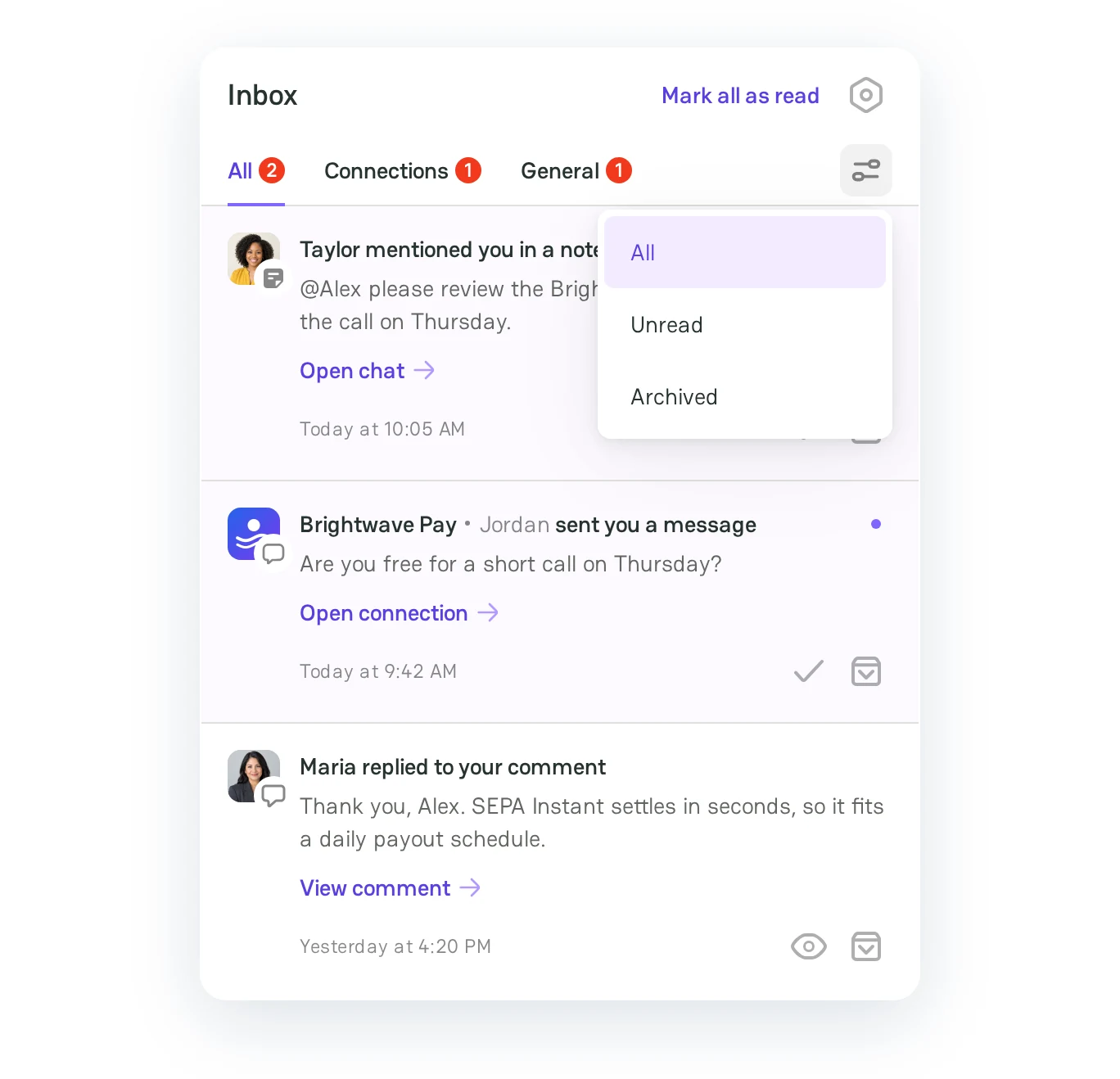
Click the filter icon next to the tabs and select a filter:
| Filter | Shows |
|---|---|
| All | Each notification that is not archived. |
| Unread | The notifications that you did not read. |
| Archived | The notifications that you archived. |
Notification channels
PayAtlas sends notifications through two channels:
- Inbox. Each notification of the preceding table comes to the Inbox in your browser.
- Email. PayAtlas also sends an email about new chat messages and about the Merchant Requests that merchants send to your provider Company. If you read a chat message on PayAtlas first, you do not get the email. When several chat messages arrive in a short time, you get one email for them.
To choose the email topics that you get, click the Notification preferences icon in the Inbox. For more information, see Choose your email notifications.
Related articles
- To start and manage chats, see Chats.
- To choose the email topics that you get, see Choose your email notifications.


Comments