

Find providers with Navigator
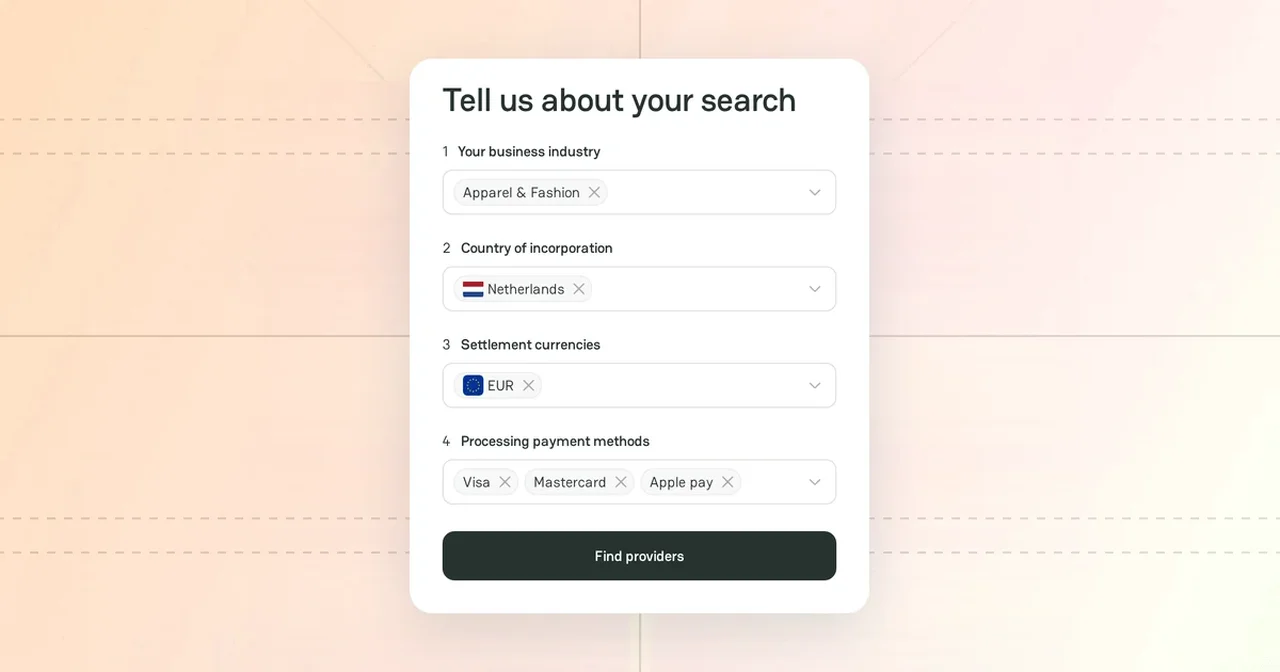
PayAtlas Navigator helps you choose a payment provider before you apply. You describe your business, and Navigator shows the providers that can fit it, with a match score for each of them. You can search without an account.
Search
-
In the header, click Find a Provider. You can also open Solutions, click Navigator, and then click Start PayAtlas Navigator.
-
Under Tell us about your search, complete the four steps in order. Each step opens after you complete the previous one, and you can select several values in each step.
Step What you select Your business industry The industry of your business Country of incorporation The country where your company is registered Settlement currencies The currencies in which you want to receive your funds Processing payment methods The payment methods that your customers use -
Click Find providers.
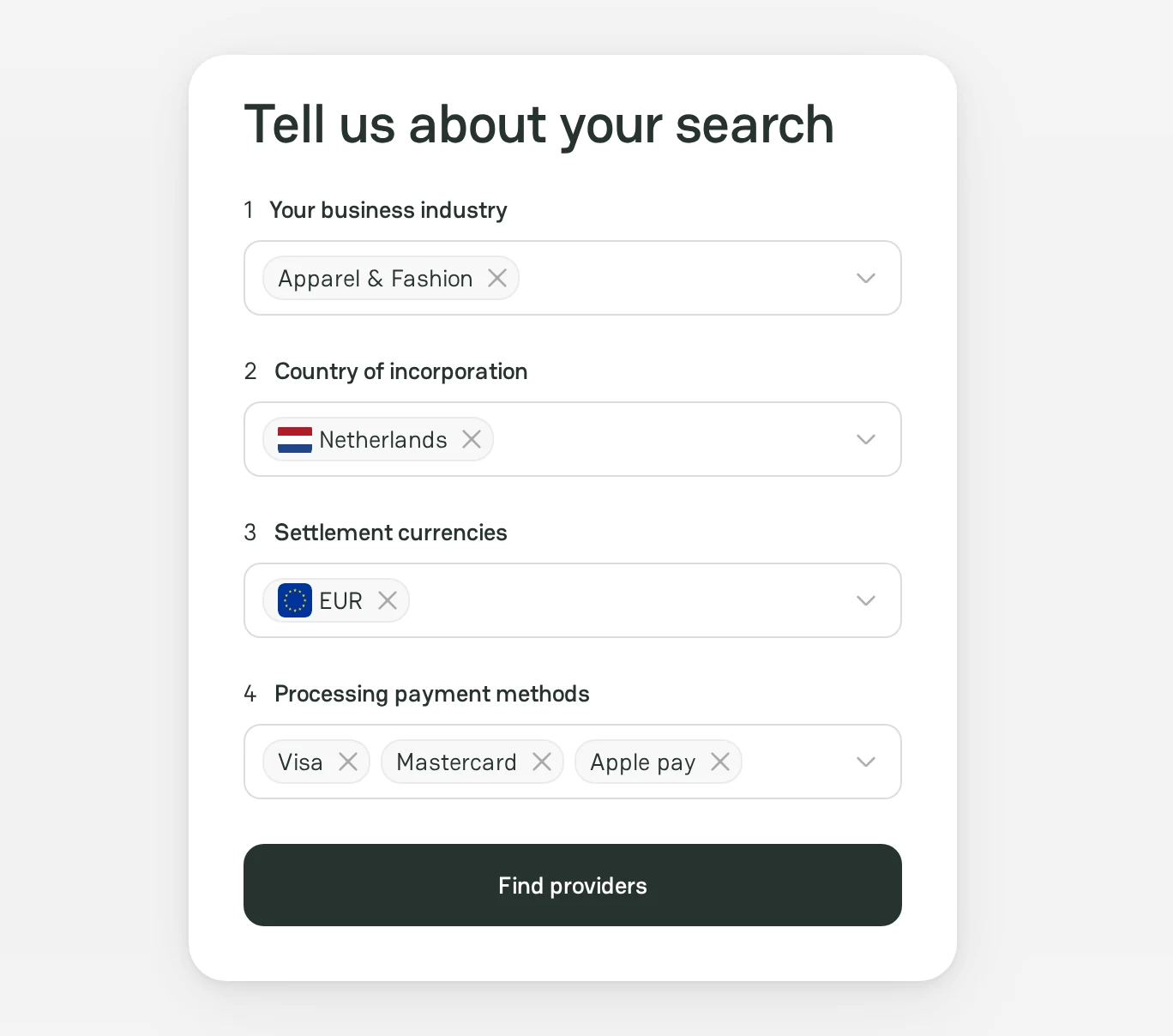
While you fill in the form, the panel above the summary of your search shows an estimate of the matching providers. If no provider matches your choice, the panel shows "No matches found." Remove some values and try again.
Results
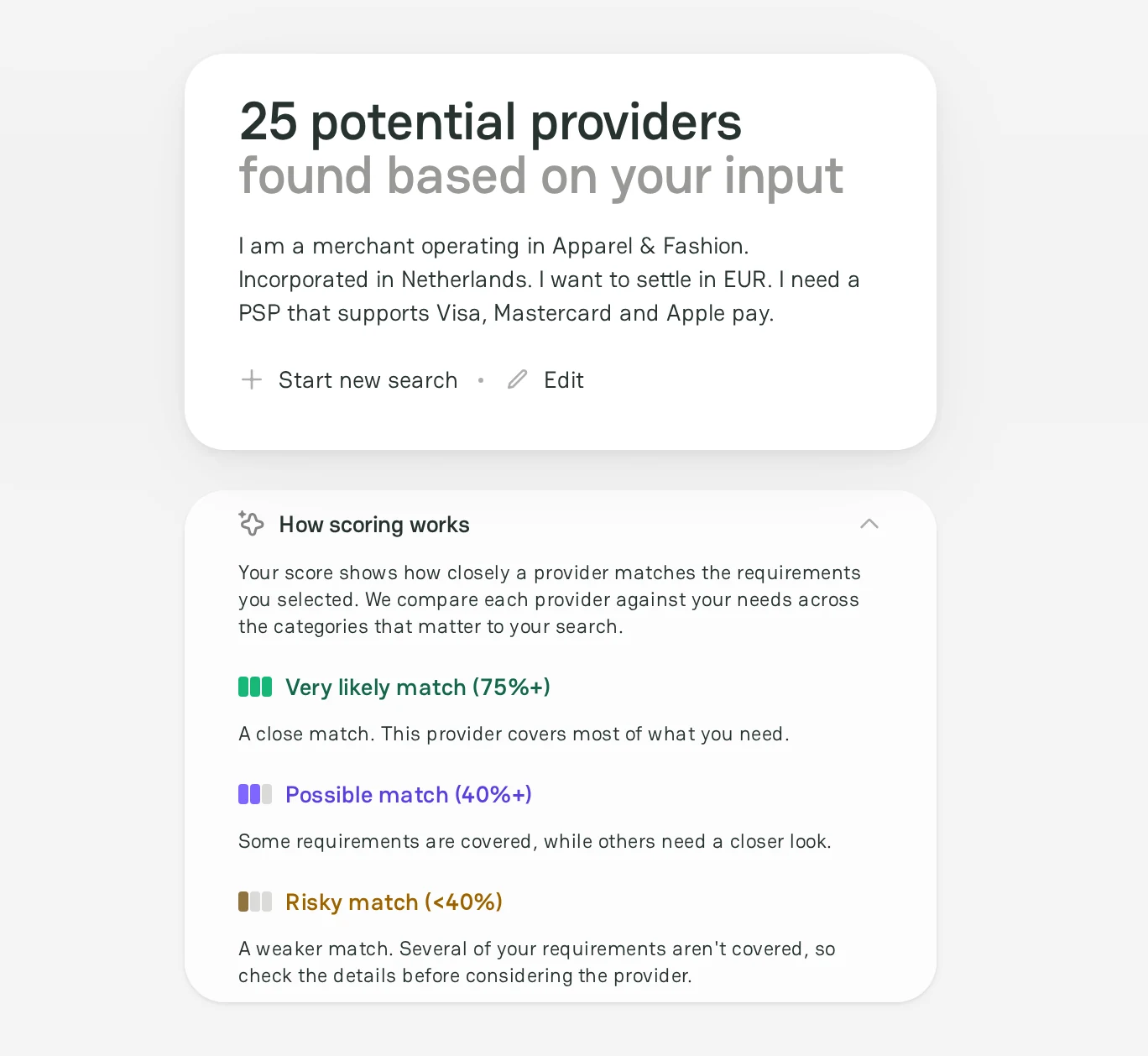
The results page shows the number of the providers that Navigator found and a summary of your search. To change the search, click Edit. To start again, click Start new search.
Each provider card shows the match score, the reviews, the headquarters country, and the criteria that the provider covers. To see the details of a provider, click Open profile.
| Match score | What it means |
|---|---|
| Very likely match (75% or more) | The provider covers most of your requirements. |
| Possible match (40% or more) | The provider covers some requirements. Check the others before you contact the provider. |
| Risky match (less than 40%) | The provider does not cover several requirements. Check the details first. |
To see how Navigator calculates the score, open How scoring works.
Be aware that without an account, you see only the best matches. To see all results, click Sign In to Unlock.
Provider contact
To contact providers from the results, you need a company with the Merchant role. If you do not have one, PayAtlas asks you to add it first.
You can contact up to 50 providers at a time. If Navigator finds more than 50 matching providers, the banner offers your 50 strongest matches.
Send a request to the matching providers
- In the banner above the results, click Send Merchant Request.
- Check the request, and then click Create & Send Request.
PayAtlas publishes a Merchant Request from your search and notifies the matching providers. When a provider replies, you get a notification and an email. To open the request, click View request. For more information, see Post a Merchant Request.
Contact selected providers
- Select the checkbox on the card of each provider that you want to contact.
- In the bar at the bottom of the page, click one of the actions:
- Send request: publish a Merchant Request and send it only to the selected providers.
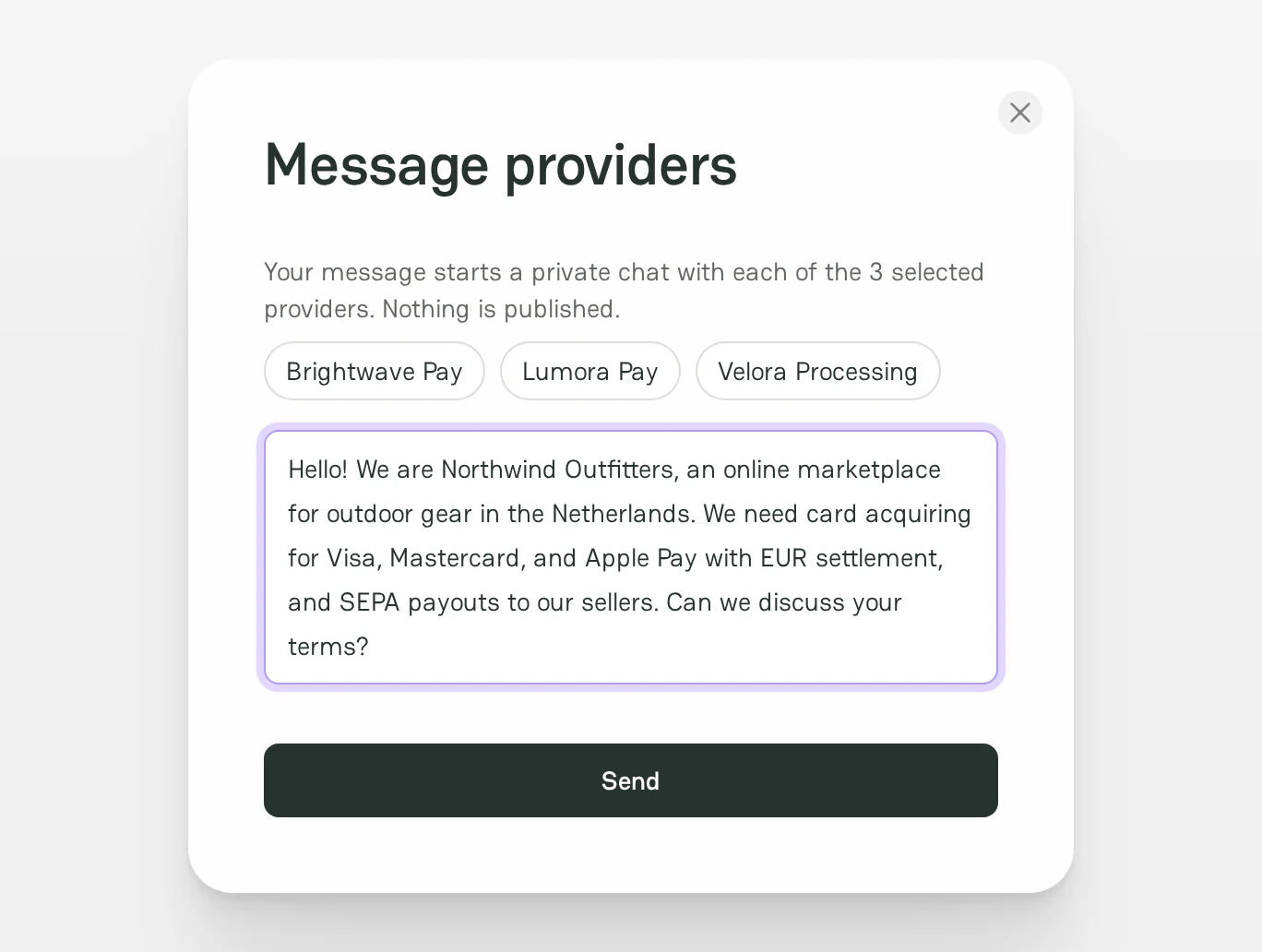
- Message: start a private chat with each selected provider. Nothing is published.
- For a request, check it, and then click Create & Send Request. For a message, write the text, and then click Send. If you have several merchant companies, select the company in Send as first.
Next steps
- To compare two providers from the results, see Compare providers.
- To continue the conversation with providers, see Chats.



Comments