

Report a provider issue
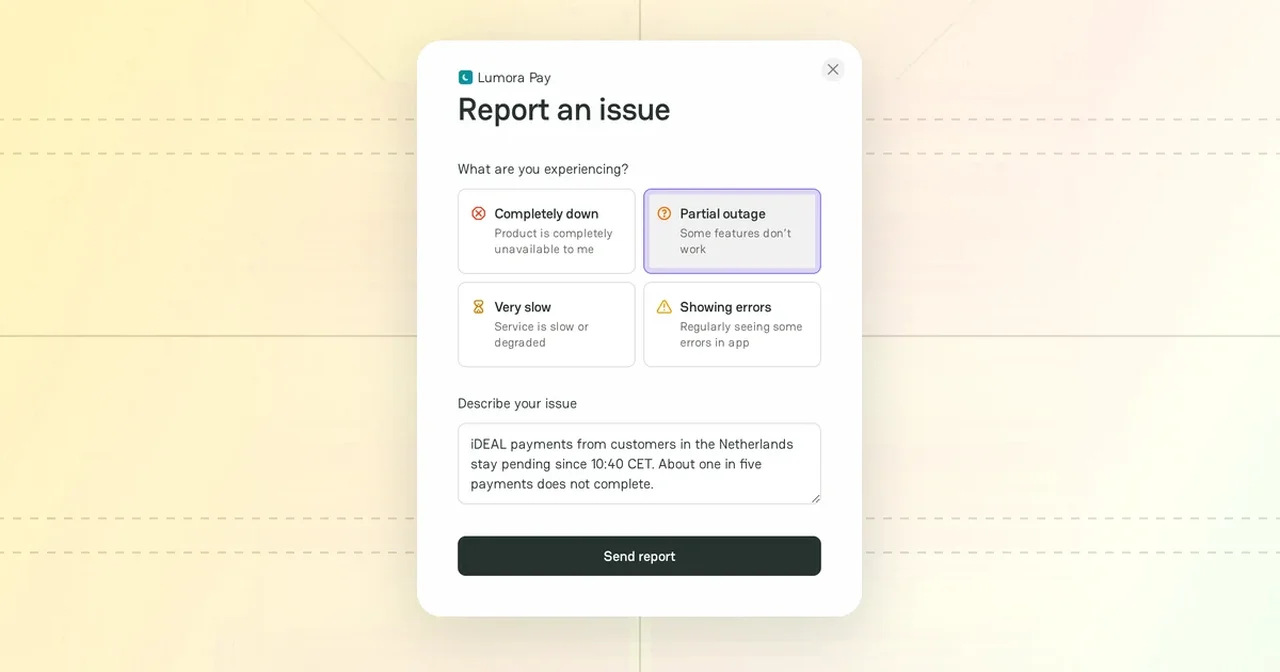
If a payment provider fails for you, tell other PayAtlas users. A community report shows on the Company status page of the provider, in its reliability snapshot, and on its incidents timeline.
Community report
Make sure that you are signed in to PayAtlas. If you are not signed in, the report buttons and the upvote button open the Log in window.
You can send a report from the Company status page of the provider or from the Firemap page. Both open the same Report an issue form.
| Issue type | Description in the form |
|---|---|
| Completely down | Product is completely unavailable to me |
| Partial outage | Some features don’t work |
| Very slow | Service is slow or degraded |
| Showing errors | Regularly seeing some errors in app |
Report from the Company status page
- Open the Company status page of the provider. For more information, see Company status page.
- Click Report issue in the current status box or in the Community reports section. If the provider has no reports yet, click the button of your issue type under the question "Is … down for you?".
- In What are you experiencing?, select the issue type.
- In Describe your issue, describe the problem: the payment method, the country, the error, and the time.
- Click Send report.
Report from the Firemap page
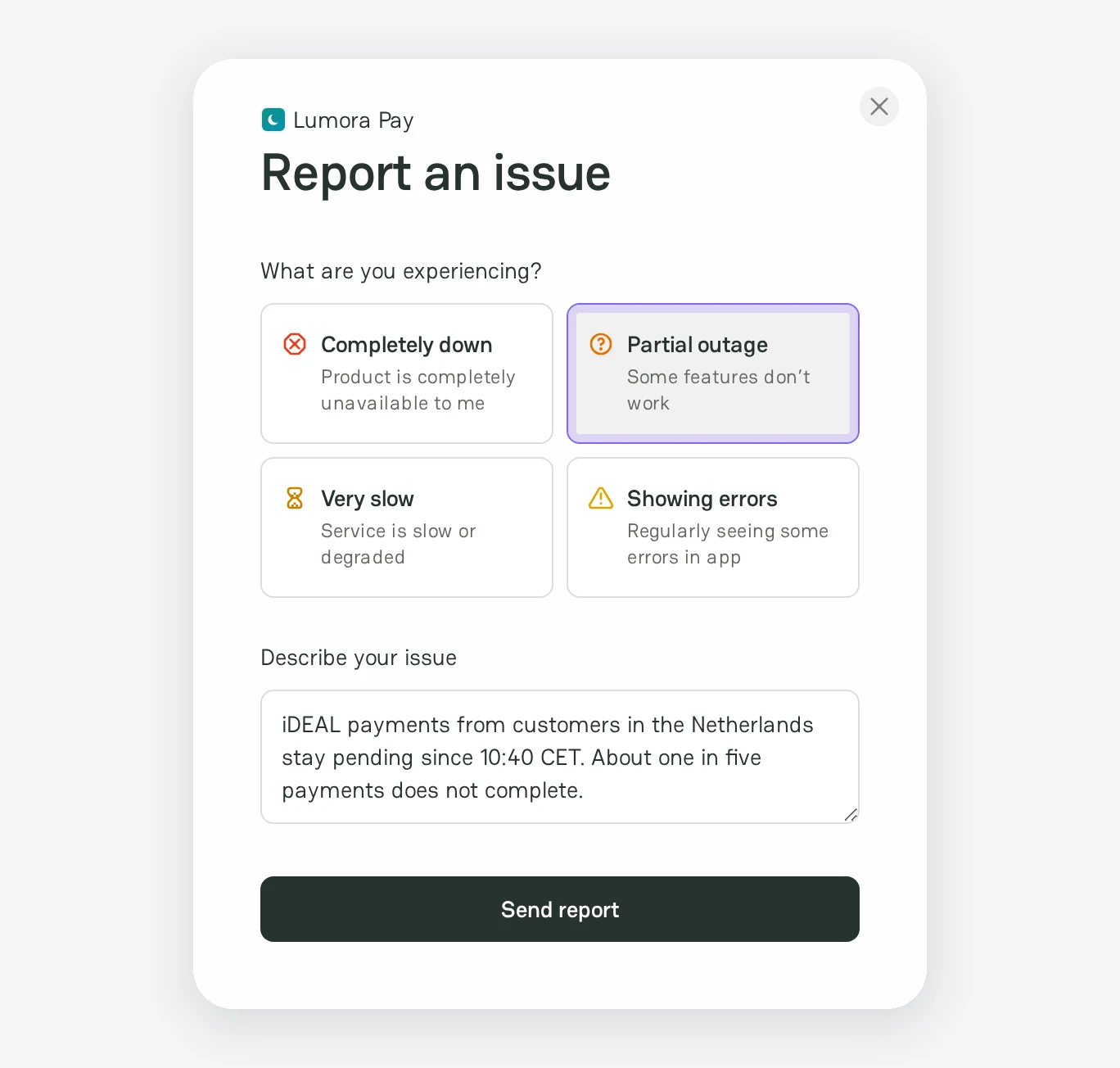
- Open Firemap and click Report an incident.
- In Payment provider, search for the provider and select it.
- In What are you experiencing?, select the issue type.
- In Describe your issue, describe the problem.
- Click Send report.
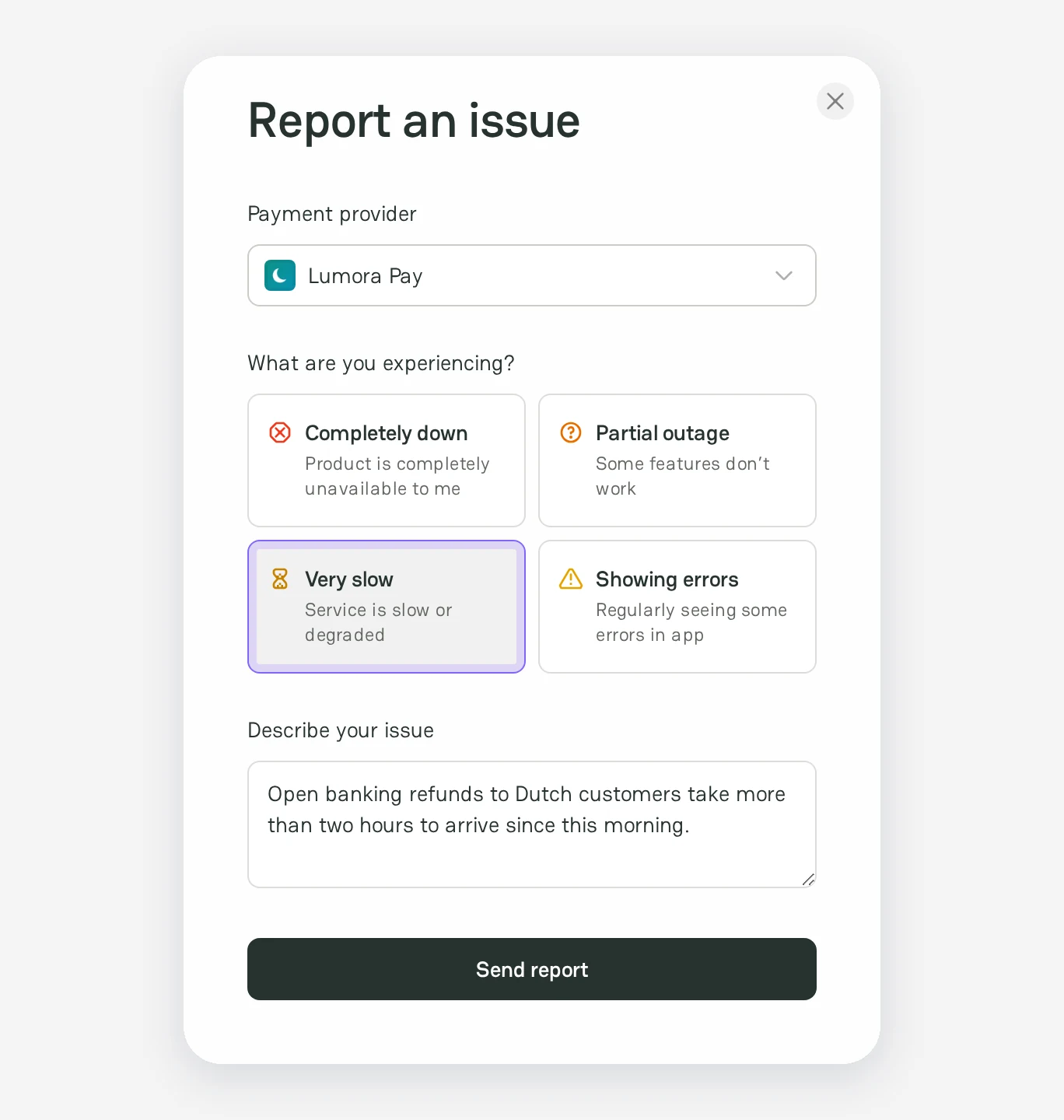
After you send the report, the Company status page of the provider opens at Community reports.
In the provider sidebar of Firemap, Create opens the same form with the provider selected.
Report limits
- The issue type and the description are required.
- The description has up to 1,000 characters.
- The description has text, not only links.
- You can send up to 6 reports a minute and up to 30 an hour. The hourly limit also counts your comments and the other content that you create.
Report publication
After you send the report, the Report published message shows. The report is in Community reports at once.
A published report shows in Community reports for 30 days, with its issue type. It also counts in the Reliability snapshot, adds a community signal to the Incidents timeline, and shows in Recent community reports on the Firemap page. A community report does not change the official status of the provider.
Report upvote
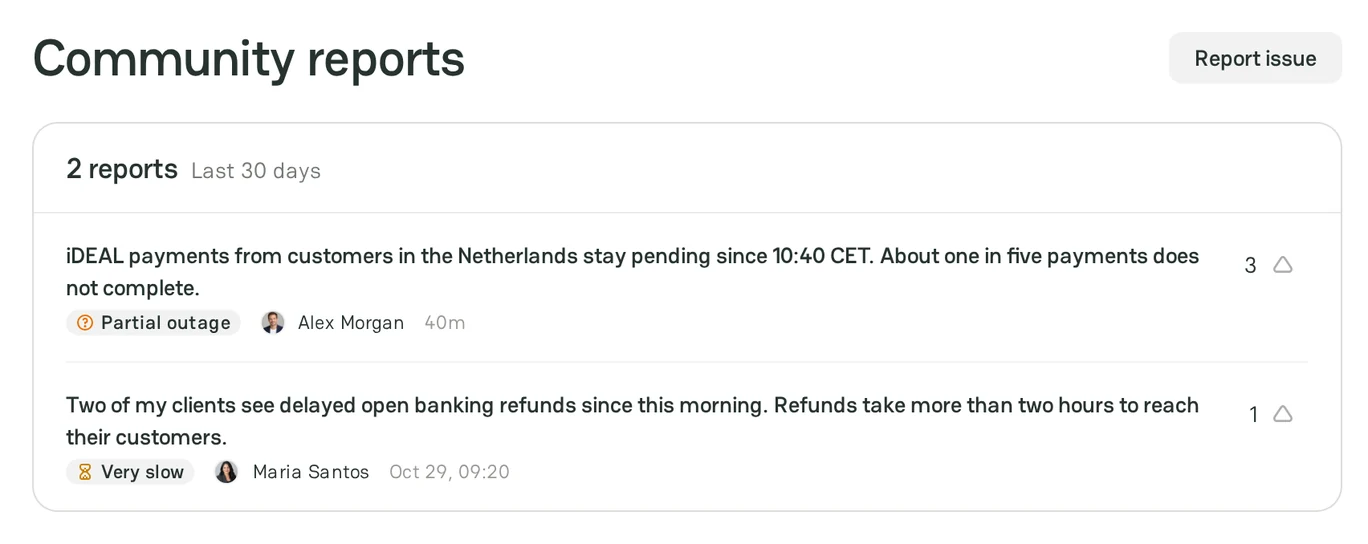
If you have the same problem, click the upvote button next to the report. The number shows how many users upvoted the report.
Status page suggestion
If the Company status page of a provider shows Status page not connected, suggest the link to the official status page:
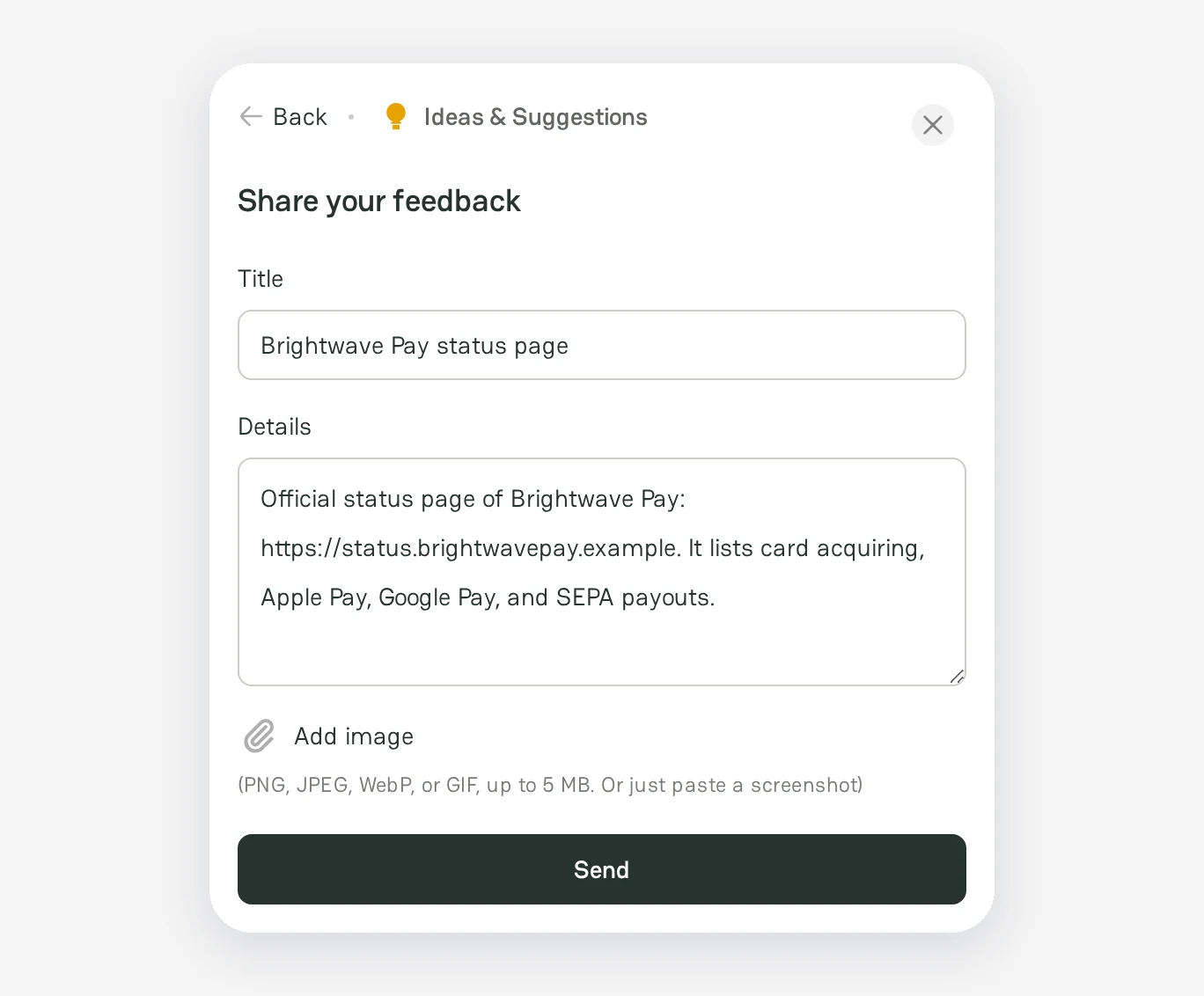
- Click Suggest a status page. The Share your feedback form opens.
- In Title, enter the name of the provider, for example
Brightwave Pay status page. - In Details, paste the link to the official status page of the provider and add a short note, for example
Official status page of Brightwave Pay: https://status.brightwavepay.example. The form does not accept a link without text. - If you are not signed in, enter Your name and Contact email. The form requires them. If you are signed in, the form does not show these fields.
- Click Send.
The suggestion goes to the PayAtlas team. If your account email has a company domain, the suggestion shows on the public feedback board at once. Otherwise, it shows there after a moderator approves it.
Missing provider
If Firemap does not track a provider, request it:
- Open Firemap.
- In Missing a Provider?, click Request missing provider.
- In Title, enter the name of the provider. In Details, enter its website with a short note, for example
Website: https://example.com. - If you are not signed in, enter Your name and Contact email. The form requires them. If you are signed in, the form does not show these fields.
- Click Send.
The provider joins the monitoring when Firemap finds its official status page.
Error in the status data
If the description or the reports of a provider have an error, click Share the feedback in the About … status page section of the Company status page.
Next steps
- To read the status of a provider, see Company status page.
- To follow all providers at once, see Firemap.



Comments