

Firemap
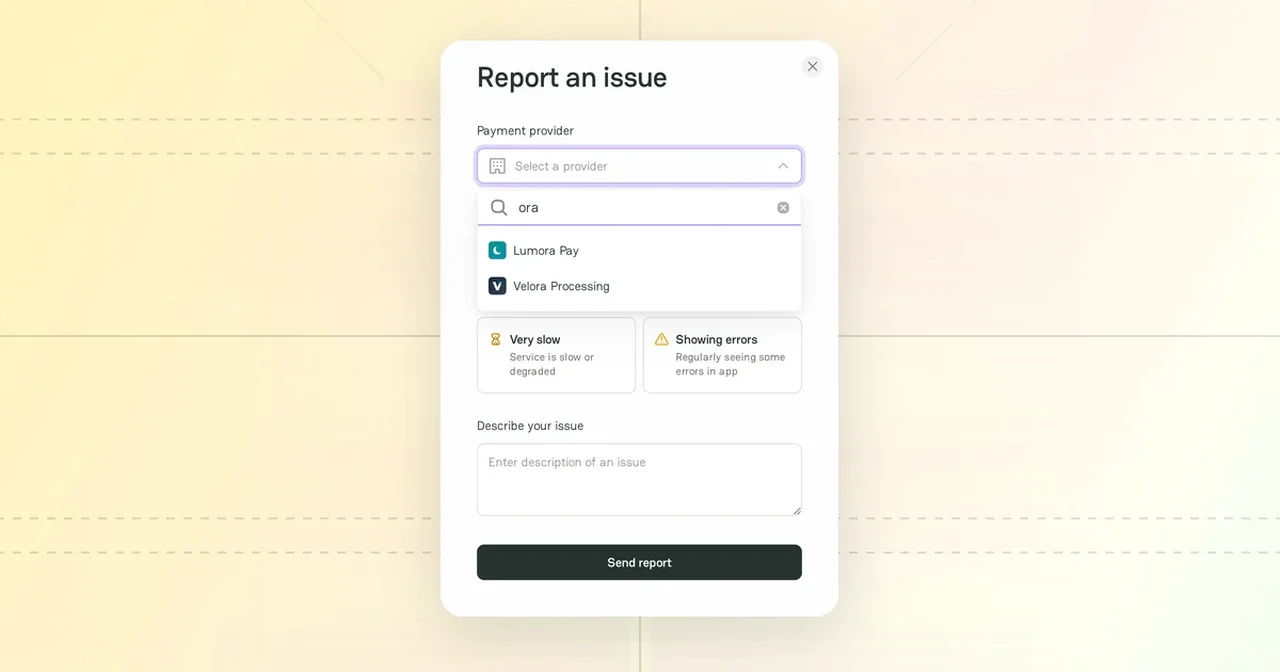
Firemap shows the health of the payment providers listed on PayAtlas on one page: payatlas.com/firemap. Use it to check whether a provider has an incident before you look for the cause in your own integration.
Status sources
Firemap reads the official public status page of each provider. It does not replace the official status page of a provider. It collects what each provider publishes, so you can follow the payment ecosystem at once.
- Firemap reads each tracked official status page automatically, about every five minutes.
- Nobody enters a status by hand. If a provider does not report an incident, Firemap shows the provider as operational.
- Firemap reads status pages that are built on Atlassian Statuspage and Better Stack.
- Firemap finds the official status page of a published provider Company by itself, for example at
status.<company domain>. - Community reports of PayAtlas users show in their own blocks. They do not change the official status.
Be aware that the Company status page shows Status page not connected when Firemap has not found the official status page of the provider. To suggest the link, see Report a provider issue.
Page sections
| Section | What it shows |
|---|---|
| Header | The time of the last update, the How Firemap works link to the How it works section, and the Report an incident button |
| Incidents timeline | The incidents of all tracked providers for each day |
| Categories | All providers and the service categories, with the number of providers that Firemap tracks in each of them |
| Providers with active issues | The providers with incidents or community reports in the last 30 days |
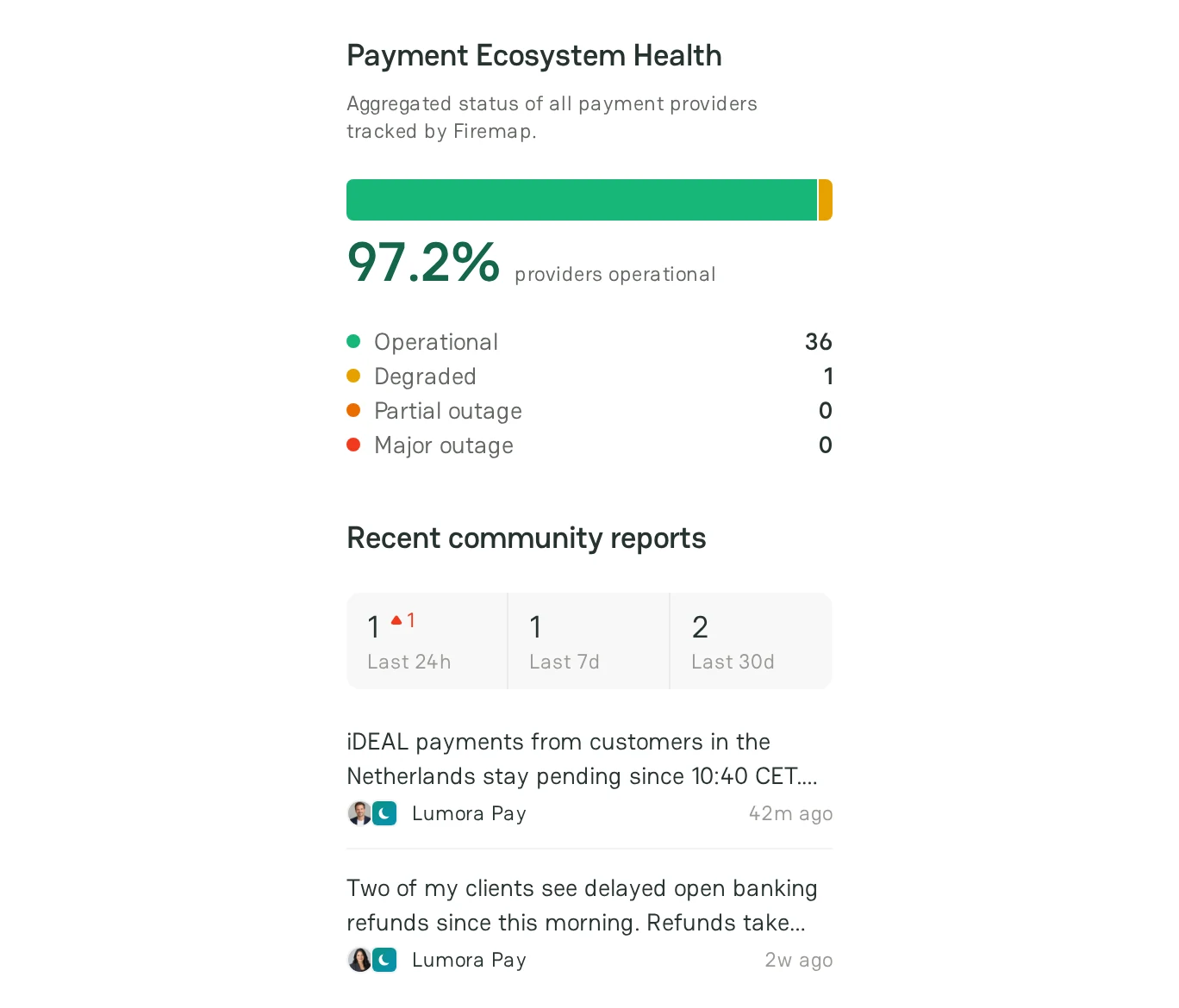
| Payment Ecosystem Health | The share of the operational providers and the number of providers on each level |
| Recent community reports | The number of community reports in the last 24 hours, 7 days, and 30 days, and the five latest reports |
| Missing a Provider? | A request to add a provider to the monitoring |
| Why Firemap | The problems of scattered provider status updates and how Firemap brings them together |
| How it works | The four steps of Firemap: Discover, Collect, Normalize, and Monitor |
| Firemap FAQ | Short answers about the data, the levels, and the blocks of the page |
Firemap uses four levels: Operational, Degraded, Partial outage, and Major outage. The wording of an incident belongs to the provider. Firemap maps it to these levels, so that you can compare providers. For more information, see Company status page.
Incidents timeline
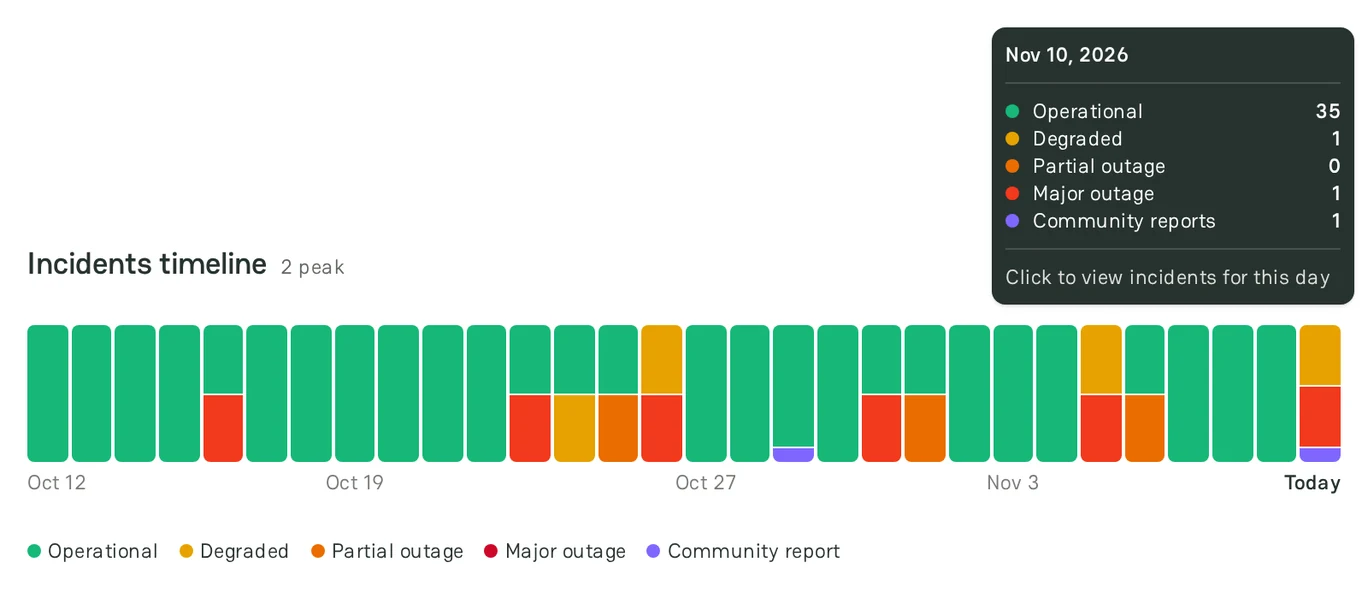
The Incidents timeline has one column for each day: 90 days on a wide screen, 60 or 30 days on a narrower screen.
- A day fills with the incidents of all tracked providers, in proportion to the busiest day on the screen. The heading shows the number of incidents of that day, for example "2 peak".
- The rest of each column is green. A fully green column is a day with no reported incidents.
- A purple strip marks a day with community reports.
- On a computer, point to a column to see the number of providers on each level and the number of community reports on that day.
- On a computer, click a column to see the providers that had issues on that day. To clear the day, click the column again.
Providers with active issues
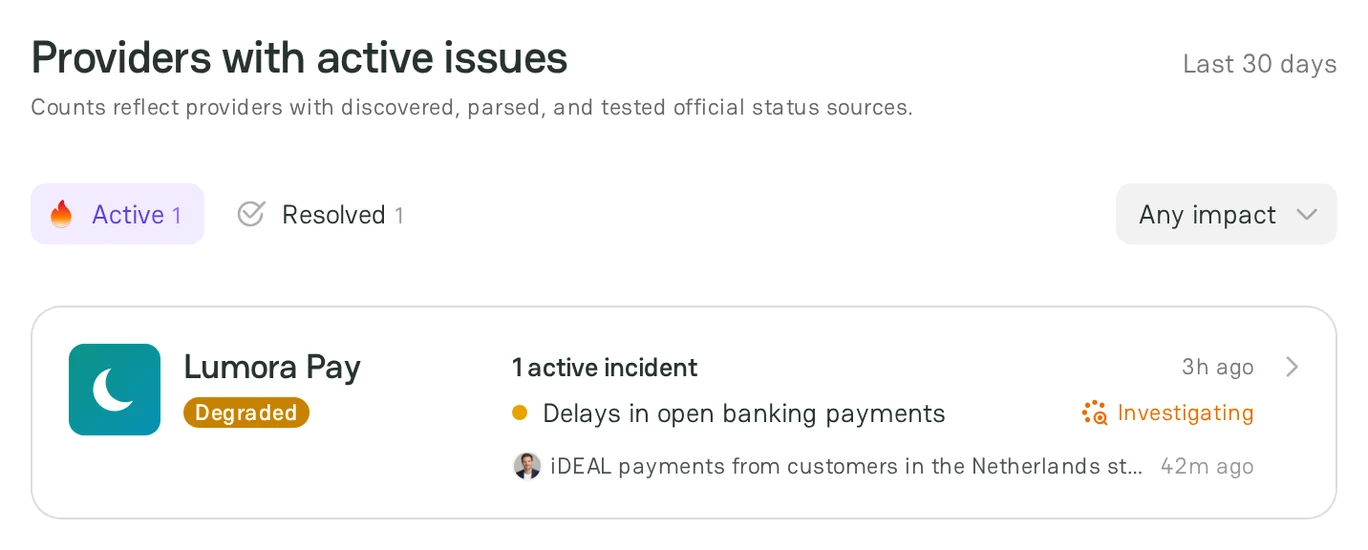
The provider list shows the providers that had official incidents or community reports in the last 30 days.
- The Active tab lists the providers with an open incident. The Resolved tab lists the other providers with incidents or reports.
- To see one level, select it in the Any impact filter.
- To change the order on the Resolved tab, use the sort: Most affected, Recently resolved, Longest, Highest impact, or Most reported.
- To see one service category, select it in Categories. To see all providers again, click All providers.
- Each card shows the level of the provider, the number of incidents, the latest incident with its stage, and the latest community report. Click Show more to see more providers.
Provider sidebar
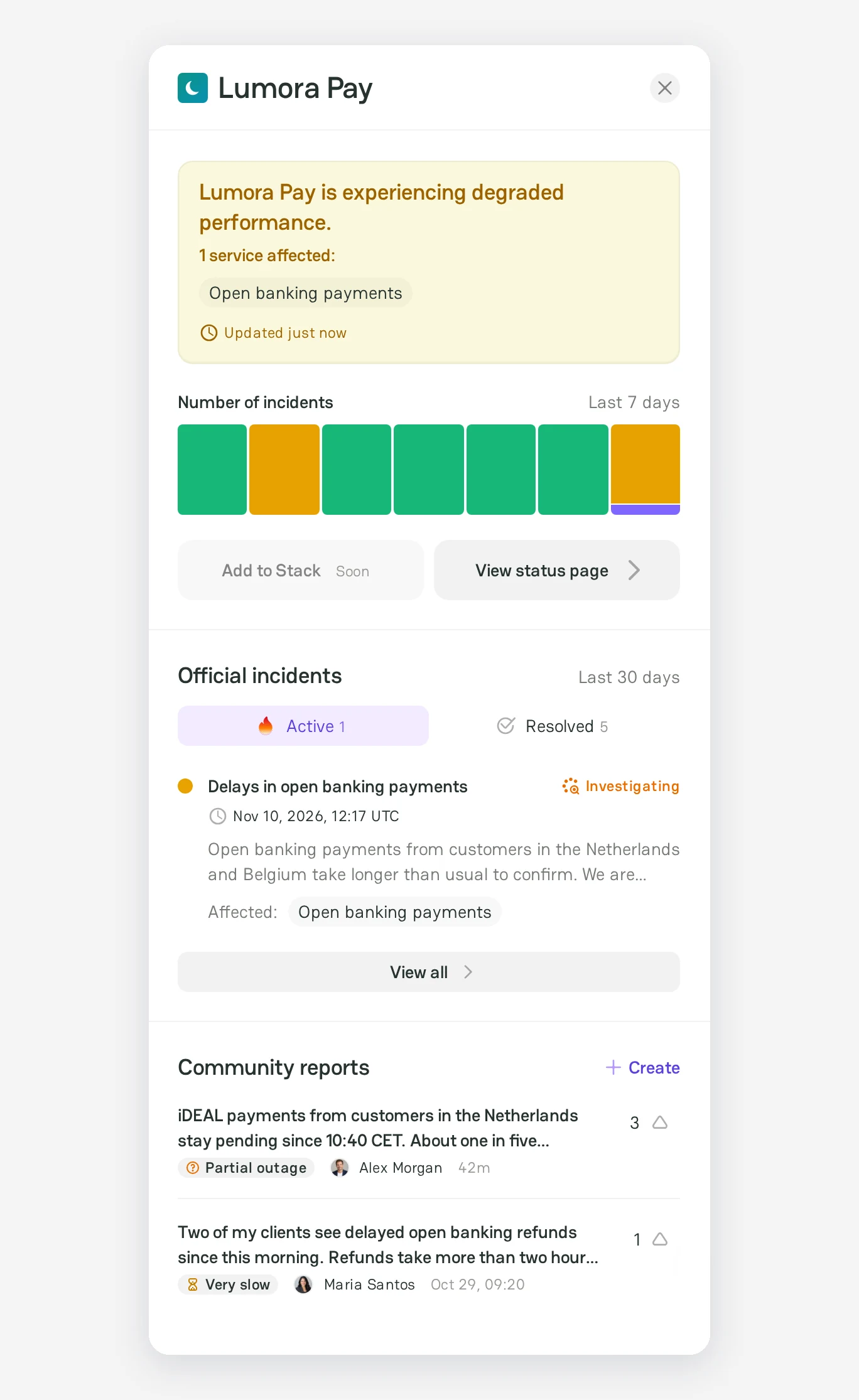
Click a card in the provider list, or a report in Recent community reports, to open the provider sidebar. It shows:
- The current status of the provider and the affected services.
- Number of incidents for the last 7 days.
- Official incidents on the Active and Resolved tabs. Click View all to see all incidents on the Company status page.
- The latest Community reports. Click Create to report a problem with this provider.
To open the Company status page of the provider, click View status page.
Payment ecosystem health
Payment Ecosystem Health shows the share of the tracked providers that are operational now and the number of providers on each level. Recent community reports shows how many reports PayAtlas users sent in the last 24 hours, 7 days, and 30 days, and lists the five latest reports with their providers.
To tell other users about a problem with a provider, click Report an incident. To send a report, see Report a provider issue.
Features
- Company status page: check the current status, the reliability snapshot, the incidents timeline, the official incidents, the community reports, and the services of one provider.
- Report a provider issue: tell other users about a problem, suggest an official status page, or request a missing provider.



Comments