

Company status page
Each provider Company on PayAtlas has a Company status page. It collects the data that Firemap has about the provider, so you can decide if a payment problem comes from the provider.
Status page location
- Open the Company Profile of a provider and click the Status tab. The dot on the tab shows the current status of the provider.
- On the Firemap page, click the provider in the provider list or in Recent community reports. Then click View status page in the provider sidebar.
- The URL of the Company status page is
https://payatlas.com/company/{slug}-{id}/status.
A merchant Company has no Company status page.
Page sections
Use the section menu next to the page to go to a section: Current status, Community reports, Official incidents, Services, FAQ, and Similar providers. The Open Firemap button under the menu opens the Firemap page.
| Section | What it shows |
|---|---|
| Current status | The current status box, the Reliability snapshot, and the Incidents timeline |
| Community reports | The problems that PayAtlas users reported in the last 30 days, with the issue type of each report |
| Official incidents | The incidents that the provider published, on the Active and Resolved tabs |
| Services | The status of each service and component, when the official status page of the provider lists them |
| About … status page | The start of the monitoring, the number of tracked services and components, the number of incidents, the date of the last update, and the Visit official status page link |
| FAQ | Answers about the current status, the uptime, the sources of the data, and the report form |
| Similar providers | Up to six similar providers. The providers with an open incident come first. |
Current status
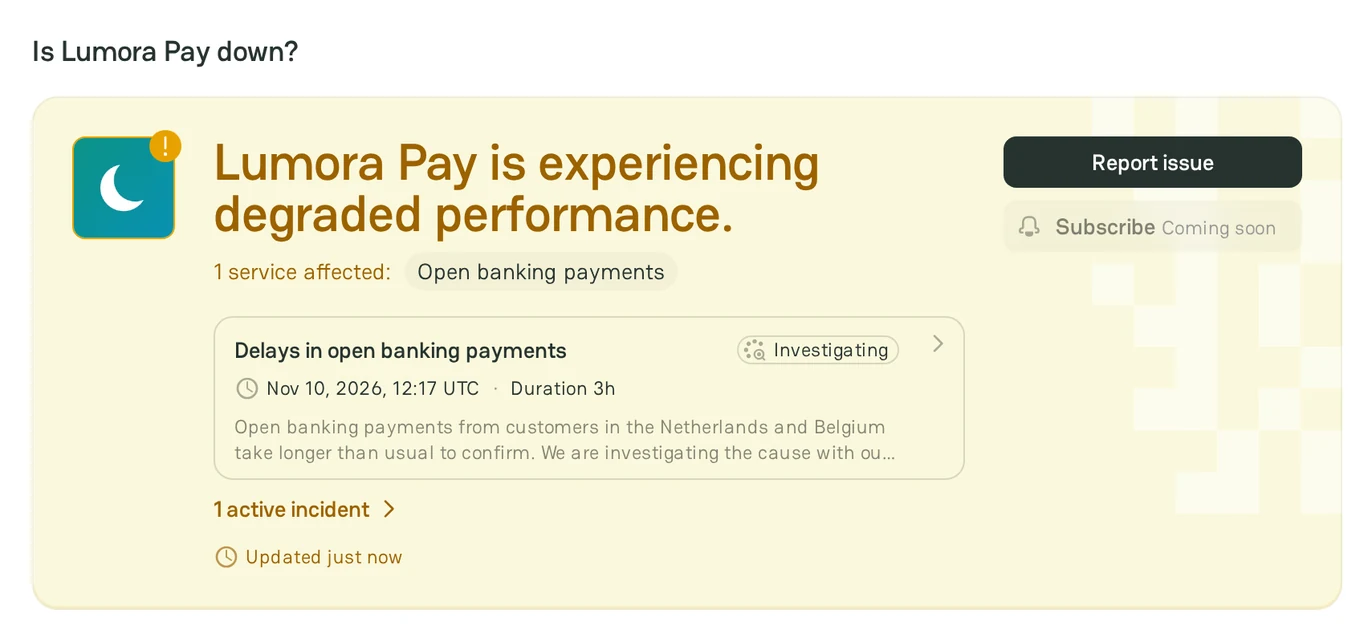
The box under the heading with the name of the provider, for example "Is Lumora Pay down?", shows the current level of the provider in its color. It also shows:
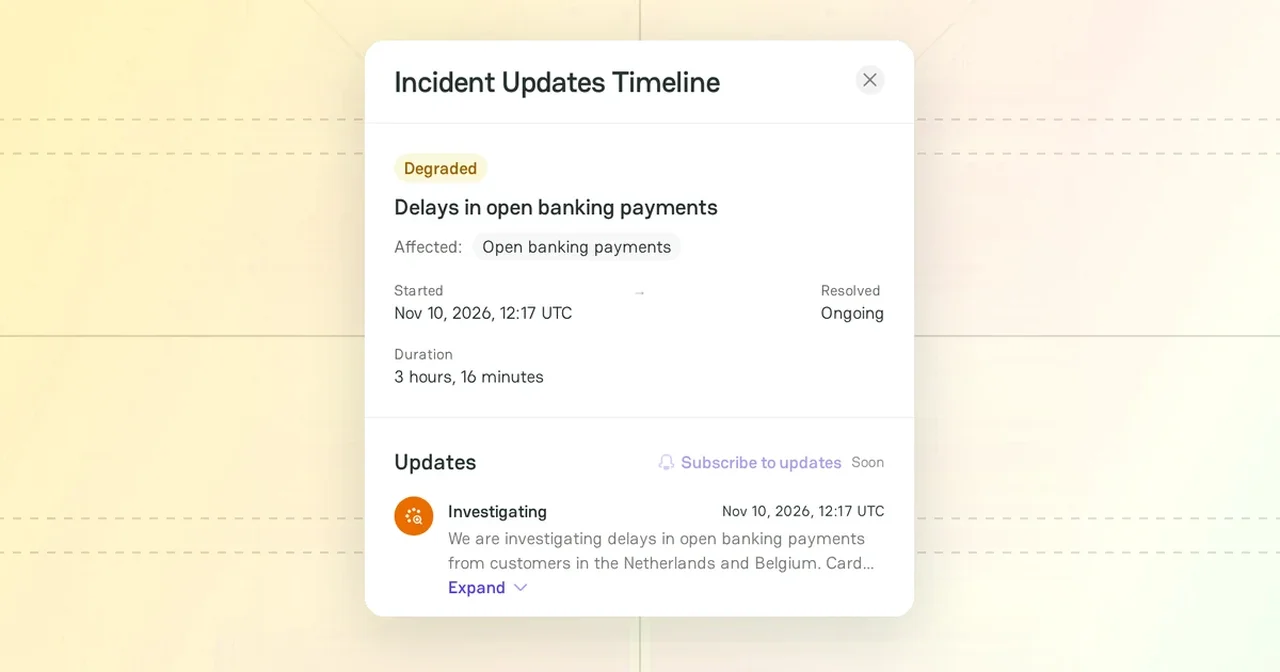
- The card of the current incident: the title, the stage, the start time in UTC, and the duration. Click the card to open the updates of the incident.
- The affected services and the number of active incidents.
- The time of the last reading of the official status page, for example "Updated 15m ago".
- The Report issue button. For more information, see Report a provider issue.
Status levels
| Level | Meaning |
|---|---|
| Operational | All services work normally. |
| Degraded | The services work, but some are slower or return more errors than usual. |
| Partial outage | Some services, regions, or payment methods are unavailable. The rest still work. |
| Major outage | A key service is unavailable for most customers. |
When the provider publishes it, an official incident also shows its stage: Investigating, Identified, Monitoring, or Resolved.
Reliability snapshot
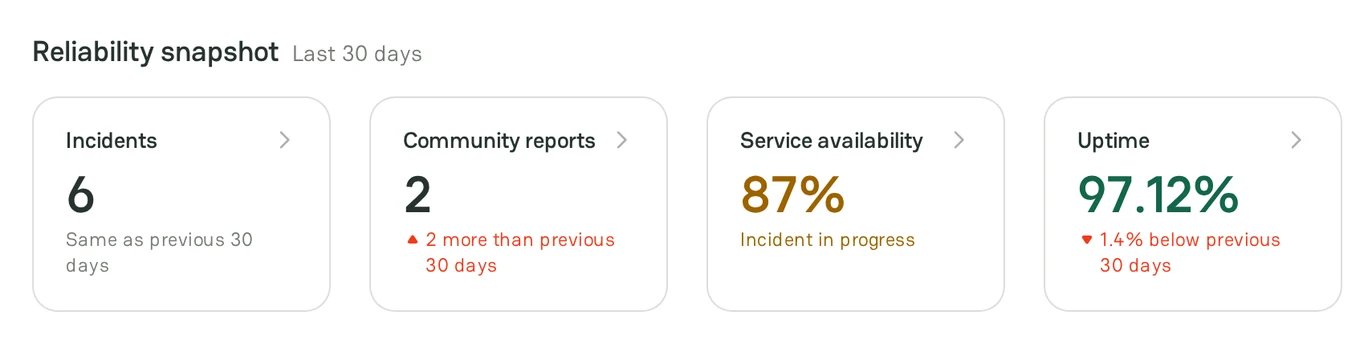
The Reliability snapshot compares the last 30 days with the 30 days before them. Click a card to go to the section that it sums up.
| Card | What it shows |
|---|---|
| Incidents | The number of official incidents that started in the last 30 days |
| Community reports | The number of approved community reports in the last 30 days |
| Service availability | The share of the services that work normally now. The card shows only when the official status page lists the services. |
| Uptime | The average share of each day when the provider was operational. Degraded and outage time counts as downtime. |
A change for the worse is red, and a change for the better is green. Incidents and Community reports show the difference, for example "2 more than previous 30 days", or "Same as previous 30 days" when the number did not change. Uptime shows "Same as previous 30 days" for a change of less than 0.1%. If Firemap has watched the provider for less than 60 days, Incidents and Uptime show "No data for previous 30 days". The snapshot does not show on a phone.
Incidents timeline
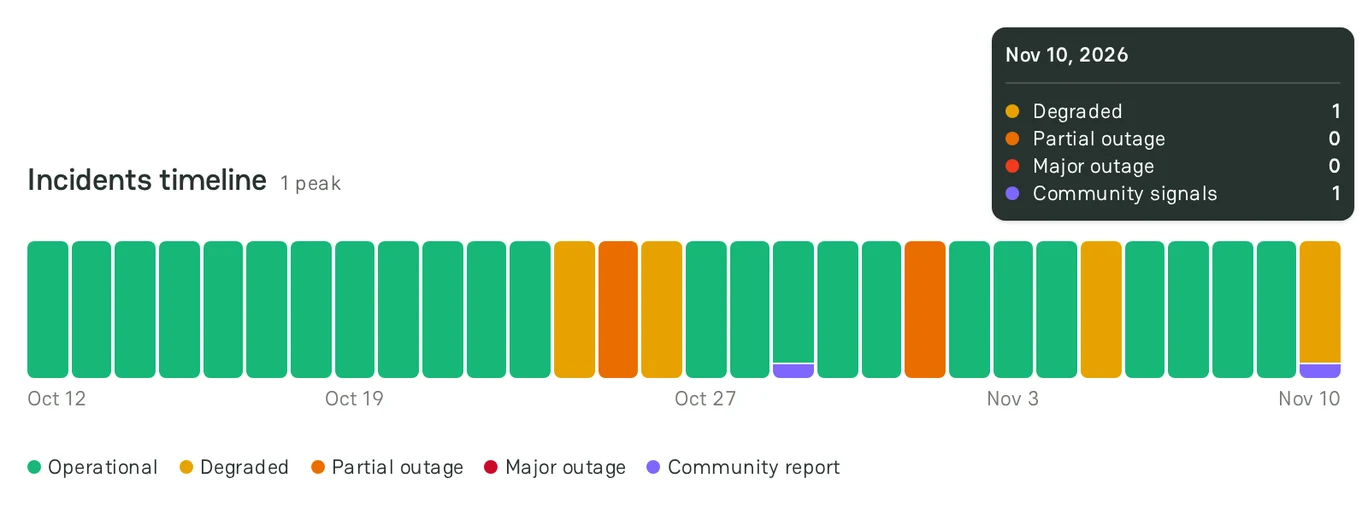
The Incidents timeline has one column for each day: 90 days on a wide screen, 60 or 30 days on a narrower screen.
- A day fills with its incidents, in proportion to the busiest day on the screen. The heading shows the number of incidents of that day, for example "1 peak".
- The rest of each column is green. A day without incidents stays green, even if Firemap could not read the official status page on that day.
- A purple strip marks a day with community reports.
- On a computer, point to a column to see the number of incidents of each level and the number of community signals on that day.
Official incidents
The Active tab lists the open incidents. The Resolved tab lists the incidents that started in the last 30 days. To see the incidents of one level, select it in the Any impact filter.
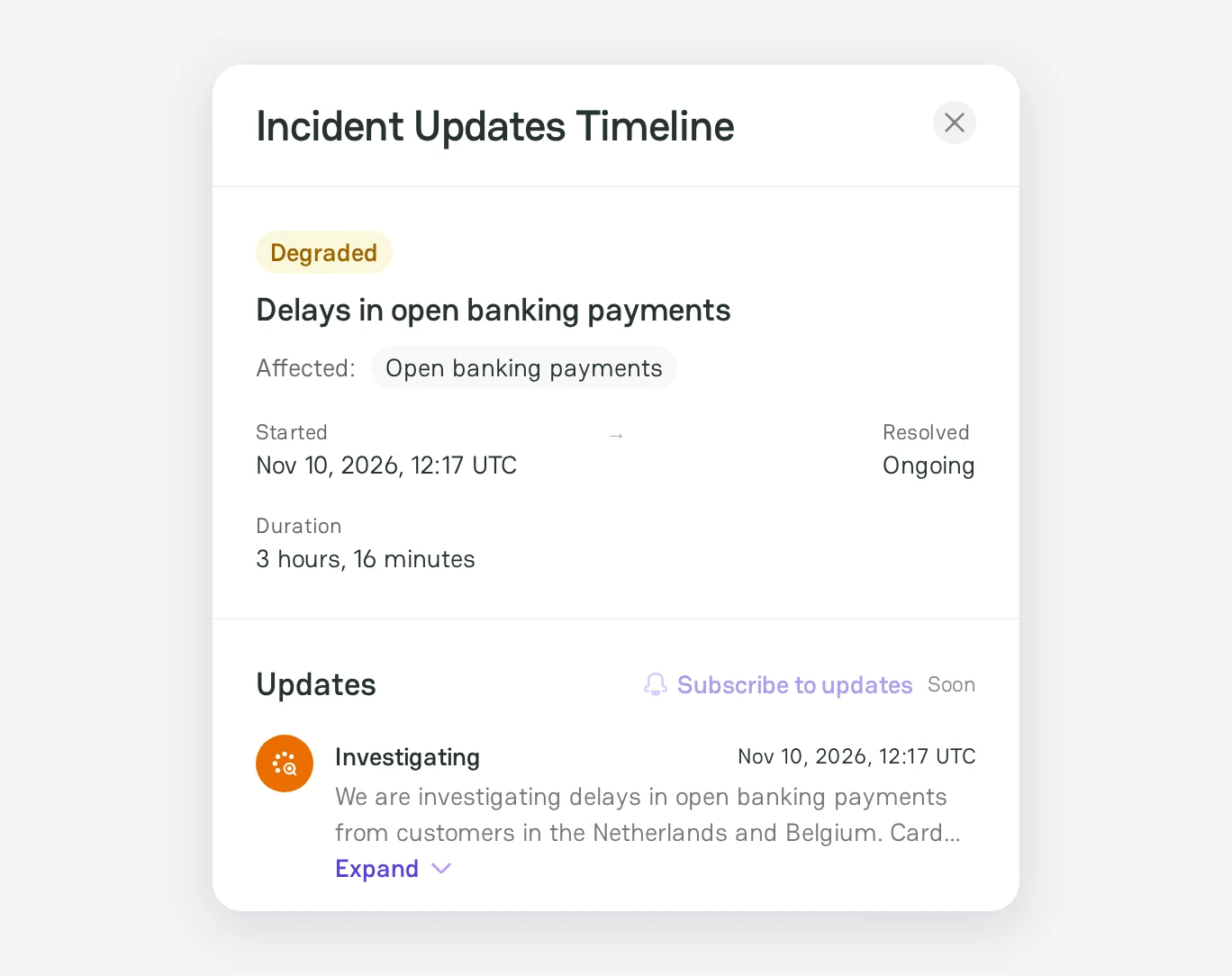
Click an incident to open the Incident Updates Timeline. It shows the level, the affected services, the start time, the resolution time, and the duration. When the official status page publishes updates of the incident, the panel also shows them, newest first.
Official incidents and community reports
| Official incidents | Community reports | |
|---|---|---|
| Source | The official status page of the provider | PayAtlas users |
| Confirmed by the provider | Yes | No |
| Effect on the status | Sets the status | Shows as a community signal only |
A provider often publishes an incident only after the first failures. Community reports can show a problem earlier, but the problem can be local: one bank, one country, or one integration. Treat a report without an official incident as an early signal, not as a confirmed outage.
Pay attention! The Company status page shows what the provider publishes about its platform, not the state of your merchant account. Check your own transaction logs and decline codes before you change the payment routing.
Data freshness
- The current status box shows when Firemap last read the official status page, for example "Updated 2h ago".
- If a check fails, the page keeps the last status with its time.
- If Firemap has no reading for 7 days, or has no working official status page for the provider, the page shows Status page not connected.
Status page not connected
Firemap finds the official status page of a published provider Company by itself. It reads status pages that are built on Atlassian Statuspage and Better Stack. If Firemap cannot find or read the official status page, the Company status page shows Status page not connected in place of the current status box.

If you know the official status page of the provider, click Suggest a status page. To suggest the link, see Report a provider issue.
Related articles
- To follow all providers at once, see Firemap.
- To tell other users about a problem, see Report a provider issue.



Comments